What is Android?
This course covers the older version of Android development, built with Java and XML layouts. The current mainstream approach is Kotlin + Compose.
Android System Architecture (4 Layers)
| Layer | Description |
|---|---|
| 1. Linux Kernel Layer | Provides low-level driver support for hardware |
| 2. System Runtime Library Layer | Offers Android features via C/C++, such as the SQLite database and Webkit browser engine. It also includes Android core libraries that allow developers to build Android apps using Java. The core libraries contain the Dalvik Virtual Machine (replaced by the ART Runtime starting from Android 5.0), which enables every Android application to run in an independent process. |
| 3. Application Framework Layer | Provides various APIs used to build applications |
| 4. Application Layer | Apps installed on the phone belong to this layer, including built-in contacts, SMS and address book applications. |
Android Version Evolution (Candy Names)
| Time | Version | Major Changes |
|---|---|---|
| Sep 2008 | Android 1.0 | Initial release |
| Subsequent releases | 2.1 / 2.2 / 2.3 | — |
| Feb 2011 | 3.0 | — |
| Oct 2011 | 4.0 | — |
| 2014 | 5.0 | ART replaced Dalvik Virtual Machine |
| 2015 | 6.0 | Added runtime permission feature |
| 2016 | 7.0 | Added multi-window mode |
| 2018 (latest at that time) | 8.0 | — |
At that time, Android 4.0 and above accounted for most of the market share.
Features of Android App Development
1. Four Major Components
The four major Android components are:
- Activity: The face of an application. Everything visible inside the app lives in an Activity (similar to the View in MVC).
- Service: Runs quietly in the background and can continue working even after the user closes the app.
- Broadcast Receiver: Lets apps receive broadcast messages from many sources (such as incoming calls and SMS), and also send out broadcasts.
- Content Provider: Enables data sharing between applications (for example, reading contact entries from the address book).
2. Rich System Controls
Android supplies a wide set of built-in UI controls to easily build attractive interfaces, and fully supports custom controls.
3. SQLite Database
Lightweight, fast embedded relational database built into Android. It supports standard SQL syntax, and you can use wrapped APIs for data storage and read/write operations.
4. Powerful Multimedia
Comprehensive multimedia services are available: music, video, audio recording, camera capture, alarms and more, all controllable from code (e.g. a movie ticket app adding calendar events and setting reminders).
5. Geolocation
Phones include GPS hardware, so your app can know the device’s location anywhere, a standout feature of mobile systems.
Now let’s step into the world of Android.
First we need to set up our development environment.
This is the full content of Chapter 02: Android Development Environment and Tools. I have organized it below:
Android Development Environment and Tools
Programming Language and SDK
- Android applications were built with Java, so you need to install the Java SDK provided by Oracle.
- Android also has its own SDK provided by Google.
Development Tools
| Tool | Description |
|---|---|
| Eclipse + ADT Plugin | Popular toolchain in the early days |
| Android Studio | Official Google IDE (current mainstream). It can install Android SDK and emulator together during setup. |
Installation Notes
When installing Android Studio, check all options on the component selection screen, including:
| Component | Description |
|---|---|
| Android Studio | Main program |
| Android SDK | May require online download |
| Android Virtual Device (AVD) | Android emulator to run and test apps on your computer |
Android Studio Configuration and Your First Android App
Troubleshooting this issue
Android Studio app creation issue: Install repository and sync project
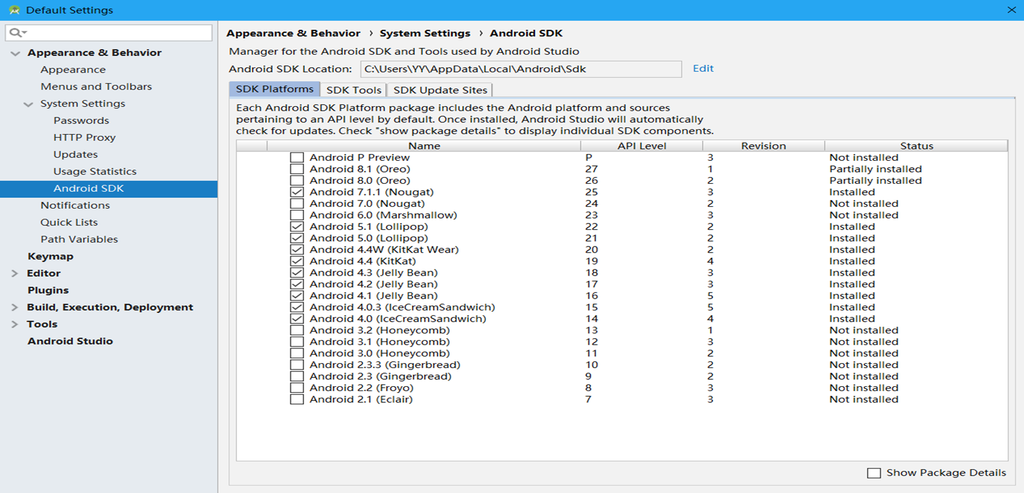
We will install all versions starting from Android 4.0
Open Android SDK Manager under the Tools menu to perform installations
After Android Studio is installed, many components still need to be downloaded online. Prepare your network connection properly.
Some network providers cannot complete online installation, for example Great Wall Broadband seems unable to download these files. Telecom broadband is recommended.
Upgrade Android Studio to version 3.1.2 or newer
Click Install repository and sync project to start installation
It will configure settings and download Gradle online
Only after full configuration will the screen appear
Run Your First Android Application
Create a new virtual device, that is the Android emulator
We can debug our applications on the emulator, or on a real physical phone.
You need to turn off Hyper-V; the emulator cannot coexist with it.
Many components can be downloaded directly inside Android Studio as long as your network can access the required servers.
I use a China Telecom unlimited data SIM card and can complete online downloads successfully.
Our studio uses Great Wall Broadband, which cannot fetch some Android Studio resources online.
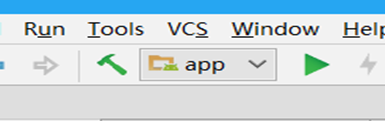
Click run and select an emulator
Then you can launch your first application
Configure Android Studio editor and font settings
File —- Settings —- Appearance
Understanding Android