Math Worksheet Generator – User Instructions
Overview
I’m sure most people using this tool are parents of young kids — I’m one of them too. Back when my child needed regular math practice problems, I bought printed workbooks and downloaded worksheets online, most of which came with paid fees. One day it hit me: these basic math problems follow simple rules and can easily be auto-generated with code. Working as a developer, why not build my own homework-making utility? I got started right away and coded a quick console app in my spare time after work; running it would export all problems into an Excel file for me to copy and organize manually. Later on, I refined the program into a full desktop app with adjustable generation settings. Eventually I decided to share this handy tool with more users and rebuilt it as a web-based service, so anyone can create custom practice sheets just via a regular browser. That’s how this website came to be. On this page, tweak all available addition and subtraction parameters to produce a fully formatted Word document. Simply set your preferred file title, then download and print the finished worksheet directly.
This guide covers usage for Two-Number Addition & Subtraction Generator – Homework Creator.
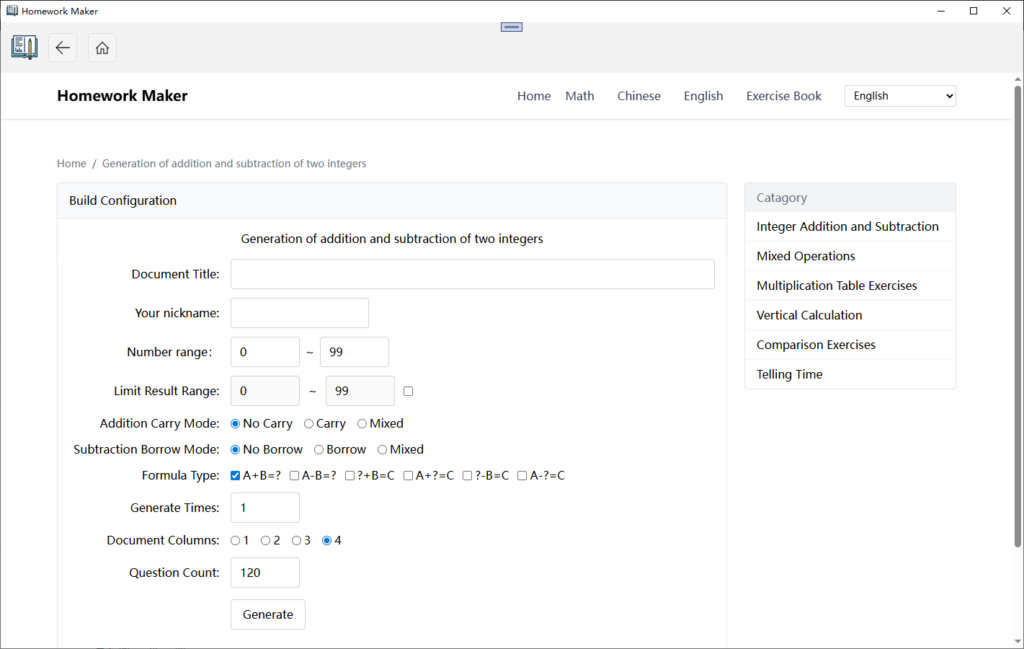
1. Basic Information Settings
- Title: Name your generated worksheet file
- Student Name: Enter the pupil’s name, which will appear at the top of the output sheet
2. Number Range Configuration
- Operand Range: Define the minimum and maximum values for numbers used in equations
- Result Range: Set upper and lower bounds for final calculation answers
3. Advanced Question Options
- Carry/Borrow Rules: No carry-only, carry-only, or mixed carry & borrow modes available
- Problem Type: Addition-only, subtraction-only, or various fill-in-the-blank formats
- Fixed Answer: Lock a uniform answer for all blank-filling questions when needed
4. Layout & Quantity Setup
- Columns per Row: Decide how many math problems display side-by-side on a single line
- Total Questions: Specify the overall count of exercises to generate
5. Generate & Download File
- Hit the Generate button once all configurations are finalized
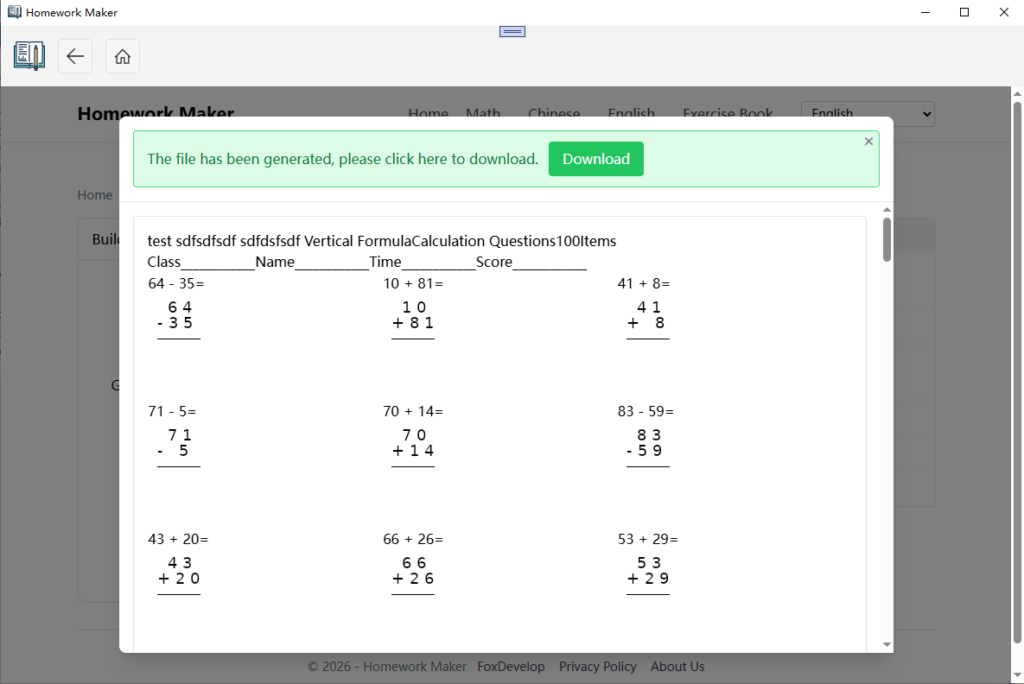
- Click the generated file name to download your formatted worksheet ready for printing
Thanks for your support! Feel free to drop us a message if you have suggestions or feedback.