本課程將教大家繪製介面選單,我們會實作類似TXT記事本的程式,視窗頂部配置選單列,選單內提供「儲存」子選項。點擊儲存後,會將下方文字編輯框的所有內容寫入檔案。過程會解決文字亂碼問題,教導字型與編碼設定;若未正確設定,非英文字元會變成問號亂碼。
點擊儲存時會彈出系統檔案儲存視窗,使用者可選擇儲存資料夾、自訂檔案名稱,確認後完成文字存檔。
下方是程式執行完成後的畫面截圖:
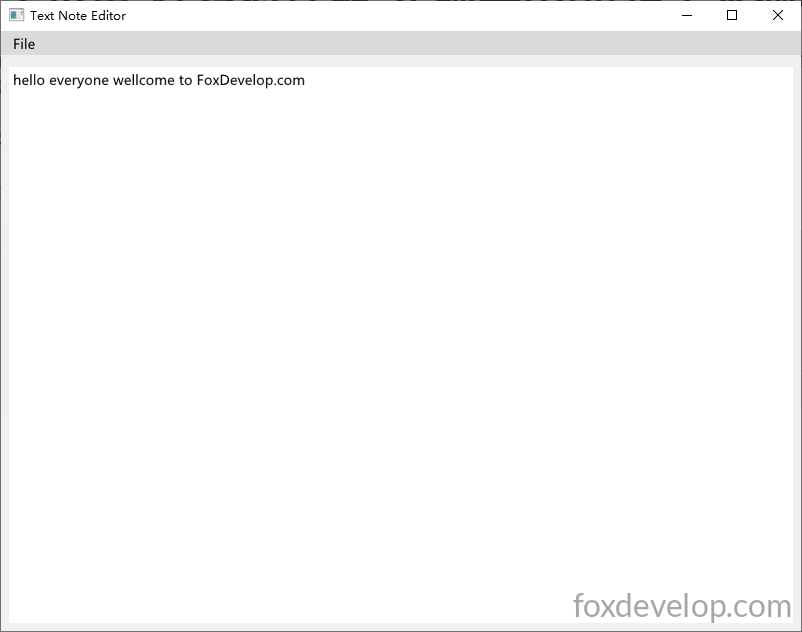
功能仿照Windows內建記事本,具備基礎文字編輯與存檔功能,編譯後執行檔體積非常輕巧。
以Release模式編譯後,程式僅645kb。

接下來完整講解程式原始碼:
#pragma comment(linker, "/SUBSYSTEM:windows /ENTRY:mainCRTStartup")
#pragma execution_character_set("utf-8")

#include <GLFW/glfw3.h>
#include "imgui.h"
#include "backends/imgui_impl_glfw.h"
#include "backends/imgui_impl_opengl3.h"
#include <cstdio>
#include <string>
#include <fstream>
#include <windows.h>
#include <io.h>
#include <commdlg.h>  // 檔案對話視窗必備標頭檔

// 文字緩衝區容量上限
const int TEXT_BUFFER_MAX = 4096;
std::string editor_text;

// 將文字儲存至檔案,輸出UTF8帶BOM格式
// 把文字內容寫入指定路徑檔案
bool SaveTextToFile(const char* filepath, const std::string& text)
{
    std::ofstream out_file(filepath, std::ios::out | std::ios::binary);
    if (!out_file.is_open())
        return false;
    const unsigned char utf8_bom[] = { 0xEF, 0xBB, 0xBF };
    out_file.write((char*)utf8_bom, sizeof(utf8_bom));
    out_file << text.c_str(); // 輸出空字元前的有效文字
    out_file.close();
    return true;
}

// 彈出系統儲存檔案對話視窗,回傳使用者選取的檔案路徑
bool ShowSaveFileDialog(char* out_path, DWORD out_size)
{
    OPENFILENAMEA ofn;   // 這裡使用ANSI A版本
    ZeroMemory(&ofn, sizeof(ofn));
    ofn.lStructSize = sizeof(ofn);
    ofn.hwndOwner = nullptr;
    ofn.lpstrFilter = "文字檔\0*.txt\0所有檔案\0*.*\0"; // 篩選txt或全部格式
    ofn.lpstrFile = out_path;
    ofn.nMaxFile = out_size;
    ofn.Flags = OFN_PATHMUSTEXIST | OFN_FILEMUSTEXIST | OFN_OVERWRITEPROMPT;
    ofn.lpstrDefExt = "txt";

    return GetSaveFileNameA(&ofn);   // 呼叫ANSI版本對話函式
}

// 載入字型解決問號亂碼
// 依據自身作業系統環境替換字型路徑,或使用系統預設字型
void SetupFont(ImGuiIO& io)
{
    // Windows常見繁簡中文字型路徑
    const char* font_path = "C:/Windows/Fonts/msyh.ttc"; // 微軟雅黑
    float font_size = 18.0f;

    // 載入簡體中文常用字集範圍
    ImVector<ImWchar> ranges;
    ImFontGlyphRangesBuilder builder;
    builder.AddRanges(io.Fonts->GetGlyphRangesChineseSimplifiedCommon());
    builder.BuildRanges(&ranges);

    // 載入自訂字型
    io.Fonts->AddFontFromFileTTF(font_path, font_size, nullptr, ranges.Data);

    // 如需多國語言支援可追加以下程式碼:
    // io.Fonts->AddFontFromFileTTF(font_path, font_size, nullptr, io.Fonts->GetGlyphRangesJapanese());
    // io.Fonts->AddFontFromFileTTF(font_path, font_size, nullptr, io.Fonts->GetGlyphRangesKorean());
}


int main()
{
    SetConsoleOutputCP(65001);
    // 關鍵:擴充緩衝區並全部填0清除記憶體殘值,解決????問號亂碼
    editor_text.resize(TEXT_BUFFER_MAX, '\0');

    if (!glfwInit())
    {
        printf("GLFW 初始化失敗\n");
        return -1;
    }

    const char* glsl_version = "#version 330";
    glfwWindowHint(GLFW_CONTEXT_VERSION_MAJOR, 3);
    glfwWindowHint(GLFW_CONTEXT_VERSION_MINOR, 3);
    glfwWindowHint(GLFW_OPENGL_PROFILE, GLFW_OPENGL_CORE_PROFILE);

    GLFWwindow* window = glfwCreateWindow(800, 600, "文字記事編輯器", nullptr, nullptr);
    if (!window)
    {
        glfwTerminate();
        return -1;
    }
    glfwMakeContextCurrent(window);
    glfwSwapInterval(1);

    IMGUI_CHECKVERSION();
    ImGui::CreateContext();
    ImGuiIO& io = ImGui::GetIO();
    ImGui::StyleColorsLight();

    SetupFont(io); // 載入字型,修復文字亂碼

    ImGui_ImplGlfw_InitForOpenGL(window, true);
    ImGui_ImplOpenGL3_Init(glsl_version);

    bool show_save_success = false;
    bool show_save_fail = false;

	char path[MAX_PATH] = "";// 儲存檔案路徑緩衝區

    while (!glfwWindowShouldClose(window))
    {
        glfwPollEvents();

        // Ctrl+S 快速存檔捷徑
        if (io.KeyCtrl && ImGui::IsKeyPressed(ImGuiKey_S))
        {
            if (ShowSaveFileDialog(path, MAX_PATH))
            {
                if (SaveTextToFile(path, editor_text))
                    show_save_success = true;
                else
                    show_save_fail = true;
            }
        }

        ImGui_ImplOpenGL3_NewFrame();
        ImGui_ImplGlfw_NewFrame();
        ImGui::NewFrame();

        ImGui::SetNextWindowPos(ImVec2(0, 0));
        ImGui::SetNextWindowSize(io.DisplaySize);

        ImGuiWindowFlags window_flags = ImGuiWindowFlags_NoDecoration
            | ImGuiWindowFlags_NoMove
            | ImGuiWindowFlags_NoResize
            | ImGuiWindowFlags_NoSavedSettings
            | ImGuiWindowFlags_MenuBar;   // 必須加上此旗標才會顯示選單列

        ImGui::PushStyleVar(ImGuiStyleVar_WindowRounding, 0.0f);
        ImGui::PushStyleVar(ImGuiStyleVar_WindowBorderSize, 0.0f);

        ImGui::Begin("文字記事編輯器", nullptr, window_flags);

        // 頂部選單列繪製
        if (ImGui::BeginMenuBar())
        {
            if (ImGui::BeginMenu("檔案"))
            {
				if (ImGui::MenuItem("儲存", "Ctrl+S")) // 儲存子選項:顯示文字 + 捷徑提示
                {
					// 邏輯和按鈕完全相同,點擊選單就會執行大括號內程式
					if (ShowSaveFileDialog(path, MAX_PATH)) // 彈出儲存對話視窗
                    {
						if (SaveTextToFile(path, editor_text)) // 執行文字存檔
                            show_save_success = true; // 標記存檔成功,後續彈出提示視窗
                        else
                            show_save_fail = true;
                    }
                }

                ImGui::Separator();

                if (ImGui::MenuItem("離開", "Esc")) // 離開程式選項
                {
					glfwSetWindowShouldClose(window, true); // 設定視窗關閉旗標,結束程式
                }
                ImGui::EndMenu();
            }
            ImGui::EndMenuBar();
        }

        ImGui::Spacing();

        ImVec2 multiline_size = ImGui::GetContentRegionAvail();
        // 修復問號亂碼核心:傳入固定緩衝區最大長度,記憶體已預填零無殘值
        ImGui::InputTextMultiline("##text_editor", &editor_text[0], TEXT_BUFFER_MAX, multiline_size);

	// 依存檔結果標記判斷是否彈出提示視窗
        if (show_save_success)
        {
            // 此行程式不會繪製任何視窗、不會執行BeginPopupModal
	    ImGui::OpenPopup("儲存成功");// 給ImGui內部狀態打標記,告知後續要彈出模態視窗,字串為視窗唯一ID
            show_save_success = false;
        }
        if (show_save_fail)
        {
			ImGui::OpenPopup("儲存失敗");// 標記失敗提示視窗
            show_save_fail = false;
        }

	// 繪製儲存成功模態視窗
        if (ImGui::BeginPopupModal("儲存成功", nullptr, ImGuiWindowFlags_AlwaysAutoResize))
        {
            ImGui::Text("文字檔儲存完成!");
            if (ImGui::Button("確定", ImVec2(120, 0)))
                ImGui::CloseCurrentPopup();
            ImGui::EndPopup();
        }

	// 繪製儲存失敗模態視窗
        if (ImGui::BeginPopupModal("儲存失敗", nullptr, ImGuiWindowFlags_AlwaysAutoResize))
        {
            ImGui::Text("路徑無效或沒有寫入權限!");
            if (ImGui::Button("確定", ImVec2(120, 0)))
                ImGui::CloseCurrentPopup();
            ImGui::EndPopup();
        }

        ImGui::End();
        ImGui::PopStyleVar(2);

        ImGui::Render();
        int width, height;
        glfwGetFramebufferSize(window, &width, &height);
        glViewport(0, 0, width, height);
        glClearColor(0.12f, 0.12f, 0.12f, 1.f);
        glClear(GL_COLOR_BUFFER_BIT);
        ImGui_ImplOpenGL3_RenderDrawData(ImGui::GetDrawData());

        glfwSwapBuffers(window);
    }

    ImGui_ImplOpenGL3_Shutdown();
    ImGui_ImplGlfw_Shutdown();
    ImGui::DestroyContext();
    glfwDestroyWindow(window);
    glfwTerminate();
    return 0;
}Code language: C++ (cpp)
我已經將核心邏輯封裝成獨立函式,上方分別是檔案寫入、系統檔案對話視窗、字型編碼設定三個功能函式。
介面繪製和之前範例相比,新增兩大元件:選單列與多行文字編輯框。
選單列實作
if (ImGui::BeginMenuBar())
{
    if (ImGui::BeginMenu("檔案"))
    {Code language: C++ (cpp)
選單繪製起點在這裡,外層if透過ImGui::BeginMenu(“檔案”)建立第一層主選單。
內部放置可點擊的子選項,下方是ImGui官方標準範例:
if (ImGui::BeginMenuBar())
{
    if (ImGui::BeginMenu("檔案"))
    {
        if (ImGui::MenuItem("開啟..", "Ctrl+O")) { /* 執行對應邏輯 */ }
        if (ImGui::MenuItem("儲存", "Ctrl+S"))   { /* 執行對應邏輯 */ }
        if (ImGui::MenuItem("關閉", "Ctrl+W"))  { my_tool_active = false; }
        ImGui::EndMenu();
    }
    ImGui::EndMenuBar();
}
如果要建立多個並排主選單:
if (ImGui::BeginMenuBar())
{
    if (ImGui::BeginMenu("檔案"))
    {
	if (ImGui::MenuItem("儲存", "Ctrl+S")) // 儲存子選項:顯示文字 + 捷徑提示
        {
	    // 和一般按鈕邏輯相同,點擊選單後執行大括號內程式
	   if (ShowSaveFileDialog(path, MAX_PATH)) // 彈出系統儲存對話視窗
            {
		if (SaveTextToFile(path, editor_text)) // 執行存檔動作
                    show_save_success = true; // 標記存檔成功,後續彈出提示
                else
                    show_save_fail = true;
            }
        }

        ImGui::Separator();

        if (ImGui::MenuItem("離開", "Esc")) // 離開選項
        {
			glfwSetWindowShouldClose(window, true); // 觸發視窗關閉
        }
        ImGui::EndMenu();
    }

    if (ImGui::BeginMenu("編輯"))
    {
        if (ImGui::MenuItem("複製", "Ctrl + c"))
        {

        }
        ImGui::EndMenu();
    }

    ImGui::EndMenuBar();
}Code language: C++ (cpp)
連續多寫幾個if (ImGui::BeginMenu(“選單名稱”))區塊,就能並排顯示多個主選單。
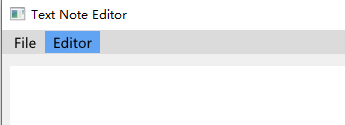
重點提醒
ImGuiWindowFlags window_flags = ImGuiWindowFlags_NoDecoration
    | ImGuiWindowFlags_NoMove
    | ImGuiWindowFlags_NoResize
    | ImGuiWindowFlags_NoSavedSettings
    | ImGuiWindowFlags_MenuBar;   // 一定要加上此旗標,否則選單完全不會顯示Code language: JavaScript (javascript)
旗標最後必須加上ImGuiWindowFlags_MenuBar,否則整個選單列不會渲染出來。
多行文字編輯框
多行文字輸入實作非常簡單:
ImVec2 multiline_size = ImGui::GetContentRegionAvail();
// 修復問號亂碼核心:傳入固定緩衝區最大長度,記憶體已預填零無殘值
ImGui::InputTextMultiline("##text_editor", &editor_text[0], TEXT_BUFFER_MAX, multiline_size);Code language: C++ (cpp)
呼叫InputTextMultiline即可建立編輯區,multiline_size會自動抓取可用內容區域尺寸。
彈出提示視窗
彈窗實作邏輯:先給ImGui設定內部標記,後續依標記繪製對應模態視窗,範例如下:
if (show_save_success)
{
    ImGui::OpenPopup("儲存成功");Code language: CSS (css)
當show_save_success為true時,透過ImGui::OpenPopup(“儲存成功”)註冊彈窗ID標記。
下方依據註冊的ID標記繪製模態提示視窗:
if (ImGui::BeginPopupModal("儲存成功", nullptr, ImGuiWindowFlags_AlwaysAutoResize))
{
    ImGui::Text("文字檔儲存完成!");
    if (ImGui::Button("確定", ImVec2(120, 0)))
        ImGui::CloseCurrentPopup();
    ImGui::EndPopup();
}Code language: PHP (php)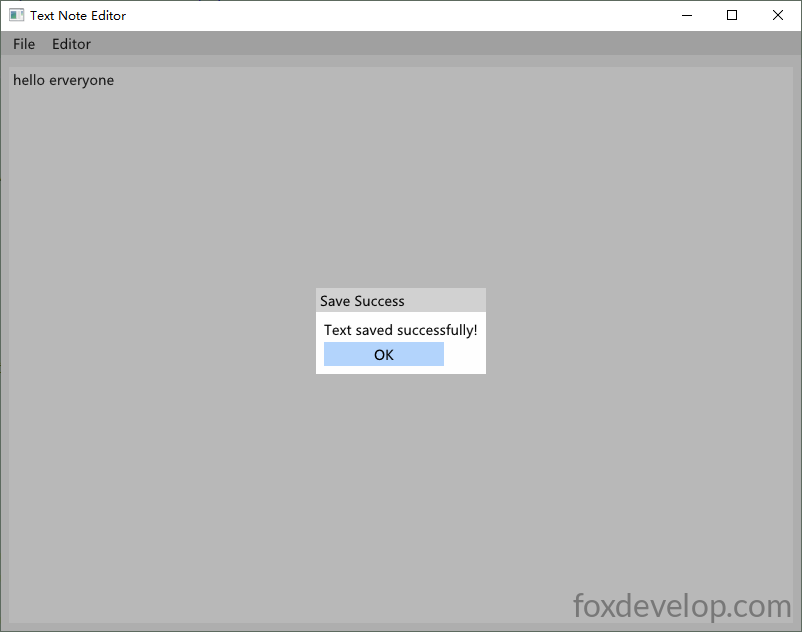
本課程內容到此結束。
Previous: 使用ImGui實作簡易加法計算機
Next: ImGui常用控制項使用教學