搭建可以到官网中参考使用
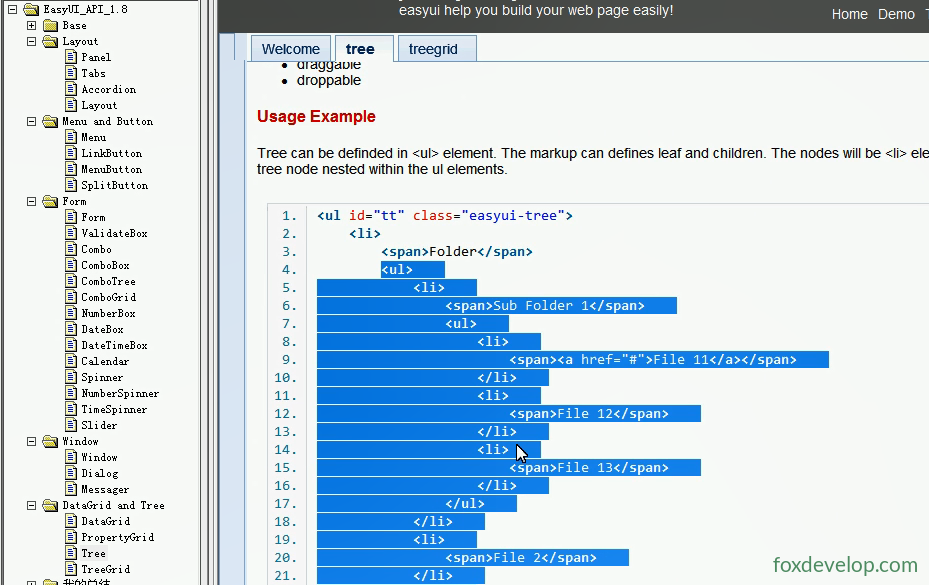
帮助文档已经列的很详细了
修改项目中视图的左侧栏部分,增加如下html代码
<div region="west" split=true title="菜单栏" style="width:150px;padding:10px;">
<ul id="tt" class="easyui-tree">
<li>
<span>Folder</span>
<ul>
<li>
<span>Sub Folder 1</span>
<ul>
<li>
<span><a href="#">File 11</a></span>
</li>
<li>
<span>File 12</span>
</li>
<li>
<span>File 13</span>
</li>
</ul>
</li>
<li>
<span>File 2</span>
</li>
<li>
<span>File 3</span>
</li>
</ul>
</li>
<li>
<span>File21</span>
</li>
</ul>
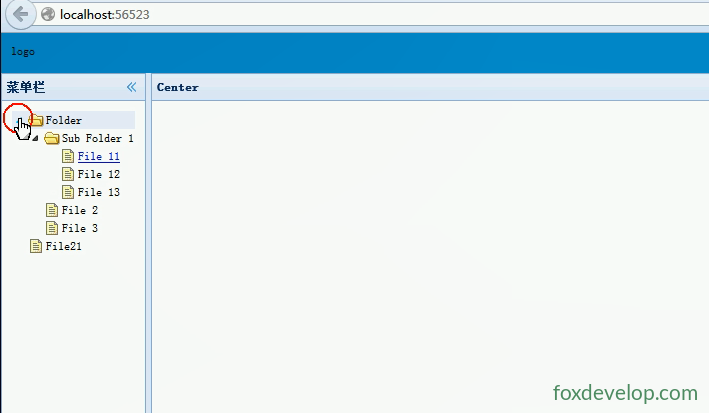
</div>Code language: HTML, XML (xml)左侧栏旧可以看到一个树状的菜单
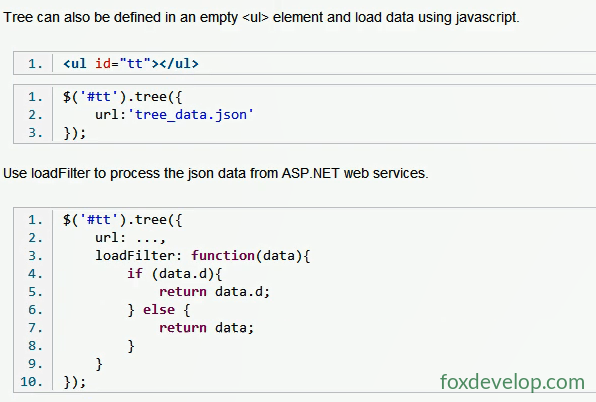
也可以通过动态的方式通过js加载树状菜单的json文件来渲染出菜单
<!DOCTYPE html PUBLIC "-//W3C//DTD XHTML 1.0 Transitional//EN" "http://www.w3.org/TR/xhtml1/DTD/xhtml1-transitional.dtd">

<html xmlns="http://www.w3.org/1999/xhtml" >
<head runat="server">
    <title>Index</title>
    <script src="../../Content/Easyui/jquery-1.8.0.min.js" type="text/javascript"></script>
    <script src="../../Content/Easyui/jquery.easyui.min.js" type="text/javascript"></script>
    <script src="../../Content/Easyui/easyui-lang-zh_CN.js" type="text/javascript"></script>
    <link href="../../Content/Easyui/themes/default/easyui.css" rel="stylesheet" type="text/css" />
    <link href="../../Content/Easyui/themes/icon.css" rel="stylesheet" type="text/css" />
</head>
<body class="easyui-layout">
    <div data-options="region:'north',border:false" style="height:40px;background:#0099C8;padding:10px">logo</div>
    <div data-options="region:'west',split:true,title:'菜单栏'" style="width:150px;padding:10px;">
        <ul id="tt"></ul>
    </div>
    <div data-options="region:'south',border:false" style="height:20px;background:#ccc;padding:1px;">FoxDevelop.com 当前登录人:admin</div>
    <div data-options="region:'center',title:'Center'"></div>
    <script type="text/javascript">
        $('#tt').tree({
            url: 'tree_data.json'
        });
    </script>
</body>
</html>Code language: HTML, XML (xml)
参考代码
把上面的tree_data.json 改成你的action 当然也可以直接加载这个json文件,把这个json文件 添加到你的项目中,json文件再官方的包里面有,读者可以自己去查找。
<script type="text/javascript">
        $('#tt').tree({
            url: 'Prim/Index'
        });
    </script>Code language: HTML, XML (xml)
添加一个新的控制器和action
public class PrimController : Controller
{
    //
    // GET: /Prim/

    public ActionResult Index()
    {
        string json = string.Empty;
        json = @"{[
            ""id"":1,
            ""text"":""My Documents"",
            ""children"":[{
                ""id"":11,
                ""text"":""Photos"",
                ""state"":""closed"",
                ""children"":[{
                    ""id"":111,
                    ""text"":""Friend""
                },{
                    ""id"":112,
                    ""text"":""Wife""
                },{
                    ""id"":113,
                    ""text"":""Company""
                }]
            },{
                ""id"":12,
                ""text"":""Program Files"",
                ""children"":[{
                    ""id"":121,
                    ""text"":""Intel"",
                    ""attributes"":{
                        ""p1"":""Custom Attribute1"",
                        ""p2"":""Custom Attribute2""
                    },{
                    ""id"":123,
                    ""text"":""Microsoft Office""
                    },{
                    ""id"":124,
                    ""text"":""Games"",
                    ""checked"":true
                }]
            },{
                ""id"":13,
                ""text"":""index.html""
            },{
                ""id"":14,
                ""text"":""about.html""
            },{
                ""id"":15,
                ""text"":""welcome.html""
            }]
        }]";

        return Content(json);
    }
}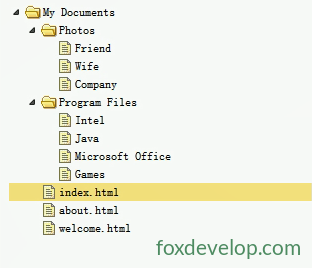
读者还可以参考帮助文档,设置菜单项的图标和是否可勾选
Previous: Easyui 项目搭建和第一个页面
Next: Easyui的accordion的使用