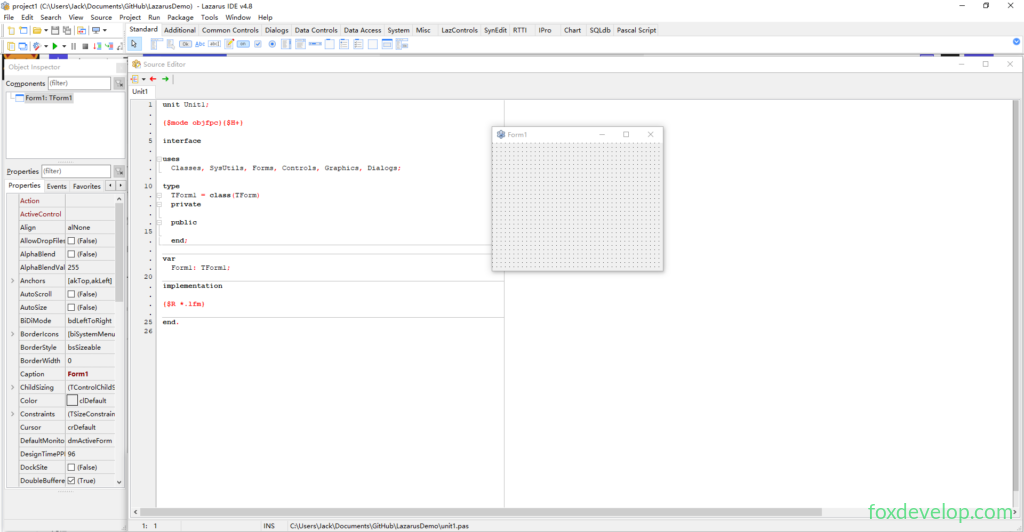
In the previous lesson, the IDE opens with a blank window project by default, but the project hasn’t been saved yet. Press Ctrl + S to save the project into a dedicated folder.
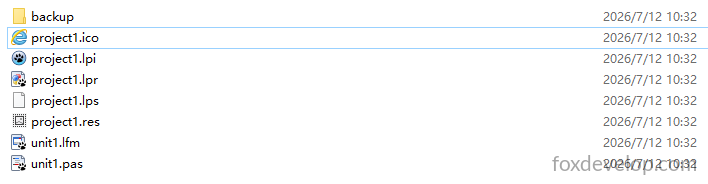
The project files after saving are shown above.
backup folder
Automatic backup directory storing historical file copies for recovery after accidental deletion or wrong edits.
project1.ico
Application icon, displayed on the program window and desktop shortcut after compilation.
project1.lpi
Project configuration file: stores compile parameters, referenced units, platform settings, dependency packages and other global project configurations.
project1.lpr
Main program entry source file, the startup point of the application that manages all form units.
project1.lps
IDE session log: records last opened files, window layout, cursor positions; restores editing workspace automatically when reopening the project.
project1.res
Compiled resource file packaging embedded assets such as icons and version information.
unit1.lfm
Form layout file storing window size, coordinates, controls, captions and other visual interface configurations.
unit1.pas
Form logic source file where you write business logic including button click handlers, variables and functions; paired with the corresponding LFM file.
unit1.pas
This is our Pascal source file. Just like Delphi, Lazarus is built upon the Pascal language.
- Pascal: Base programming language with clean syntax, split into standard Pascal and object-oriented Object Pascal.
- Delphi: Commercial closed-source IDE and compiler utilizing Object Pascal, natively Windows-only with the VCL GUI library.
- Lazarus: Free open-source cross-platform IDE powered by the Free Pascal compiler with the LCL component library. It supports Delphi syntax and can build native applications for Windows, macOS, Linux and more systems.
Quick summary: Pascal is the programming language; Lazarus and Delphi are two separate IDE development tools.
The source code inside the PAS file is shown below:
unit Unit1;                // Unit filename Unit1

{$mode objfpc}{$H+}        // Compiler directive: ObjFPC mode + long string support

interface                  // Interface section: expose classes and variables externally
uses
  Classes, SysUtils, Forms, Controls, Graphics, Dialogs; // Reference core base libraries

type
  TForm1 = class(TForm)    // Main window class inheriting base Form
  private                  // Private members
  public                   // Public members
  end;

var
  Form1: TForm1;           // Global form instance

implementation            // Implementation section: holds all logic code
{$R *.lfm}                 // Bind visual form layout file Unit1.lfm

end.Code language: JavaScript (javascript)*.lfm: Lazarus form layout file storing dragged controls, window dimensions and property settings;
interface declares public interfaces, while implementation contains all business logic;
The built-in {$mode objfpc} enables Free Pascal’s standard object-oriented compilation mode;
A blank project contains no buttons or event handlers, only a minimal base window skeleton; you can drag and drop components to add functionality directly.
unit1.lfm
unit1.lfm is our form layout file
object Form1: TForm1
  Left = 915
  Height = 240
  Top = 237
  Width = 320
  Caption = 'Form1'
  LCLVersion = '4.8.0.0'
end
Code language: JavaScript (javascript)
Breakdown of each parameter below:
object Form1: TForm1 // Define object: window instance of type TForm1
Left = 915 // Window left offset from screen edge: 915 pixels
Height = 240 // Window height: 240 pixels
Top = 237 // Window top offset from screen edge: 237 pixels
Width = 320 // Window width: 320 pixels
Caption = ‘Form1’ // Window title bar text
LCLVersion = ‘4.8.0.0’ // Version of LCL library that generated this layout
end // End of window object definition
project1.ico
This ICO file serves as the application icon.

It can be opened with any web browser.
project1.lpi
This is an XML document.
project1.lpi is the core project configuration file, split into three main sections below:
1. ProjectOptions Basic Project Settings
<Version Value="12"/>: Config file format version 12<PathDelim Value="\\"/>: Windows backslash path separator
General Global Project Settings
SessionStorage=InProjectDir: Store IDE editing records inside project folderTitle=project1: Project display nameScaled=True: Auto-scale window for high-DPI screensResourceType=res: Use RES resource file to store iconsUseXPManifest=True: Enable modern Windows visual stylesDpiAware=True: Application supports high DPI displays to prevent blurry UI
Icon=0: Use project default ICO icon
BuildModes
Only the default build configuration (where Debug / Release build targets are differentiated)
RequiredPackages
Depends on the LCL graphical component library (mandatory for GUI applications)
Units List of files included in project
project1.lpr: Main program entry pointunit1.pas: Form unit bound to Form1 visual window class
2. CompilerOptions Compiler build parameters
- Output executable filename:
project1 - Intermediate compiled file output directory:
lib\CPU-OS(example: lib\x86_64-win64) <GraphicApplication=True>: Mark program as Windows GUI application, not console app
3. Debugging Debugger configuration
Skip breaking on specified exceptions: EAbort, file access errors, tool source errors and more
project1.lpr
This file also uses Free Pascal (Object Pascal) syntax
// Define this file as main program entry project
program project1;

// Compiler directives: enable OOP syntax + long string support
{$mode objfpc}{$H+}

uses
  // Import thread library for Unix systems (Linux/macOS)
  {$IFDEF UNIX}
  cthreads,
  {$ENDIF}
  // Import thread library for Amiga systems
  {$IFDEF HASAMIGA}
  athreads,
  {$ENDIF}
  Interfaces, // Cross-platform low-level LCL graphics backend
  Forms,     // Base form framework
  Unit1      // Custom main form unit
  { you can add units after this }; // Add new units here

{$R *.res} // Load project resource file (icons, version info)

begin
  RequireDerivedFormResource:=True; // Enable loading lfm form layout files
  Application.Scaled:=True;        // Auto-scale UI for high DPI
  {$PUSH}{$WARN 5044 OFF}          // Temporarily suppress compiler warning 5044
  Application.MainFormOnTaskbar:=True; // Show dedicated taskbar icon for main window
  {$POP}                           // Restore original warning rules

  Application.Initialize;           // Initialize GUI application runtime
  Application.CreateForm(TForm1, Form1); // Instantiate main window Form1
  Application.Run;                 // Start message loop and wait for user interaction
end.Code language: PHP (php)
Difference explanation:
- Standard
.pas: Unit files (windows or functional modules) .lpr: Main project Pascal source file, the application startup entry
project1.lps
Lazarus Project Session file, not Pascal source code
Pure IDE configuration log that stores your editing state from the last project session
Examples: Which code/form files were open, window positions/sizes/split layouts, cursor positions, breakpoints, search history and more
.lpr/.pas: Source code files required for compilation;
.lps: Temporary IDE-only record file with no impact on compilation.
project1.res
Binary compiled resource file
Auto-generated from project1.ico, program version info, Windows visual manifest during compilation
- Stores application icon shown in right-click properties, taskbar and desktop shortcuts after build
- Saves Windows high-DPI, XP visual style and other system resource configurations
Compile linkage: The code directive {$R *.res} embeds this resource file into the final EXE binary Features
- Can be deleted safely; the file regenerates automatically on next project build;
- Only required for Windows GUI software; console applications do not generate this file.
Inside the IDE you will see this visual designer panel
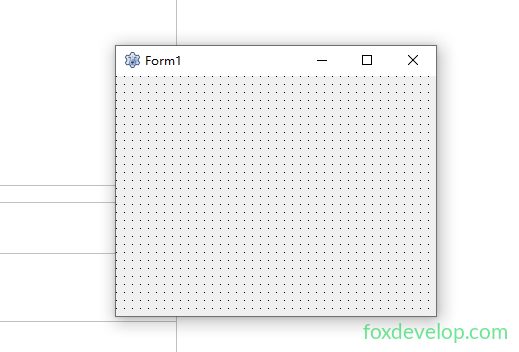
This is our visual form designer where you drag and drop various components. Its workflow is nearly identical to VB, WinForms, WPF, Delphi, Qt and other form-based development tools.
For example, drag a Button control onto the form
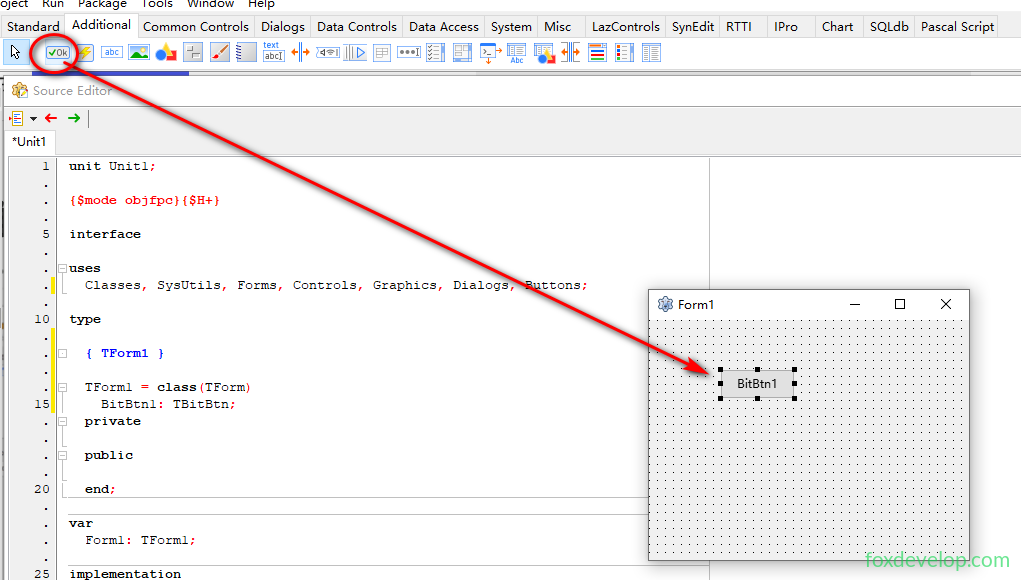
Run the project again.
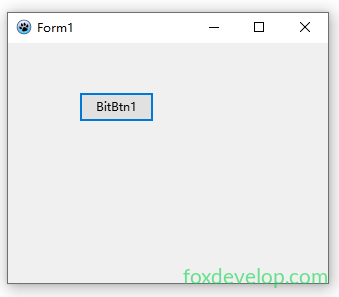
A button will appear on the window.

Check the Messages panel at the bottom to view the output directory of the generated EXE file
A new EXE file will appear directly inside your project folder
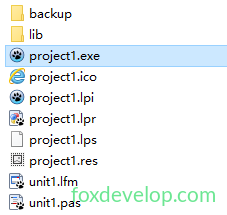
This EXE is your finished compiled application. You can send it to other Windows PCs to run directly, as it is fully self-contained with no external runtime dependencies.
It runs extremely fast…