1. Starting from the Launch Entry Point
To understand how any Android app launches, you have to start with the global configuration file: AndroidManifest.xml.
Open AndroidManifest.xml and look for the following code:
<activity android:name=".MainActivity">
    <intent-filter>
        <action android:name="android.intent.action.MAIN" />
        <category android:name="android.intent.category.LAUNCHER" />
    </intent-filter>
</activity>Code language: HTML, XML (xml)
This snippet does three key things:
- Register the Activity:
MainActivitymust be declared inAndroidManifest.xml; otherwise, the system won’t recognize it and can’t use it. - Declare the Main Entry:
<action android:name="android.intent.action.MAIN" />marks this as the app’s main activity. - Declare the Launcher Entry:
<category android:name="android.intent.category.LAUNCHER" />means this activity is the first thing that starts when you tap the app icon on the home screen.
Only an activity that has both
MAINandLAUNCHERwill serve as the app’s launch entry.
2. What Exactly Is an Activity?
An Activity is the storefront of an Android app — everything you see on the screen runs inside an Activity.
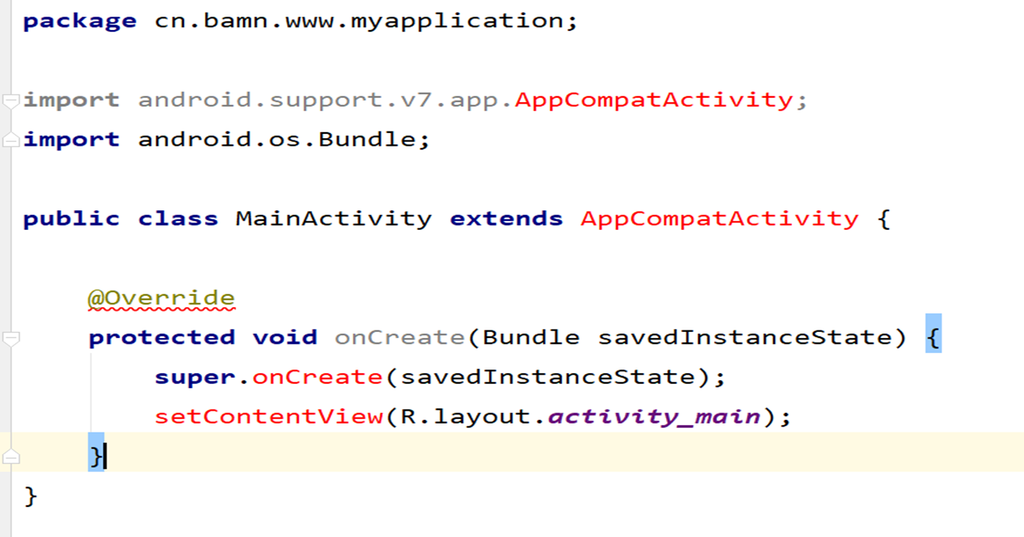
Open MainActivity.java under the app/java/ directory. The code looks like this:
public class MainActivity extends AppCompatActivity {

    @Override
    protected void onCreate(Bundle savedInstanceState) {
        super.onCreate(savedInstanceState);
        setContentView(R.layout.activity_main);
    }
}Code language: JavaScript (javascript)
Let’s break it down:
| Code | Explanation |
|---|---|
extends AppCompatActivity | Inherits from AppCompatActivity, a backward-compatible Activity that goes as far back as Android 2.1 |
All activities must extend Activity (or its subclasses) | This is a mandatory requirement for Android components |
onCreate() | A lifecycle method that runs automatically when the activity is created |
setContentView(R.layout.activity_main) | Loads and binds a layout file to the current activity |
3. Separation of Logic and View (Similar to MVC)
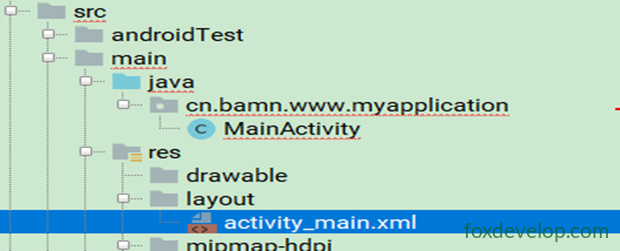
Android follows a design philosophy of separating logic from view, similar to the MVC pattern:
- Logic: Written in Activity classes under the
java/directory - View: Written in XML layout files under the
res/layout/directory
setContentView(R.layout.activity_main) is the bridge that connects logic and view — it “plugs” the activity_main.xml layout into MainActivity.
4. Layout File Breakdown
Layout files live in res/layout/activity_main.xml.
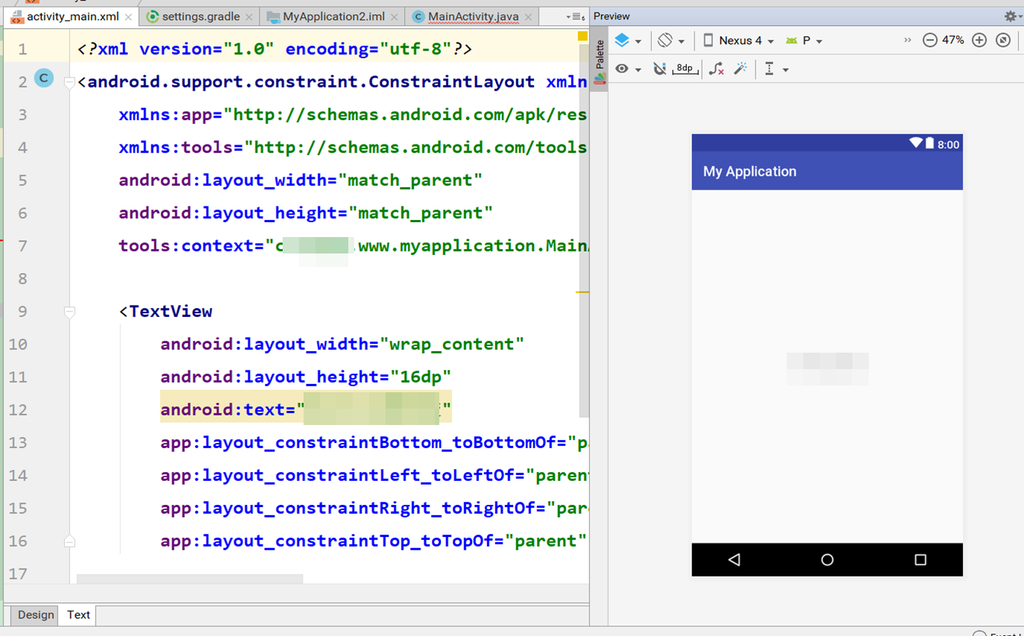
Android Studio offers two editing modes:
| Mode | Description |
|---|---|
| Design | Visual drag-and-drop interface, WYSIWYG |
| Text | XML code editing interface |
Open activity_main.xml. The core content looks like this:
<TextView
    android:layout_width="wrap_content"
    android:layout_height="wrap_content"
android:text="Hello Foxdevelop" />Code language: HTML, XML (xml)TextViewis a basic Android control used for displaying text- The
android:textattribute specifies what text appears on the control
The “Hello World” (or whatever custom text you set) is defined right here, not in the Java code.
5. Complete Launch Flow Summary
Here’s the full startup process from beginning to end:
User taps the app icon on the home screen
        ↓
System reads AndroidManifest.xml
        ↓
Finds the Activity with MAIN + LAUNCHER (i.e., MainActivity)
        ↓
Creates a MainActivity instance
        ↓
Executes the onCreate() lifecycle method
        ↓
setContentView() loads the activity_main.xml layout
        ↓
The TextView in the layout displays its text
        ↓
Screen shows "Hello World"Code language: CSS (css)
In one sentence:
Config file declares entry → Main activity gets created → onCreate executes → Layout file loads → Controls render to screen
6. Development Tips
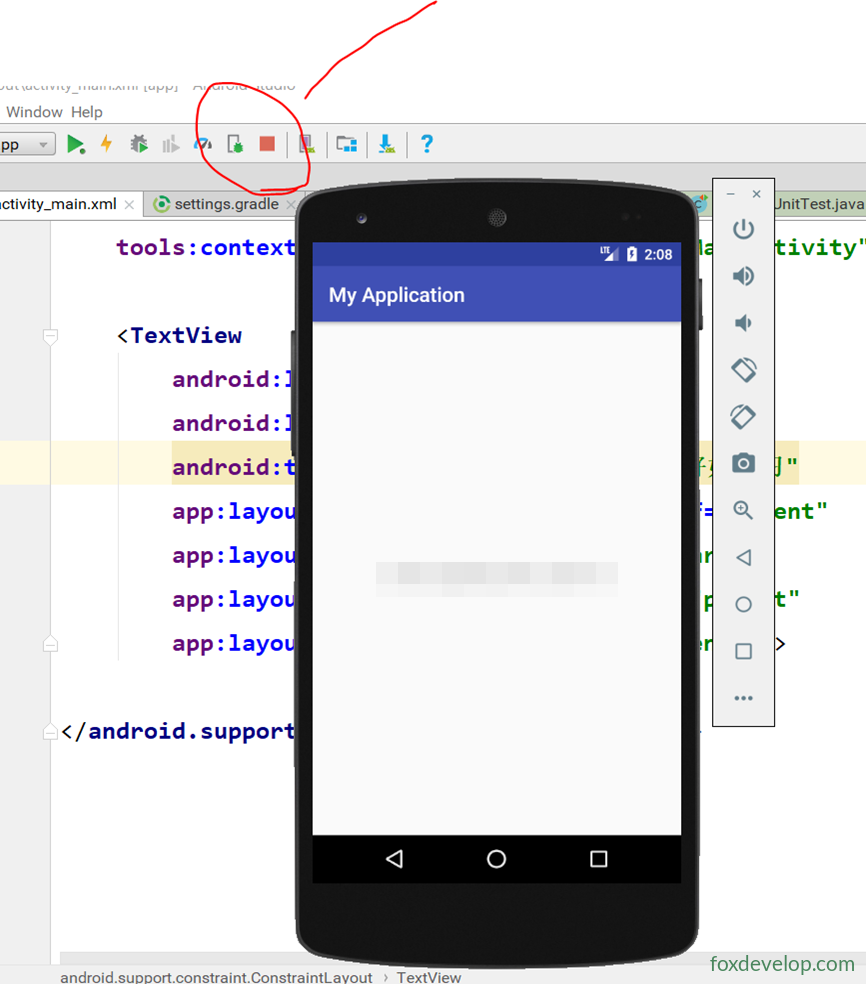
- No need to shut down the emulator every time: After running, if you want to stop the app, just click the 🔴 Stop button on the toolbar. No need to power off or exit the emulator.
- After modifying code, just click ▶ Run to redeploy and see the changes.
7. Summary
| Layer | Corresponding File | Responsibility |
|---|---|---|
| Configuration | AndroidManifest.xml | Declares the entry activity |
| Logic | MainActivity.java | Controls activity behavior |
| View | activity_main.xml | Defines interface content |
Config file → Main activity →
onCreate()method → Load view layout → Screen display
How an App Actually Runs