今回のレッスンではメニューの描画方法を学びます。Windows標準のメモ帳のようなTXTエディタを作成し、上部にメニューバーを配置して「保存」サブメニューを実装します。保存をクリックすると下部テキストボックスの内容をファイルに出力します。また文字化けの原因と解消方法、フォントと文字コードの設定手順を解説します。設定を怠ると日本語や中国語など英語以外の文字が????の記号に化けてしまいます。
保存操作を実行するとシステム標準のファイル保存ダイアログがポップアップし、保存先フォルダの選択とファイル名の入力が可能になり、確定後テキストがファイルに書き込まれます。
完成したプログラムの実行画面スクリーンショットはこちらです:
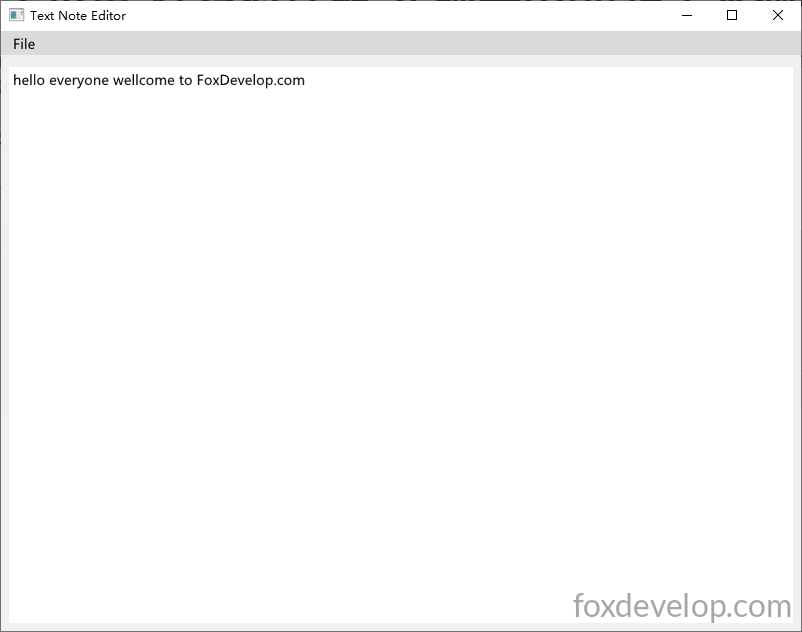
Windowsメモ帳と同様の基本編集・保存機能を備えており、コンパイル後の実行ファイルは非常に軽量です。
Releaseビルドでコンパイルした場合、実行ファイルサイズはわずか645kbです。

続いて完全なソースコードを解説します:
#pragma comment(linker, "/SUBSYSTEM:windows /ENTRY:mainCRTStartup")
#pragma execution_character_set("utf-8")

#include <GLFW/glfw3.h>
#include "imgui.h"
#include "backends/imgui_impl_glfw.h"
#include "backends/imgui_impl_opengl3.h"
#include <cstdio>
#include <string>
#include <fstream>
#include <windows.h>
#include <io.h>
#include <commdlg.h>  // ファイルダイアログに必要なヘッダ

// テキストバッファ最大容量
const int TEXT_BUFFER_MAX = 4096;
std::string editor_text;

// UTF8 BOM付きでテキストをファイルに保存
// 指定パスのファイルにテキスト内容を書き込む
bool SaveTextToFile(const char* filepath, const std::string& text)
{
    std::ofstream out_file(filepath, std::ios::out | std::ios::binary);
    if (!out_file.is_open())
        return false;
    const unsigned char utf8_bom[] = { 0xEF, 0xBB, 0xBF };
    out_file.write((char*)utf8_bom, sizeof(utf8_bom));
    out_file << text.c_str(); // 終端文字までの有効テキストを出力
    out_file.close();
    return true;
}

// 保存ファイルダイアログを表示、選択したファイルパスを返却
bool ShowSaveFileDialog(char* out_path, DWORD out_size)
{
    OPENFILENAMEA ofn;   // ANSI版のAを使用
    ZeroMemory(&ofn, sizeof(ofn));
    ofn.lStructSize = sizeof(ofn);
    ofn.hwndOwner = nullptr;
    ofn.lpstrFilter = "テキストファイル\0*.txt\0すべてのファイル\0*.*\0"; // txtまたは全形式をフィルタリング
    ofn.lpstrFile = out_path;
    ofn.nMaxFile = out_size;
    ofn.Flags = OFN_PATHMUSTEXIST | OFN_FILEMUSTEXIST | OFN_OVERWRITEPROMPT;
    ofn.lpstrDefExt = "txt";

    return GetSaveFileNameA(&ofn);   // ANSI版ダイアログ関数を呼び出し
}

// フォントを設定して文字化け(???)を解消
// 実行環境に合わせてフォントパスを変更、またはシステム標準フォントパスを利用
void SetupFont(ImGuiIO& io)
{
    // Windowsで一般的な中華フォントパス
    const char* font_path = "C:/Windows/Fonts/msyh.ttc"; // マイクロソフトヤヒ
    float font_size = 18.0f;

    // 簡体中国語の常用文字範囲を読み込み
    ImVector<ImWchar> ranges;
    ImFontGlyphRangesBuilder builder;
    builder.AddRanges(io.Fonts->GetGlyphRangesChineseSimplifiedCommon());
    builder.BuildRanges(&ranges);

    // カスタムフォントを読み込み
    io.Fonts->AddFontFromFileTTF(font_path, font_size, nullptr, ranges.Data);

    // 多言語対応の場合は下記を追加可能:
    // io.Fonts->AddFontFromFileTTF(font_path, font_size, nullptr, io.Fonts->GetGlyphRangesJapanese());
    // io.Fonts->AddFontFromFileTTF(font_path, font_size, nullptr, io.Fonts->GetGlyphRangesKorean());
}


int main()
{
    SetConsoleOutputCP(65001);
    // 重要:バッファを拡張し0で埋めメモリのゴミデータを消去、????文字化けを修正
    editor_text.resize(TEXT_BUFFER_MAX, '\0');

    if (!glfwInit())
    {
        printf("GLFW 初期化に失敗しました\n");
        return -1;
    }

    const char* glsl_version = "#version 330";
    glfwWindowHint(GLFW_CONTEXT_VERSION_MAJOR, 3);
    glfwWindowHint(GLFW_CONTEXT_VERSION_MINOR, 3);
    glfwWindowHint(GLFW_OPENGL_PROFILE, GLFW_OPENGL_CORE_PROFILE);

    GLFWwindow* window = glfwCreateWindow(800, 600, "テキストメモエディタ", nullptr, nullptr);
    if (!window)
    {
        glfwTerminate();
        return -1;
    }
    glfwMakeContextCurrent(window);
    glfwSwapInterval(1);

    IMGUI_CHECKVERSION();
    ImGui::CreateContext();
    ImGuiIO& io = ImGui::GetIO();
    ImGui::StyleColorsLight();

    SetupFont(io); // フォント読み込み、文字化け解消

    ImGui_ImplGlfw_InitForOpenGL(window, true);
    ImGui_ImplOpenGL3_Init(glsl_version);

    bool show_save_success = false;
    bool show_save_fail = false;

	char path[MAX_PATH] = "";// 保存ファイルパス格納用バッファ

    while (!glfwWindowShouldClose(window))
    {
        glfwPollEvents();

        // Ctrl+S 保存ショートカット
        if (io.KeyCtrl && ImGui::IsKeyPressed(ImGuiKey_S))
        {
            if (ShowSaveFileDialog(path, MAX_PATH))
            {
                if (SaveTextToFile(path, editor_text))
                    show_save_success = true;
                else
                    show_save_fail = true;
            }
        }

        ImGui_ImplOpenGL3_NewFrame();
        ImGui_ImplGlfw_NewFrame();
        ImGui::NewFrame();

        ImGui::SetNextWindowPos(ImVec2(0, 0));
        ImGui::SetNextWindowSize(io.DisplaySize);

        ImGuiWindowFlags window_flags = ImGuiWindowFlags_NoDecoration
            | ImGuiWindowFlags_NoMove
            | ImGuiWindowFlags_NoResize
            | ImGuiWindowFlags_NoSavedSettings
            | ImGuiWindowFlags_MenuBar;   // メニューバーを表示するため必須のフラグ

        ImGui::PushStyleVar(ImGuiStyleVar_WindowRounding, 0.0f);
        ImGui::PushStyleVar(ImGuiStyleVar_WindowBorderSize, 0.0f);

        ImGui::Begin("テキストメモエディタ", nullptr, window_flags);

        // 上部メニューバー描画処理
        if (ImGui::BeginMenuBar())
        {
            if (ImGui::BeginMenu("ファイル"))
            {
				if (ImGui::MenuItem("保存", "Ctrl+S")) // 保存サブメニュー:表示テキスト+ショートカットヒント
                {
					// 前回学んだボタンと同じロジック、メニュークリック時に中括弧内コード実行
					if (ShowSaveFileDialog(path, MAX_PATH)) // 保存ダイアログを起動
                    {
						if (SaveTextToFile(path, editor_text)) // ファイル保存実行
                            show_save_success = true; // 保存成功フラグを立て後続ポップアップに反映
                        else
                            show_save_fail = true;
                    }
                }

                ImGui::Separator();

                if (ImGui::MenuItem("終了", "Esc")) // プログラム終了メニュー
                {
					glfwSetWindowShouldClose(window, true); // ウィンドウ終了フラグを設定、プログラムを終了
                }
                ImGui::EndMenu();
            }
            ImGui::EndMenuBar();
        }

        ImGui::Spacing();

        ImVec2 multiline_size = ImGui::GetContentRegionAvail();
        // ?文字化け修正の核心:固定最大バッファ長を渡し、メモリを事前0埋めしゴミデータなし
        ImGui::InputTextMultiline("##text_editor", &editor_text[0], TEXT_BUFFER_MAX, multiline_size);

	// 保存結果フラグに応じてポップアップ起動フラグを設定
        if (show_save_success)
        {
            // この行はウィンドウ描画・BeginPopupModalを実行しない
	    ImGui::OpenPopup("保存完了");// ImGui内部状態にフラグを登録、後でモーダルウィンドウ
            Previous: ImGuiで簡単な足し算電卓を実装するNext: ImGui 汎用ウィジェットの使い方