WinUI 3 fully supports internationalization. That said, the most reliable approach right now requires an app restart after switching languages for flawless results. While dynamic UI language refresh without restart is technically possible, the implementation gets overly complicated. I’ve spent ages troubleshooting this myself — running into broken UI text or crashes after language switches countless times. After lots of trial and error, I’ve landed on a solid internationalization workflow for WinUI 3, which I’ll walk you through below.
First add language initialization logic inside the code-behind of App.xaml.cs. If users haven’t picked a custom language, the app pulls the OS’s default language; it falls back to English if the system language isn’t on our supported list.
protected override void OnLaunched(Microsoft.UI.Xaml.LaunchActivatedEventArgs args)
{
    const string LangSettingKey = "AppLanguageCode";
    // All supported language tags of project
    List<string> supportLangs = new() { "zh-CN", "en-US", "th-TH" };
    string finalLang = "en-US"; // Default language

    try
    {
        var localSetting = ApplicationData.Current.LocalSettings;

        // ① Use saved language if local configuration exists
        if (localSetting.Values.TryGetValue(LangSettingKey, out var savedVal))
        {
            finalLang = NormalizeLang(savedVal?.ToString() ?? "");
        }
        else
        {
            // ② No saved config: read system primary preferred language
            string sysLang = ApplicationLanguages.Languages.FirstOrDefault() ?? "";
            sysLang = NormalizeLang(sysLang);

            // ③ Use system language if supported, otherwise fall back to English
            finalLang = supportLangs.Contains(sysLang) ? sysLang : "en-US";
        }
    }
    catch
    {
        // Ignore exception when running unpackaged, ApplicationData unavailable
    }

    ApplicationLanguages.PrimaryLanguageOverride = finalLang;

    _window = new MainWindow();
    _window.Activate();
}

/// <summary>
/// Standardize culture code: map system returned zh-Hans-CN to zh-CN
/// </summary>
private static string NormalizeLang(string lang)
{
    if (string.IsNullOrEmpty(lang)) return lang;

    return lang switch
    {
        "zh-Hans-CN" => "zh-CN",
        "zh-Hant-TW" => "zh-TW", // For future Traditional Chinese support
        _ => lang
    };
}Code language: PHP (php)
This setup can still be refined. For cleaner code, don’t hardcode supported language lists here. Instead, wrap them inside a static helper class so you can reference the same set anywhere you need to adjust language settings, like so:
    public class Languages
    {
        public static List<string> supportLangs = new() { "zh-CN", "en-US", "th-TH" };
    }Code language: PHP (php)
The core purpose of the above code block is setting up app language on startup: load user’s saved preference first, fall back to system default when no custom setting exists, then default to English as final backup.
Build a dedicated page for language switching
We need a dedicated interface for users to change display language, so I created an independent Page specifically for language configuration.
<?xml version="1.0" encoding="utf-8"?>
<Page
    x:Class="ThaiTong.Pages.LanguageSettingPage"
    xmlns="http://schemas.microsoft.com/winfx/2006/xaml/presentation"
    xmlns:x="http://schemas.microsoft.com/winfx/2006/xaml"
    xmlns:local="using:ThaiTong.Pages"
    xmlns:d="http://schemas.microsoft.com/expression/blend/2008"
    xmlns:mc="http://schemas.openxmlformats.org/markup-compatibility/2006"
    Background="{ThemeResource ApplicationPageBackgroundThemeBrush}"
    mc:Ignorable="d">
    <StackPanel Padding="20" Spacing="24">
        <TextBlock x:Uid="Txt_LangTip" FontSize="22"/>

        <ComboBox x:Name="cbLangSelect" Width="320" Height="40" CornerRadius="6">
            <ComboBoxItem Tag="zh-CN" Content="简体中文"/>
            <ComboBoxItem Tag="en-US" Content="English"/>
            <ComboBoxItem Tag="th-TH" Content="ภาษาไทย"/>
        </ComboBox>

        <StackPanel Orientation="Horizontal" Spacing="12">
            <Button x:Name="btnSave" x:Uid="Btn_Save" Content="Save" Click="BtnSave_Click" Width="120" Height="38" CornerRadius="5"/>
        </StackPanel>

        <TextBlock Foreground="Gray" Text="Note: After saving, page will refresh to apply language."/>
    </StackPanel>
</Page>
Code language: HTML, XML (xml)
Corresponding backend C# code:
using Microsoft.UI.Xaml;
using Microsoft.UI.Xaml.Controls;
using Microsoft.UI.Xaml.Controls.Primitives;
using Microsoft.UI.Xaml.Data;
using Microsoft.UI.Xaml.Input;
using Microsoft.UI.Xaml.Media;
using Microsoft.UI.Xaml.Navigation;
using Microsoft.Windows.ApplicationModel.Resources;
using System;
using System.Collections.Generic;
using System.IO;
using System.Linq;
using System.Runtime.InteropServices.WindowsRuntime;
using ThaiTong.Common;
using Windows.Foundation;
using Windows.Foundation.Collections;
using Windows.Globalization;
using Windows.Storage;

// To learn more about WinUI, the WinUI project structure,
// and more about our project templates, see: http://aka.ms/winui-project-info.

namespace ThaiTong.Pages
{
    /// <summary>
    /// An empty page that can be used on its own or navigated to within a Frame.
    /// </summary>
    public sealed partial class LanguageSettingPage : Page
    {

        private const string LangSettingKey = "AppLanguageCode";
        private string _currentLang;

        private readonly ResourceLoader _resLoader;

        public LanguageSettingPage()
        {
            InitializeComponent();
            _resLoader = new ResourceLoader();

            var setting = ApplicationData.Current.LocalSettings;
            if (setting.Values.TryGetValue(LangSettingKey, out var saveLang))
            {
                _currentLang = saveLang.ToString();
            }
            else
            {
                string sysLang = ApplicationLanguages.Languages.FirstOrDefault() ?? "";
                _currentLang = Languages.supportLangs.Contains(sysLang) ? sysLang : "en-US";
            }

            // Pre-select matched language in dropdown list
            foreach (var item in cbLangSelect.Items)
            {
                if (item is ComboBoxItem cbi && cbi.Tag.ToString() == _currentLang)
                {
                    cbLangSelect.SelectedItem = item;
                    break;
                }
            }
        }

        // Save selected language setting
        private async void BtnSave_Click(object sender, RoutedEventArgs e)
        {
            if (cbLangSelect.SelectedItem is not ComboBoxItem selectItem) return;
            string newLang = selectItem.Tag.ToString();
            if (_currentLang == newLang) return;

            ApplicationData.Current.LocalSettings.Values[LangSettingKey] = newLang;
            _currentLang = newLang;
            ApplicationLanguages.PrimaryLanguageOverride = newLang;

            // Load localized text from resw resource file
            ContentDialog tipDialog = new ContentDialog()
            {
                XamlRoot = this.XamlRoot,
                Title = _resLoader.GetString("Dlg_LangChange_Title"),
                Content = _resLoader.GetString("Dlg_LangChange_Content"),
                CloseButtonText = _resLoader.GetString("Dlg_LangChange_BtnOk")
            };
            await tipDialog.ShowAsync();
        }


    }
}
Code language: HTML, XML (xml)
Every time users save a new language preference, we prompt them to restart the application so all interface text updates fully.
WinUI 3 splits localization implementation into two separate parts: markup inside XAML files and text lookup within C# backend code.
For XAML elements, use the x:Uid attribute like this example:
<TextBlock x:Uid="Txt_LangTip" FontSize="22"/>Code language: HTML, XML (xml)Next set up your localization resource folder structure: create a top-level Strings folder in your project, then add individual subfolders named after each culture code (such as en-US for US English). Inside every language folder add a Resources.resw file filled with key-value translation pairs.
  <data name="Btn_Save.Content" xml:space="preserve">
      <value>Save</value>
  </data>Code language: HTML, XML (xml)
The name field acts as your lookup key. The appended .Content points to the target control property; the Txt_LangTip from earlier would be defined as shown below:
<data name="Txt_LangTip.Text" xml:space="preserve"><value>Select Application Language</value></data>Code language: HTML, XML (xml)We tag on .Text here because we’re targeting the Text property of the TextBlock control specifically.
For dynamic text inside C# code-behind, initialize an instance of ResourceLoader first:
 private readonly ResourceLoader _resLoader;

 public LanguageSettingPage()
 {
     InitializeComponent();
     _resLoader = new ResourceLoader();Code language: PHP (php)
After initialization, fetch localized strings anywhere via the GetString method:
Title = _resLoader.GetString("Dlg_LangChange_Title"),Code language: JavaScript (javascript)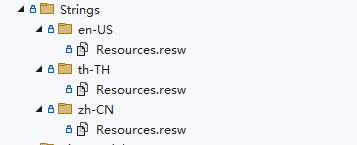
English
French
Filipino
using Microsoft.UI.Xaml;
using Microsoft.UI.Xaml.Controls;
using Windows.Globalization;
using Windows.ApplicationModel.Resources.Core;
using System.Collections.Generic;
using Microsoft.UI.Dispatching;
using System.Linq;
namespace LangToggleApp
{
public sealed partial class MainWindow : Window
{
private readonly List _textBlocks;
public MainWindow()
{
// Baseline language before UI loads
ApplicationLanguages.PrimaryLanguageOverride = “en-US”;
InitializeComponent();
// Initialize the list of TextBlocks
_textBlocks =
[
Text1, Text2, Text3, Text4, Text5,
Text6, Text7, Text8, Text9, Text10
];
// Select initial language in the ComboBox (LanguageSelector)
foreach (ComboBoxItem item in LanguageSelector.Items.Cast())
{
if ((string)item.Tag == ApplicationLanguages.PrimaryLanguageOverride)
{
LanguageSelector.SelectedItem = item;
break;
}
}
ReloadTexts();
}
private void LanguageSelector_SelectionChanged(object sender, SelectionChangedEventArgs e)
{
if (LanguageSelector.SelectedItem is ComboBoxItem selected)
{
string lang = (string)selected.Tag;
ApplicationLanguages.PrimaryLanguageOverride = lang;
var context = ResourceContext.GetForViewIndependentUse();
context.Reset();
context.QualifierValues[“Language”] = ApplicationLanguages.PrimaryLanguageOverride;
ReloadTexts(context);
// Force layout update so UI reflects new strings immediately
DispatcherQueue.GetForCurrentThread().TryEnqueue(() =>
{
if (this.Content is FrameworkElement root)
{
root.InvalidateMeasure();
root.InvalidateArrange();
root.UpdateLayout();
}
});
}
}
private void ReloadTexts(ResourceContext? context = null)
{
if (context is null)
{
context = ResourceContext.GetForViewIndependentUse();
context.Reset();
context.QualifierValues[“Language”] = ApplicationLanguages.PrimaryLanguageOverride;
}
var map = ResourceManager.Current.MainResourceMap.GetSubtree(“Resources”);
// Load TextBlocks (Text1..Text10)
for (int i = 0; i < _textBlocks.Count; i++)
{
string key = $"Text{i + 1}";
var candidate = map.GetValue(key, context);
_textBlocks[i].Text = candidate?.ValueAsString ?? $"[{key}]";
}
// Load LanguageTitle (try x:Uid style "LanguageTitle.Text" then simple "LanguageTitle")
var langTitleCandidate = map.GetValue("LanguageTitle.Text", context) ?? map.GetValue("LanguageTitle", context);
LanguageTitle.Text = langTitleCandidate?.ValueAsString ?? "Select Your Language";
// Load MainMenuButton content: try x:Uid style key then simple key, then fallback
string[] buttonKeys = ["MainMenuButton.Content", "MainMenuButton", "MainMenuButton.Text"];
string? buttonText = null;
foreach (var k in buttonKeys)
{
var c = map.GetValue(k, context);
if (c != null && !string.IsNullOrEmpty(c.ValueAsString))
{
buttonText = c.ValueAsString;
break;
}
}
if (string.IsNullOrEmpty(buttonText))
{
buttonText = GetFallbackForLanguage(ApplicationLanguages.PrimaryLanguageOverride);
}
MainMenuButton.Content = buttonText;
}
private static string GetFallbackForLanguage(string lang)
{
if (lang.StartsWith("fr")) return "Menu principal";
if (lang.StartsWith("fil")) return "Pangunahing Menu";
return "Main Menu";
}
}
}
I don't need an restart. I have three languages, English, French and Filipino. All languages are in Resources, each within a separate folder, en-US, fr-FR, and fil-PH — just make these and hit the F5 key.
yes,if you want to no restart ,you must do a lot ,i found a lib ,WinUI3Localizer ,you can try it .thank you for sharping