Flutter is a framework created by Google, built around Google’s own Dart programming language. With just one single codebase, you can build apps for the web, iOS, Android, Linux, Windows, and even embedded hardware. Similar cross-platform tools include Microsoft’s MAUI and NativePHP for PHP developers.
Best of all, Flutter’s completely open-source. It’s designed to compile clean, native-feeling multi-platform apps from one shared codebase, and tons of developers rely on it to build Android mobile apps these days.
Flutter compiles straight down to native machine code, so apps you build with it are far harder to reverse-engineer. It outputs optimized ARM or Intel binaries plus JavaScript, delivering snappy performance across every device you target.
It fully supports development for mobile, web, desktop, and embedded applications.
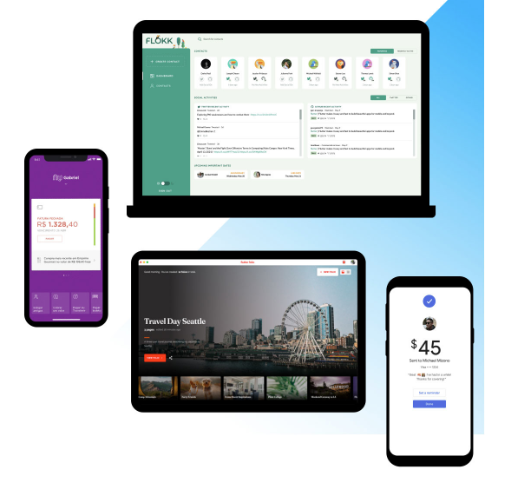
Google’s native services integrate seamlessly right into Flutter
Tap into Google’s full app development ecosystem. Smooth integrations with Firebase, Google Ads, Google Play, Google Pay, Google Wallet, Google Maps and more streamline your development workflow and let you reach a much wider audience.
Flutter runs on Dart, a language fine-tuned for blazing-fast app development across every platform.
You can visit Flutter’s official site here: Flutter – Build apps for any screen
Setup & Installation
Flutter works on multiple operating systems, and all the OSes shown below support Flutter development out of the box.

This tutorial will walk through setup on Windows.
Before setting up your Flutter dev environment, you’ll need to install a few prerequisite tools first.
- Install Git for Windows
Head over to Git’s official website to grab the installer: Git – Install for Windows
I’m running an Intel 64-bit Windows machine, so I downloaded this specific installer build: Git for Windows/x64 Setup.
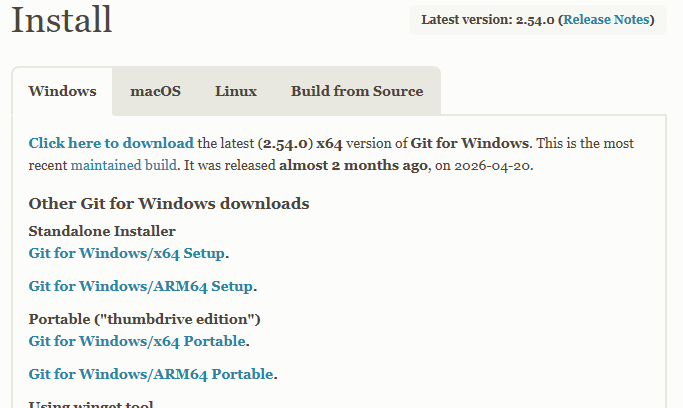
Git installation is really straightforward, just like most standard Windows installers. You can basically keep hitting “Next” through every prompt.
- Download and install Visual Studio Code
Flutter supports both VS Code and Android Studio, so pick whichever editor you’re more comfortable with. I personally stick with Android Studio, so this entire tutorial will use Android Studio as our primary tool. Grab the latest version straight from Android Studio’s official page here: https://developer.android.com/studio
Installing Flutter itself
We’ve only set up supporting prerequisites so far — now we’ll install the actual Flutter framework. You need the Flutter framework installed locally before building any projects with it. If you plan to code with VS Code, check out other guides that cover the built-in Flutter installation flow within VS Code; you can set Flutter up directly inside VS Code.
Adding Flutter and Dart to VS Code works just like installing any other VS Code extension — simply search for Flutter and Dart in the extensions marketplace panel.
To add the Dart and Flutter extensions in VS Code, open this marketplace page: Flutter Extension Marketplace Page, then hit the Install button. If your browser prompts for permission to launch VS Code, allow it. You can also follow the official written walkthrough here: Get started with Flutter in minutes
That said, I won’t be using VS Code for this tutorial, so we’ll go through manual Flutter installation instead.
Manual Flutter installation steps
This manual setup guide follows Google’s official documentation here: https://docs.flutter.dev/install/manual
Open the link above and select the installer matching your OS — we’ll choose Windows for this guide.
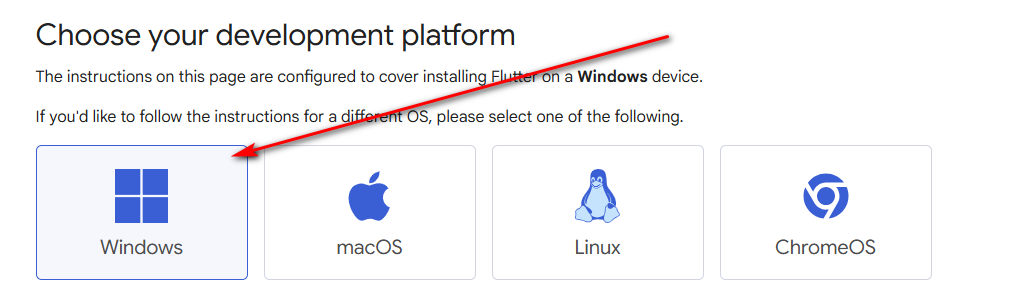
Click the download button to grab the Flutter archive file.
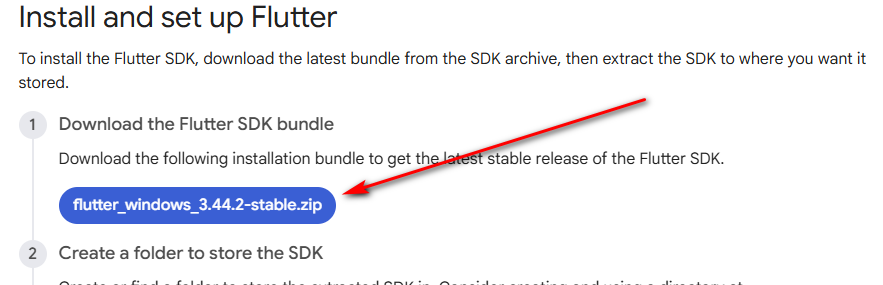
Once downloaded, extract the archive to a folder path with no spaces or special characters in its name. Keep it simple, like C:\flutter.
This is what the extracted folder contents should look like:
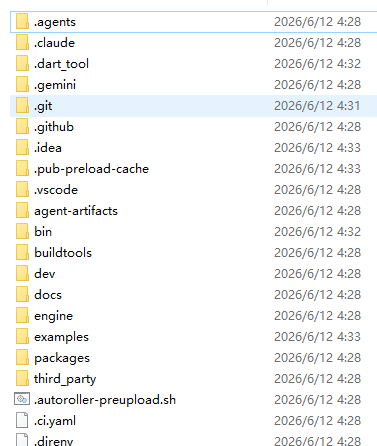
Copy the full path to the bin folder: C:\flutter\bin, then add this path to your system PATH environment variable.
Open your Windows Start Menu and search for “Edit environment variables”.
Add the bin folder path entry to the PATH variable list.
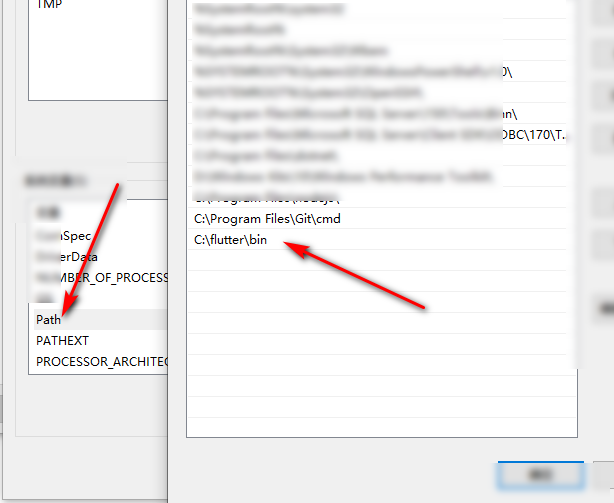
Install the Dart SDK
After finishing Flutter setup, you’ll need the Dart SDK. Open a terminal window and run this command:
flutter doctorWhen you run the command, it will automatically download the Dart SDK for you.
C:\Users\Jack>flutter doctor
Checking Dart SDK version...
Downloading Dart SDK from Flutter engine ...
Expanding downloaded archive with PowerShell...Code language: JavaScript (javascript)
Now we’ll verify everything installed correctly. Open a regular CMD prompt and run the same command again.
Note: Installation may fail in certain regions due to network restrictions. If that happens, set these mirror proxy variables first in CMD or PowerShell by running each line below one after another:
set PUB_HOSTED_URL=https://pub.flutter-io.cn
set FLUTTER_STORAGE_BASE_URL=https://storage.flutter-io.cn
flutter doctorCode language: JavaScript (javascript)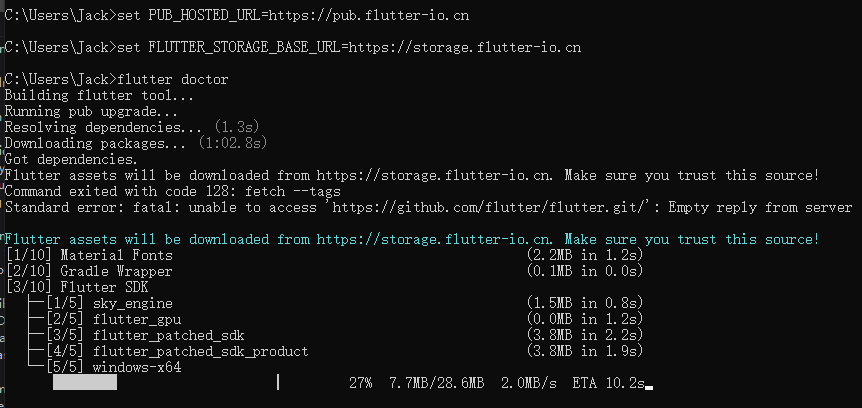
The final command flutter doctor scans your entire Flutter development environment. Think of “doctor” as a diagnostic tool that checks for broken or missing components in your Flutter setup.
Here’s the diagnostic output I got on my machine after running the check:
Doctor summary (to see all details, run flutter doctor -v):
[√] Flutter (Channel stable, 3.44.2, on Microsoft Windows [ 10.0.19044.7417], locale zh-CN)
[√] Windows Version (10 IoT LTSC 64-bit, 21H2, 2009)
[X] Android toolchain - develop for Android devices
    X Unable to locate Android SDK.
      Install Android Studio from: https://developer.android.com/studio/index.html
      On first launch it will assist you in installing the Android SDK components.
      (or visit https://flutter.dev/to/windows-android-setup for detailed instructions).
      If the Android SDK has been installed to a custom location, please use
      `flutter config --android-sdk` to update to that location.

[X] Chrome - develop for the web (Cannot find Chrome executable at .\Google\Chrome\Application\chrome.exe)
    ! Cannot find Chrome. Try setting CHROME_EXECUTABLE to a Chrome executable.
[√] Visual Studio - develop Windows apps (Visual Studio Community 2022 17.9.1)
[√] Connected device (2 available)
[!] Network resources
    X An HTTP error occurred while checking "https://github.com/": request timed out

! Doctor found issues in 3 categories.Code language: JavaScript (javascript)
Any line marked with an X means a required component is missing or improperly configured. For example, a missing Android SDK stops you from building Android app builds, and no Chrome installation means you can’t debug web Flutter projects. We’ll fix the Android SDK issue in the next section; you can install Chrome separately if needed. If you’re only building native Windows desktop apps, you can skip installing both entirely.
Missing Android SDK (Can’t compile Android-targeted builds)
Chrome not detected (Web debugging functionality unavailable)
Chrome official download link: Google Chrome – Download the fast, secure browser from Google
Install Android Studio
I downloaded the latest Windows installer: android-studio-quail1-patch1-windows.exe. Just double-click the file to launch setup.
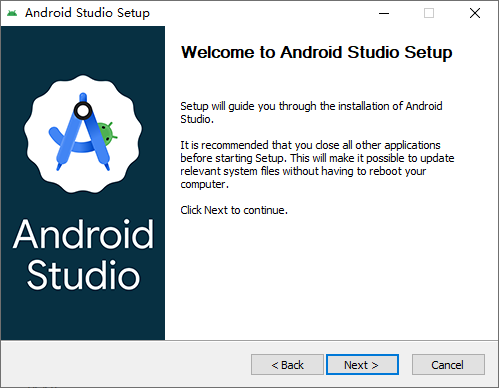
Again, simply keep hitting Next through every installation screen.
Once installation finishes, launch Android Studio and continue clicking Next through the initial setup wizard.
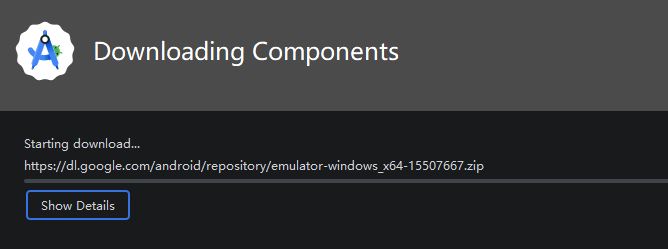
Once everything finishes installing, you’ll be able to create brand new Flutter projects inside Android Studio.
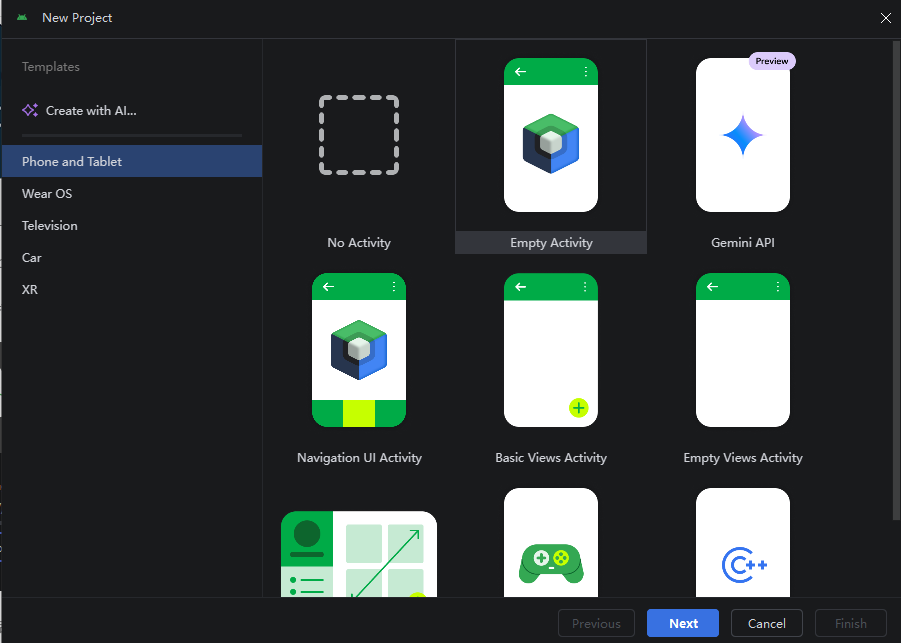
Reopen CMD and run flutter doctor one more time to re-scan your environment.
[!] Android toolchain - develop for Android devices (Android SDK version 36.1.0)
    X cmdline-tools component is missing.
      Try installing or updating Android Studio.
      Alternatively, download the tools from https://developer.android.com/studio#command-line-tools-only and make sure
      to set the ANDROID_HOME environment variable.
      See https://developer.android.com/studio/command-line for more details.
    X Android license status unknown.
      Run `flutter doctor --android-licenses` to accept the SDK licenses.
      See https://flutter.dev/to/windows-android-setup for more details.Code language: PHP (php)
Inside Android Studio go to File → Settings → Appearance & Behavior → System Settings → Android SDK
Switch over to the SDK Tools tab and tick this box:
Android SDK Command-line Tools (latest)
Make sure you’re still on the SDK Tools tab and select the following tool:
Android SDK Command-line Tools (latest)
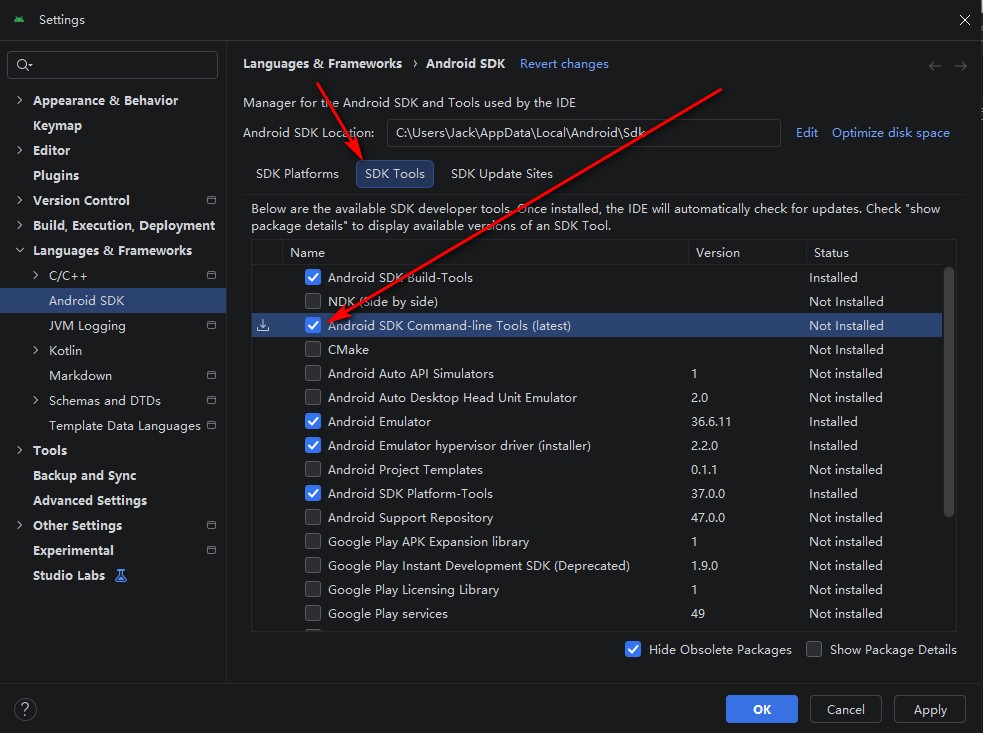
Click Apply, then wait for the tools to download and install automatically.
Run flutter doctor once more after the download completes.
[!] Android toolchain - develop for Android devices (Android SDK version 36.1.0)
    ! Some Android licenses not accepted. To resolve this, run: flutter doctor --android-licensesCode language: CSS (css)
This warning pops up because you haven’t agreed to Android’s SDK licenses yet.
Unaccepted Android SDK licenses (Some Android licenses not accepted)
Run this command inside CMD:
flutter doctor --android-licensesSimply type Y and hit Enter for every license prompt that appears.
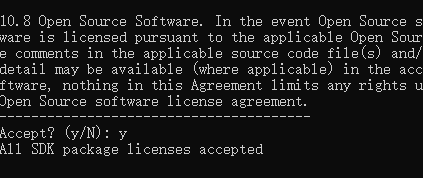
Execute flutter doctor in the terminal a final time to confirm everything works.
C:\Users\Jack>flutter doctor
Flutter assets will be downloaded from https://storage.flutter-io.cn. Make sure you trust this source!
Doctor summary (to see all details, run flutter doctor -v):
[√] Flutter (Channel stable, 3.44.2, on Microsoft Windows [Version 10.0.19044.7417], locale zh-CN)
[√] Windows Version (Windows 10 IoT Enterprise LTSC 64-bit, 21H2, 2009)
[√] Android toolchain - develop for Android devices (Android SDK version 36.1.0)
[√] Chrome - develop for the web
[√] Visual Studio - develop Windows apps (Visual Studio Community 2022 17.9.1)
[√] Connected device (3 available)
[√] Network resources

• No issues found!Code language: JavaScript (javascript)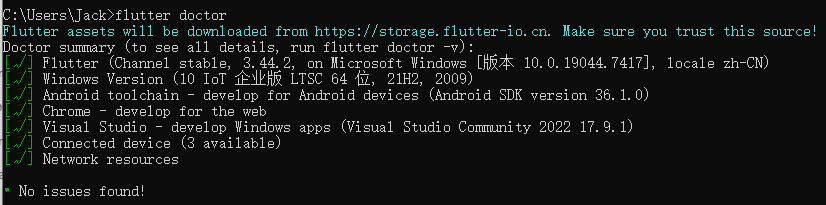
Great, our full Flutter development environment is fully set up now. In the next lesson, we’ll build our first sample Flutter project together.