Last lesson, we successfully installed Cordova. In this session, we’ll use CLI commands to create a new project.
1. Create a Cordova Project
Open your terminal, navigate to the folder where you want to store the project, then run the creation command:
cordova create hello com.foxdevelop.hello HelloWorldCode language: CSS (css)Parameter explanation:
hello: Project folder namecom.example.hello: Application package name (unique Android identifier; must be modified before public release)HelloWorld: App display name
Below is a practical example. We’ll create a directory on drive D, then generate the project inside it.
C:\Users>d:

D:\>mkdir cordovademo

D:\>cd cordovademo

D:\cordovademo>cordova create hello com.foxdevelop.hello HelloWorld
Creating a new cordova project.Code language: CSS (css)
You can now find the cordovademo folder on drive D, which contains a subfolder named hello.
Core source directory: hello/www/
Entry page: www/index.html
Do not edit any files inside the
platformsdirectory — they will be overwritten during packaging!
2. Enter the Project and Add Platforms
cd helloAdd target platforms
# Android platform (works on Windows)
cordova platform add android

# iOS platform [Cannot compile on Windows! Only supported on Mac]
# cordova platform add iosCode language: PHP (php)
Command execution log
D:\cordovademo>cd hello

D:\cordovademo\hello>cordova platform add android
Using cordova-fetch for cordova-android
Adding android project...
Creating Cordova project for the Android platform:
        Path: platforms\android
        Package: com.foxdevelop.hello
        Name: HelloWorld
        Activity: MainActivity
        Android Target SDK: android-36
        Android Compile SDK: 36
Subproject Path: CordovaLib
Subproject Path: app
Android project created with cordova-android@15.1.0

D:\cordovademo\hello>cordova platform ls
Installed platforms:
  android 15.1.0
Available platforms:
  browser
  electronCode language: CSS (css)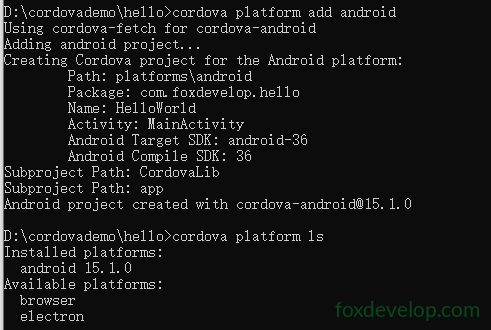
3. Pre-Environment Check (Important)
cordova requirementsThis command verifies whether your system environment is fully configured, such as JDK installation.
D:\cordovademo\hello>cordova requirements
Android SDK is missing cmdline-tools directory.

Requirements check results for android:
Java JDK: installed 11.0.31
Android SDK: installed true
Android target: not installed
Command failed with exit code 1: avdmanager list target
'avdmanager' is not recognized as an internal or external command,
operable program or batch file.
Gradle: not installed
Could not find an installed version of Gradle either in Android Studio,
or on your system to install the gradle wrapper. Please include gradle
in your path, or install Android Studio
Some of requirements check failedCode language: PHP (php)
Ideally you should see:
Java JDK: installed
Android SDK: installed
Gradle: installed
But in my case, it shows Gradle: not installed
If you haven’t installed the JDK yet, you need to set it up. You can refer to other tutorials for JDK installation guides.
I’m using JDK 11 on this machine.
Here is the error output I encountered locally:
D:\cordovademo\hello>cordova build android
Checking Java JDK and Android SDK versions
ANDROID_HOME=undefined (recommended setting)
ANDROID_SDK_ROOT=undefined (DEPRECATED)
Android SDK is missing cmdline-tools directory.
Using Android SDK: D:\Sortware\ADB
Could not find an installed version of Gradle either in Android Studio,
or on your system to install the gradle wrapper. Please include gradle
in your path, or install Android StudioCode language: JavaScript (javascript)
You need to install Android Studio, which comes with the Android SDK.
Check other lessons for Android Studio installation instructions.
Open Android Studio, go to the top menu: Tools → SDK Manager. You can view your SDK path here.
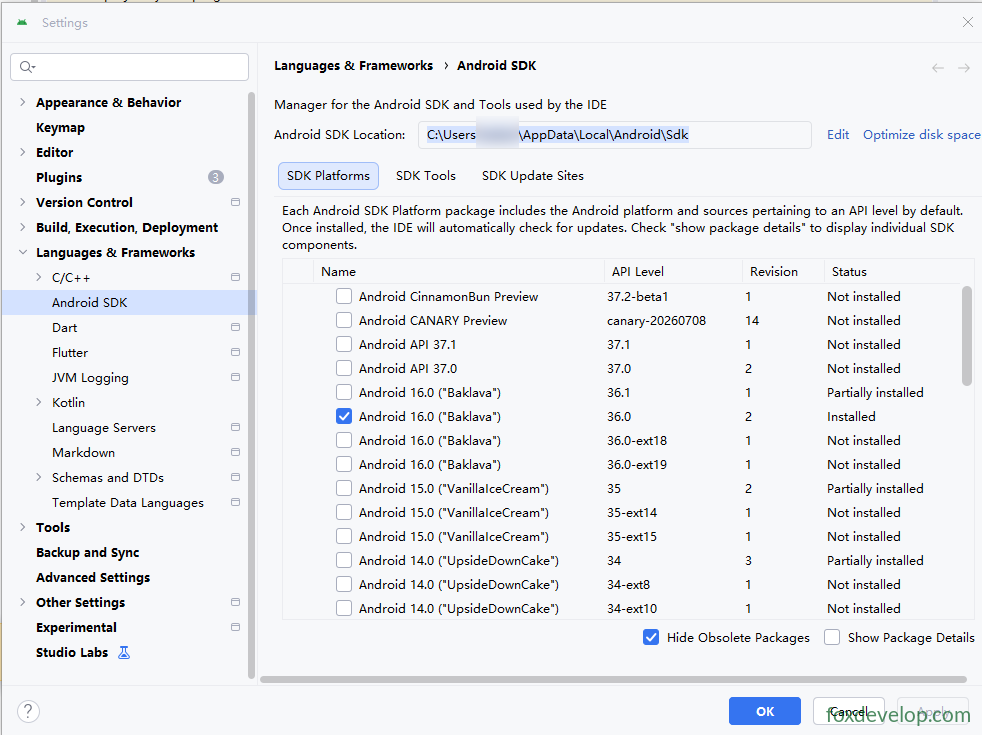
Next, configure system environment variables
Variable name: ANDROID_HOME
Variable value: C:\Users\xxxxx\AppData\Local\Android\Sdk

After creating the variable, add these entries to your PATH:
%ANDROID_HOME%\platform-tools
%ANDROID_HOME%\cmdline-tools\latest\bin
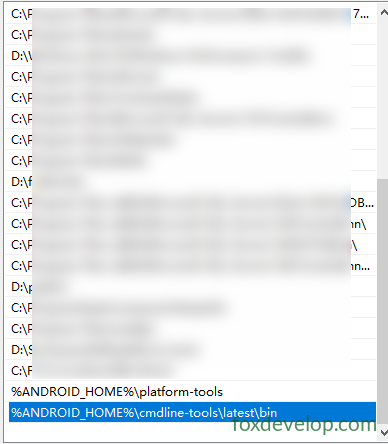
Install Command Line Tools via Android Studio
Open Android Studio → Tools → SDK Manager
Switch to the SDK Tools tab
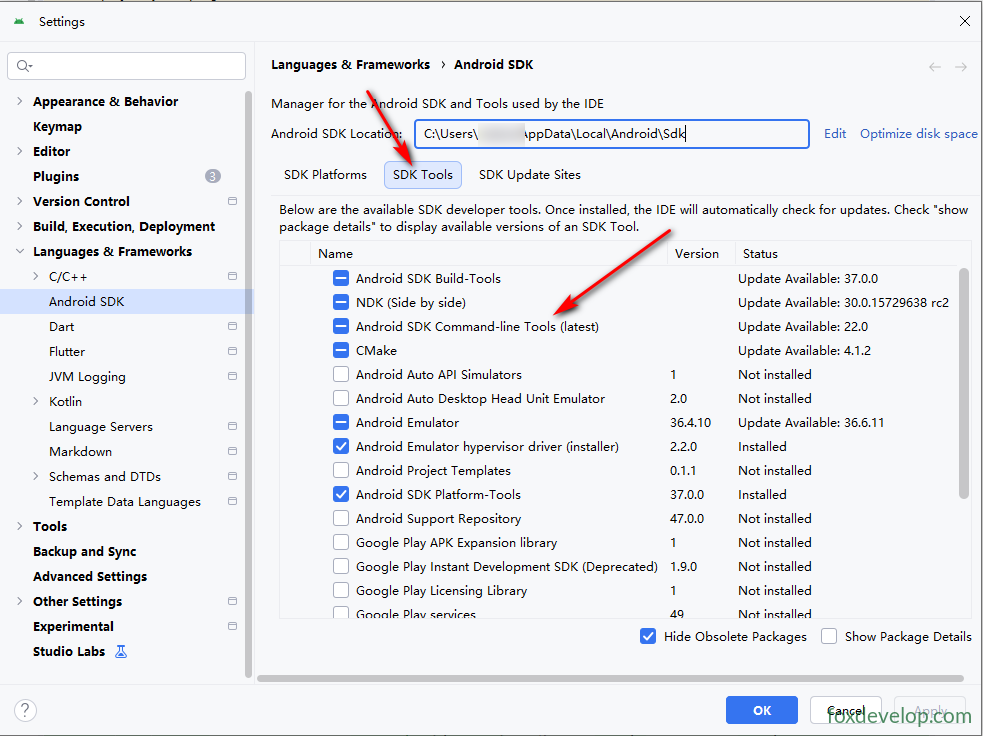
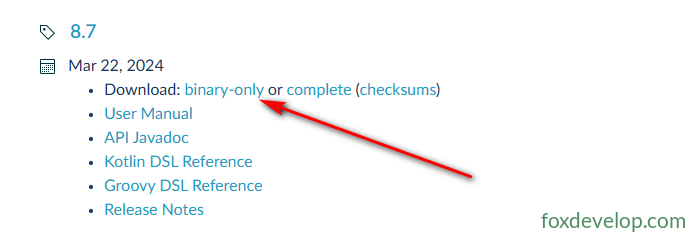
Download Gradle Binary Package
Official download page: https://gradle.org/releases/
Extract to this path: C:\gradle\gradle-8.5
Gradle by Develocity | Releases
Configure System Environment Variables
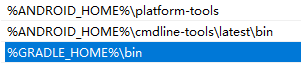
Variable name: GRADLE_HOME
Variable value: C:\gradle-8.7
Create a new System Variable

Add it to the Path variable
Verify successful installation
Open CMD
gradle -v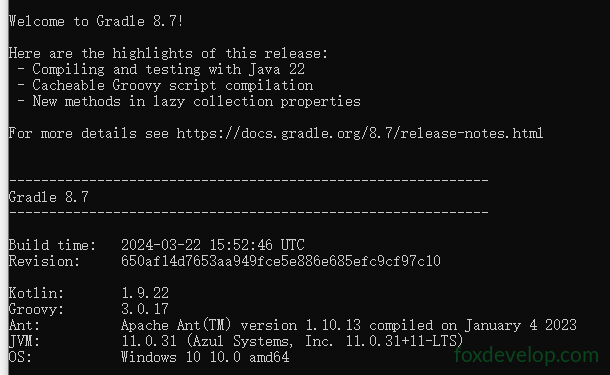
Run the check again. The following output means your environment is properly set up:
D:\cordovademo\hello>cordova requirements

Requirements check results for android:
Java JDK: installed 11.0.31
Android SDK: installed true
Android target: not installed
No android targets (SDKs) installed!
Gradle: installed C:\gradle-8.7\bin\gradle.BAT
Some of requirements check failedCode language: CSS (css)
Issue 2: JDK Version
I encountered the error below after running cordova run android:
D:\cordovademo\hello>cordova run android
Checking Java JDK and Android SDK versions
ANDROID_HOME=C:\Users\maiwu\AppData\Local\Android\Sdk (recommended setting)
ANDROID_SDK_ROOT=undefined (DEPRECATED)

BUILD SUCCESSFUL in 1sCUTING [91ms]
1 actionable task: 1 up-to-date
Subproject Path: CordovaLib
Subproject Path: app

[Incubating] Problems report is available at: file:///D:/cordovademo/hello/platforms/android/build/reports/problems/problems-report.html

FAILURE: Build failed with an exception.

* Where:
Build file 'D:\cordovademo\hello\platforms\android\app\build.gradle' line: 20

* What went wrong:
A problem occurred evaluating project ':app'.
> Failed to apply plugin 'com.android.internal.application'.
   > Android Gradle plugin requires Java 17 to run. You are currently using Java 11.
      Your current JDK is located in C:\Program Files\Zulu\zulu-11
      You can try some of the following options:
       - changing the IDE settings.
       - changing the JAVA_HOME environment variable.
       - changing `org.gradle.java.home` in `gradle.properties`.

* Try:
> Run with --stacktrace option to get the stack trace.
> Run with --info or --debug option to get more log output.
> Run with --scan to get full insights.
> Get more help at https://help.gradle.org.

Deprecated Gradle features were used in this build, making it incompatible with Gradle 9.0.

You can use '--warning-mode all' to show the individual deprecation warnings and determine if they come from your own scripts or plugins.

For more on this, please refer to https://docs.gradle.org/8.14.2/userguide/command_line_interface.html#sec:command_line_warnings in the Gradle documentation.

BUILD FAILED in 2s
Command failed with exit code 1: D:\cordovademo\hello\platforms\android\tools\gradlew.bat cdvBuildDebugCode language: JavaScript (javascript)
I currently have JDK11, but the AGP (Android Gradle Plugin) paired with the current Cordova Android platform mandates JDK17, causing the build to fail directly.
I was using Zulu JDK 11, so I upgraded to Zulu JDK 17.
Download from here: Java 8, 11, 17, 21, 25 Download for Linux, Windows and macOS

The downloaded file is an MSI installer. Launch it and tick the relevant options to let the installer automatically configure JAVA_HOME and PATH variables.
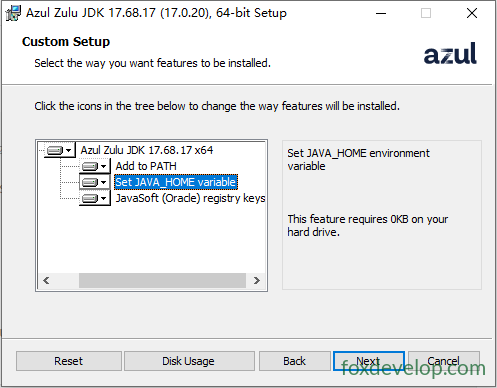
Open CMD and verify Java:
java -version
openjdk version "17.0.20" 2026-07-21 LTS
OpenJDK Runtime Environment Zulu17.68+17-CA (build 17.0.20+8-LTS)
OpenJDK 64-Bit Server VM Zulu17.68+17-CA (build 17.0.20+8-LTS, mixed mode, sharing)Code language: CSS (css)
This output confirms successful installation.
4. Build the Application
# Build all platforms (only Android available now)
cordova build

# Build Android only
cordova build android
Code language: PHP (php)
After successful compilation, the APK output path:
hello\platforms\android\app\build\outputs\apk\debug\app-debug.apk
Execution log
D:\cordovademo\hello>cordova build android
Checking Java JDK and Android SDK versions
ANDROID_HOME=C:\Users\maiwu\AppData\Local\Android\Sdk (recommended setting)
ANDROID_SDK_ROOT=undefined (DEPRECATED)
Using Android SDK: C:\Users\maiwu\AppData\Local\Android\Sdk

BUILD SUCCESSFUL in 9s
1 actionable task: 1 up-to-date
Subproject Path: CordovaLib
Subproject Path: app

> Task :CordovaLib:compileDebugJavaWithJavac
Note: Some input files use or override a deprecated API.
Note: Recompile with -Xlint:deprecation for details.

[Incubating] Problems report is available at: file:///D:/cordovademo/hello/platforms/android/build/reports/problems/problems-report.html

BUILD SUCCESSFUL in 11s
50 actionable tasks: 50 executed
Built the following apk(s):
        D:\cordovademo\hello\platforms\android\app\build\outputs\apk\debug\app-debug.apkCode language: JavaScript (javascript)
Locate the APK file under D:\cordovademo\hello\platforms\android\app\build\outputs\apk\debug\

5. Test & Run
Method 1: Run on Android Emulator
cordova emulate android
Method 2: Physical device test via USB (enable USB debugging)
cordova run android
We will test on a physical device, and I recommend you do the same. Connect your Android phone with a USB cable and turn on USB debugging on the device.
Open CMD inside the hello folder and execute cordova run android
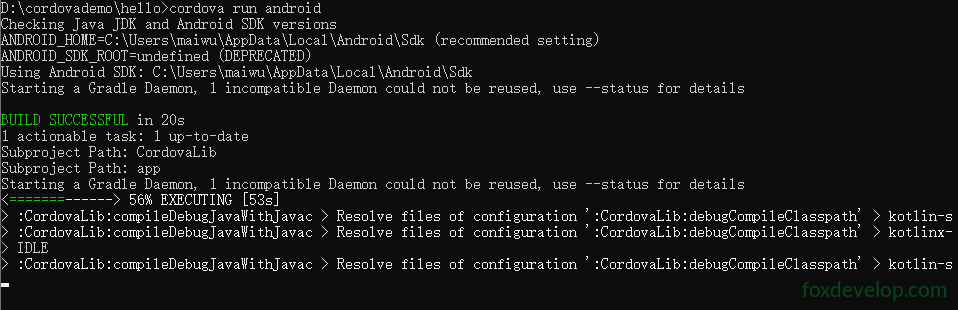
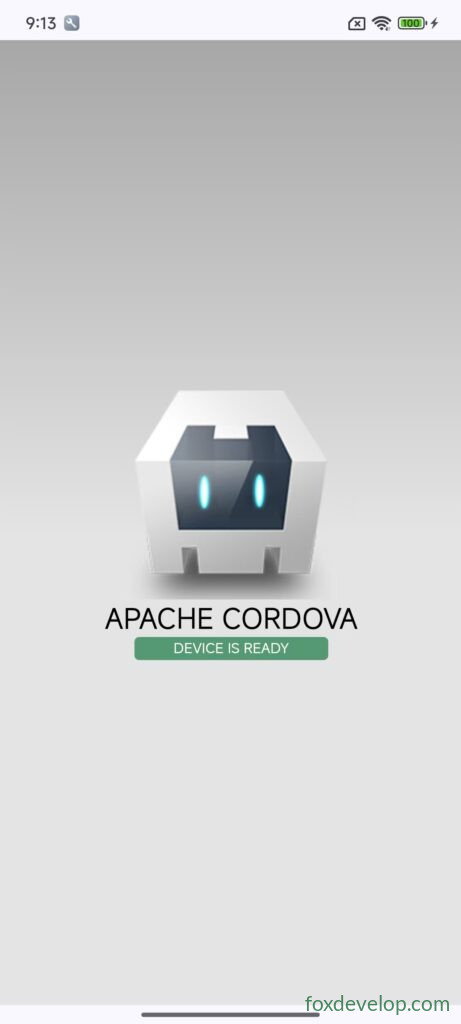
The app will then be installed onto your phone.
You will see the default Cordova page after launch.
6. Plugin Installation
Access native device capabilities
Cordova web pages cannot directly access hardware features such as camera, Bluetooth, files or notifications. Plugins are mandatory.
Example: Camera Plugin
cordova plugin add cordova-plugin-camera
List installed plugins
cordova plugin ls
You must wait for the
devicereadyevent before calling native APIs via JS. Do not invoke plugins immediately after page load!
Basic template sample (www/js/index.js)
document.addEventListener("deviceready", onDeviceReady, false);
function onDeviceReady() {
    // Device ready; all Cordova plugins can be invoked
    console.log("Cordova initialization complete");
}
Code language: JavaScript (javascript)
Command log
D:\cordovademo\hello>cordova plugin add cordova-plugin-camera
Installing "cordova-plugin-camera" for android
Subproject Path: CordovaLib
Subproject Path: app
Adding cordova-plugin-camera to package.json

D:\cordovademo\hello>cordova plugin ls
cordova-plugin-camera 8.0.0 "Camera"Code language: CSS (css)
Now modify index.html with the following code to test camera functionality.
First, an overview of the project folder structure after creation:
D:\cordovademo\hello
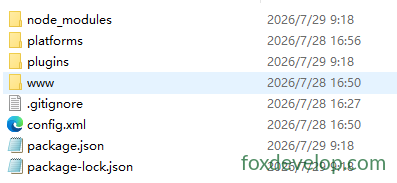
All future code editing takes place inside the www folder.
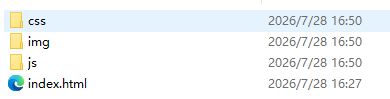
Replace index.html content with this:
<!DOCTYPE html>
<html>
<head>
    <meta charset="utf-8">
    <meta name="viewport" content="width=device-width, initial-scale=1.0">
    <title>Camera Test</title>
    <script src="cordova.js"></script>
</head>
<body>
    <button id="btnTake">Take Photo</button>
    <br>
    <img id="imgPreview" style="width:220px;">

    <script>
        let cameraReady = false;

        document.addEventListener("deviceready", onDeviceReady, false);

        function onDeviceReady() {
            console.log("deviceready triggered, Cordova ready");
            cameraReady = true;
        }

        // addEventListener binding recommended (onclick may cause timing conflicts)
        document.getElementById("btnTake").addEventListener("click", function(){
            if(!cameraReady){
                alert("Wait for Cordova initialization to finish!");
                return;
            }

            navigator.camera.getPicture(
                function(imageUri) {
                    console.log("Photo captured successfully: ", imageUri);
                    document.getElementById("imgPreview").src = imageUri;
                },
                function(error) {
                    alert("Photo capture failed: " + error);
                },
                {
                    destinationType: 0, // Camera.DestinationType.FILE_URI = 0; use raw number to avoid undefined Camera object
                    sourceType: 1,      // Camera.PictureSourceType.CAMERA = 1
                    quality: 80
                }
            );
        });
    </script>
</body>
</html>Code language: C# (cs)
Run cordova run android again
The app will launch. You will see a button on screen. Tap it to open the camera and take pictures.
* 7. merges Directory: Platform-Specific Custom Files
By default, all platforms share resources from the www folder.
If you want different UI assets for Android and iOS, use the merges directory:
merges/
├─android/
│  └─css/overrides.css  # Only applied on Android
└─ios/
Code language: PHP (php)
During build, files inside merges override identically named files in www.
* 8. Upgrade Cordova
# Global upgrade of Cordova CLI
npm update -g cordova

# Install specific version
npm install -g cordova@12.0.0

# Update Android platform version within project
cordova platform update android --save
Code language: PHP (php)
Command Summary
#1 Create project
cordova create testapp com.mytest.app TestApp
cd testapp

#2 Add Android platform
cordova platform add android

#3 Check environment
cordova requirements

#4 Compile debug build
cordova build android

#5 Run on physical device
cordova run android
Code language: CSS (css)
Your First Cordova Project