When you first create an Android project, Android Studio offers several project view modes. Project mode displays the actual physical directory structure, making it especially helpful for beginners to understand the overall project layout. Below is a breakdown of the core files and folders based on Project mode.
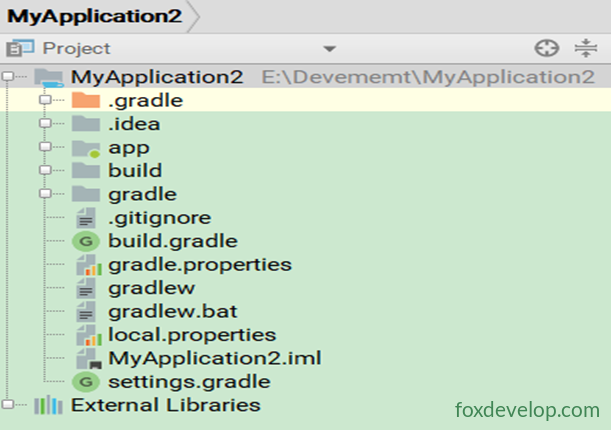
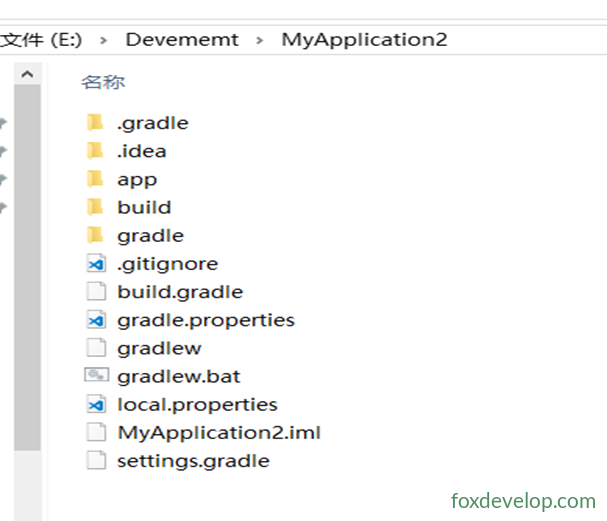
Outer Directory (Project Root Directory)
1. app Directory
Nearly all code and resource files are stored here. This is the directory you’ll work with most during development.
2. gradle Directory
Contains configuration files for Gradle Wrapper. Its main advantage is that you don’t need to manually download Gradle in advance—it automatically decides whether to download it based on your local cache.
By default, Android Studio does not enable Gradle Wrapper. To turn it on, go to
File → Settings → Build, Execution, Deployment → Gradlein the navigation bar.
3. .gitignore
Used to exclude specific directories or files from version control. Common exclusions include:
*.iml
.gradle
/local.properties
/.idea/workspace.xml
/.idea/libraries
.DS_Store
/build
/captures
.externalNativeBuild
4. build.gradle
The project-wide Gradle build script. Usually, you won’t need to modify this file.
5. gradle.properties
A global Gradle configuration file. Properties set here affect all Gradle build scripts in the project.
6. build Directory
Contains files automatically generated during compilation. You generally don’t need to worry about it.
7. MyApplication.iml
An automatically generated file by IntelliJ IDEA (the platform Android Studio is built on) to identify the project. Do not modify it manually.
8. gradlew and gradlew.bat
Used to execute Gradle commands from the command line:
gradlew: For Linux / Mac systemsgradlew.bat: For Windows systems
9. local.properties
Specifies the local Android SDK path. This file is automatically generated by Android Studio and should not be modified unless the SDK location changes.
sdk.dir=C\:\\Users\\YY\\AppData\\Local\\Android\\Sdk10. settings.gradle
Used to specify all modules included in the project. Currently, only the app module is included, so only app appears in this file. Modules are usually added automatically, so manual changes are rarely needed.
Key Focus: app Directory Explained
The app directory contains all the core content needed for actual development:
1. build
Similar to the outer build directory, it contains files automatically generated during compilation. It holds more content but generally doesn’t require attention.
2. libs
Stores third-party .jar files. Any JAR placed here is automatically added to the build path.
3. androidTest
Used for writing Android Test test cases to perform automated testing on the project.
4. java
Where all Java / Kotlin code is placed. Expanding the directory reveals the automatically generated MainActivity file.
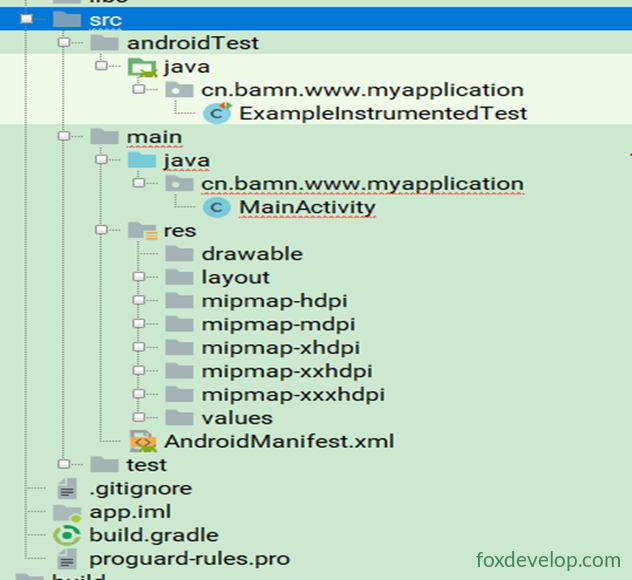
5. res
The resource directory, containing all images, layouts, strings, and other resources used in the project:
| Resource Type | Location |
|---|---|
| Images | drawable directory |
| Layouts | layout directory |
| Strings | values directory |
Resources are well organized, so things won’t feel messy.
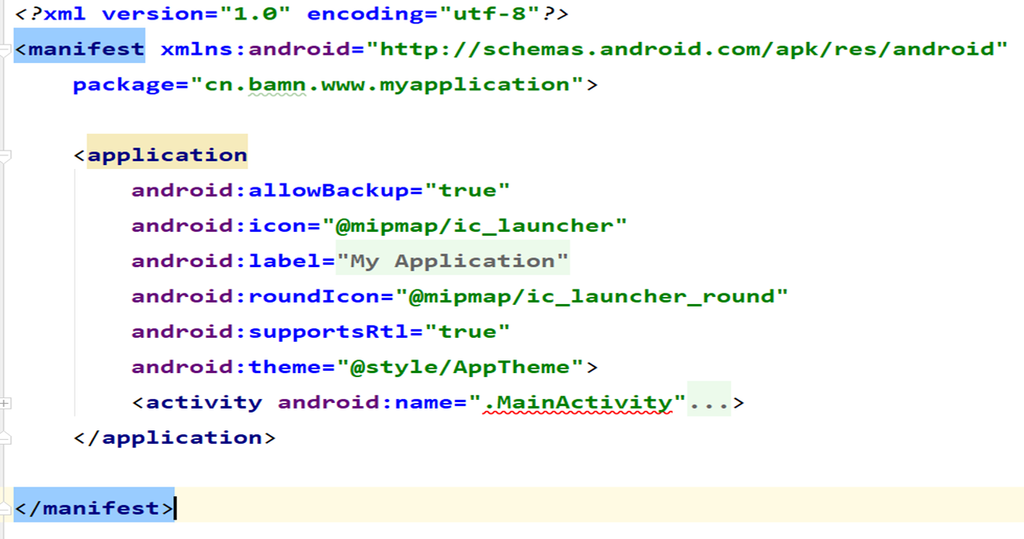
6. AndroidManifest.xml
The configuration file for the entire Android project. All four major components (Activity, Service, BroadcastReceiver, ContentProvider) must be registered here, and app permissions are also declared in this file.
7. test
Used for writing Unit Test test cases—another approach to automated testing.
8. .gitignore
Excludes specific directories or files within the app module from version control, similar to the outer .gitignore.

9. app.iml
An automatically generated IntelliJ IDEA file. No need to worry about or modify it.
10. build.gradle (Module Level)
The Gradle build script for the app module. It contains a large amount of build-related configuration (such as dependencies, compile SDK version, application ID, etc.) and is one of the configuration files you’ll modify most often during development.
11. proguard-rules.pro
Specifies the code obfuscation rules for the project. Enabling obfuscation when officially packaging and releasing the app helps prevent reverse engineering.
Project analysis and directory structure