Rust has evolved rapidly from a niche project into a mainstream technology. It has secured a solid position in system programming and gained extensive adoption within open-source communities and diverse industries.
The language features memory safety, top-tier performance, helpful compiler feedback and fully-featured tooling. It draws on decades of practical development experience and collective wisdom from its active community.
Carefully engineered for reliability, Rust enables developers to build secure, efficient and stable software. Now supported by the Rust Foundation, the whole community keeps focusing on empowering every developer.
Installation
Linux & macOS
Run the following command to complete the installation:
curl --proto '=https' --tlsv1.2 https://sh.rustup.rs -sSf | shCode language: JavaScript (javascript)Windows
Visit Install Rust – Rust Programming Language first and download the corresponding EXE installer.

Three installers are provided for 32-bit x86, 64-bit x86 and ARM64 architectures respectively. Choose the one that matches your operating system.
Windows users also need to install Microsoft Visual C++ Build Tools. You can refer to the setup guide on this page: MSVC prerequisites – The rustup book. This tutorial uses Visual Studio 2022 for demonstration.
Get the Visual Studio 2022 Community Installer from this link: https://github.com/xzapps/InstallTools/blob/main/vs_Community2022.exe. This is a web installer that will download required files during setup. If you do not develop .NET applications, just select the components listed below.
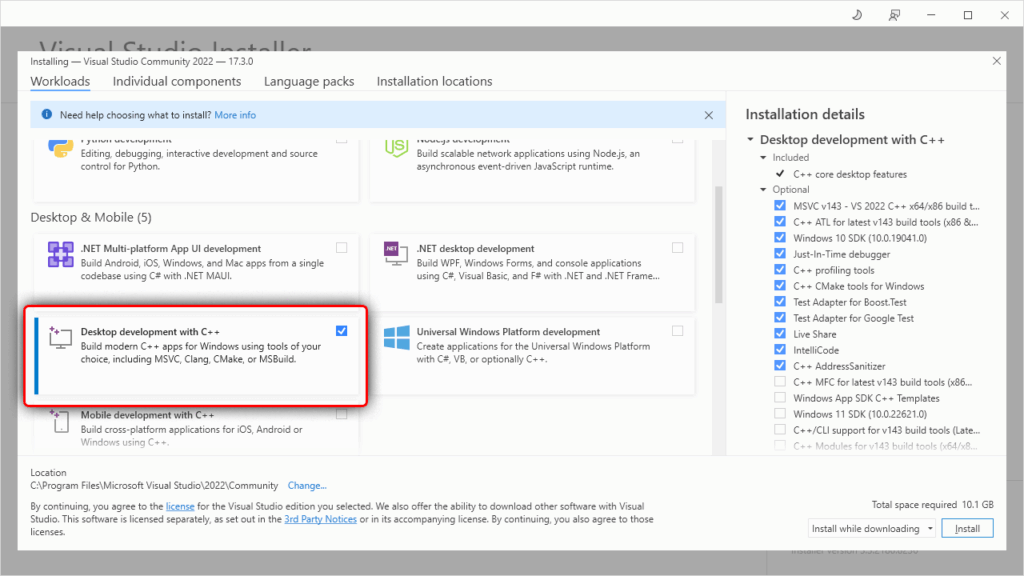
Check the above workload, then make sure these two essential components are installed:
- MSVC v143 – VS 2022 C++ x64/x86 Build Tools (Latest)
- Windows 11 SDK (10.0.22621.0)
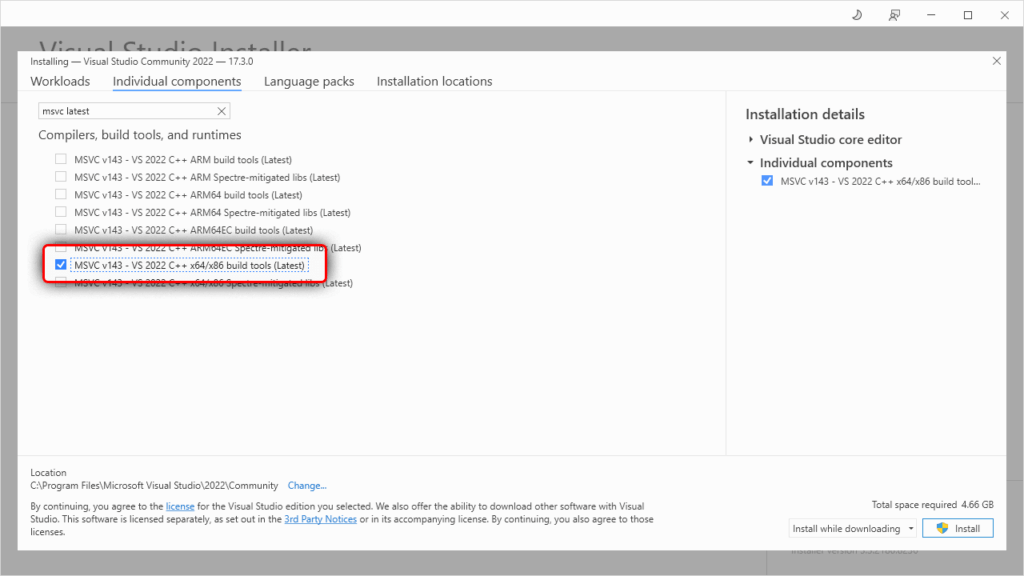
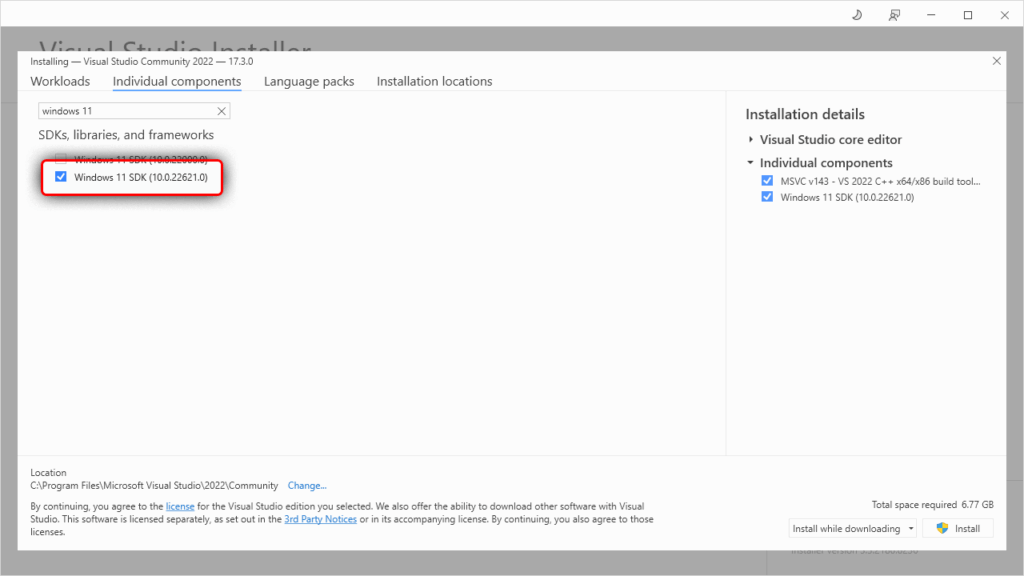
Note: The specific version of Windows SDK makes little difference for pure Rust projects. If you work with C++ code at the same time, pick the latest version or the one required by your C++ projects.
Language packs (optional): Install them if you prefer error messages displayed in your local language for easier troubleshooting.
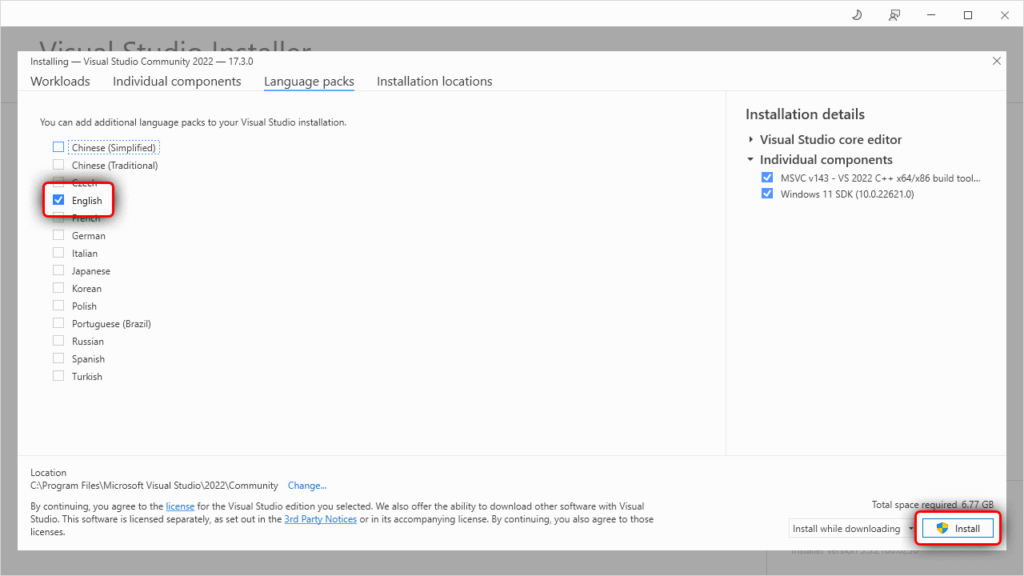
Finally click Install and wait for the whole process to finish.
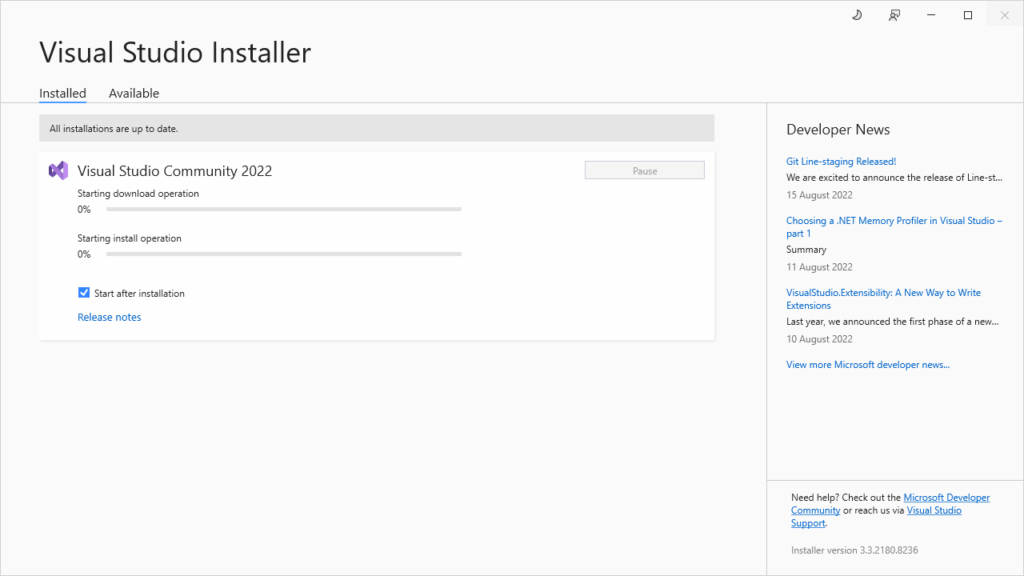
Once Visual Studio 2022 is ready, you can proceed to install the Rust installer you downloaded earlier.
Here are the default installation directories:
Toolchains, Compiler and Standard Library: C:\Users\YourUsername\.rustup
Executables including cargo, rustc and rustup: C:\Users\YourUsername\.cargo\bin
All Rust tools for building, compiling and project creation are stored in the second folder above. Run the command below to check your actual installation paths.
rustup show>rustup show
Default host: x86_64-pc-windows-msvc
rustup home: C:\Users\yourname\.rustup
installed toolchains
--------------------
stable-x86_64-pc-windows-msvc (active, default)
active toolchain
----------------
name: stable-x86_64-pc-windows-msvc
active because: it's the default toolchain
installed targets:
x86_64-pc-windows-msvcCode language: PHP (php)Verify Installation
Open Command Prompt or terminal and run the following command:
rustc --versionA successful installation will return output similar to this:
rustc 1.94.0 (4a4ef493e 2026-03-02)Code language: CSS (css)Common Commands
To update your existing Rust installation, execute:
rustup updateTo uninstall Rust completely, run:
rustup self uninstallCode language: PHP (php)