We’ll create an addition tool with two numeric input boxes, a plus sign in between, and an equals button. After entering two numbers and clicking the = button, the total sum will show up in a third read-only input field.
This is a straightforward little demo, but it’s perfect for learning the core form controls ImGui offers.
First, here’s a screenshot of how the finished program looks when running
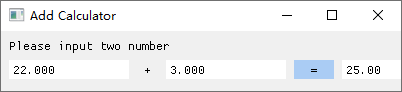
This example is really minimal. Most of the boilerplate code matches the project from our last lesson—only the UI rendering section is different. We’ve also added a few variables to store our numeric values, plus switched the theme to a light mode to mimic regular desktop GUI applications you’re used to seeing.
#pragma comment(linker, "/SUBSYSTEM:windows /ENTRY:mainCRTStartup")

#include <GLFW/glfw3.h>
#include "imgui.h"
#include "backends/imgui_impl_glfw.h"
#include "backends/imgui_impl_opengl3.h"
#include <cstdio>

int main()
{
    if (!glfwInit())
    {
        printf("GLFW initialization failed\n");
        return -1;
    }

    const char* glsl_version = "#version 330";
    glfwWindowHint(GLFW_CONTEXT_VERSION_MAJOR, 3);
    glfwWindowHint(GLFW_CONTEXT_VERSION_MINOR, 3);
    glfwWindowHint(GLFW_OPENGL_PROFILE, GLFW_OPENGL_CORE_PROFILE);

    GLFWwindow* window = glfwCreateWindow(500, 200, "Add Calculator", nullptr, nullptr); // Window dimensions and title
    if (!window)
    {
        glfwTerminate();
        return -1;
    }
    glfwMakeContextCurrent(window);
    glfwSwapInterval(1);

    IMGUI_CHECKVERSION();
    ImGui::CreateContext();
    ImGuiIO& io = ImGui::GetIO();
	ImGui::StyleColorsLight(); // Switch UI to light color theme

    ImGui_ImplGlfw_InitForOpenGL(window, true);
    ImGui_ImplOpenGL3_Init(glsl_version);

    // Global variables for our addition calculator
    float num1 = 0.0f;    // First addend value
    float num2 = 0.0f;    // Second addend value
    float result = 0.0f;  // Final sum of the two input numbers

    while (!glfwWindowShouldClose(window))
    {
        glfwPollEvents();

        ImGui_ImplOpenGL3_NewFrame();
        ImGui_ImplGlfw_NewFrame();
        ImGui::NewFrame();

        ImGui::SetNextWindowPos(ImVec2(0, 0));
        ImGui::SetNextWindowSize(io.DisplaySize);

        ImGuiWindowFlags window_flags = ImGuiWindowFlags_NoDecoration
            | ImGuiWindowFlags_NoMove
            | ImGuiWindowFlags_NoResize
            | ImGuiWindowFlags_NoSavedSettings;

        ImGui::PushStyleVar(ImGuiStyleVar_WindowRounding, 0.0f);
        ImGui::PushStyleVar(ImGuiStyleVar_WindowBorderSize, 0.0f);

        ImGui::Begin("Control Panel", nullptr, window_flags);

        // Calculator header text
        ImGui::Text("Please input two numbers"); // Static text element, occupies its own line by default
	ImGui::Spacing();// Adds vertical empty space below the header

        // First number input box, fixed width of 120px
	ImGui::SetNextItemWidth(120);// Sets width for the immediately following widget, renders no visible content itself
	ImGui::InputFloat("##num1", &num1);// Float input field bound to num1, hidden label, renders on its own line by default

        // Render plus symbol on the same horizontal line as the first input
	ImGui::SameLine(); // Forces the next widget to draw inline instead of starting a new line
	ImGui::Text(" + "); // Displays the plus sign inline with the first input box

        // Second numeric input field
	ImGui::SameLine(); // Call this before every widget you want on the same row
        ImGui::SetNextItemWidth(120);// Matches width setting for the second input box
        ImGui::InputFloat("##num2", &num2);

        // Equals button to trigger the addition calculation
        ImGui::SameLine();
        if (ImGui::Button(" = ", ImVec2(40, 0)))
        {
            // Calculate total sum and store value in our result variable
            result = num1 + num2;
        }

        // Read-only result field, value formatted to two decimal places, user cannot edit manually
        ImGui::SameLine();
        ImGui::SetNextItemWidth(180);
        ImGui::InputFloat("##result", &result, 0.0f, 0.0f, "%.2f", ImGuiInputTextFlags_ReadOnly);

        ImGui::End();

	// Pop pushed style variables to revert back to default styling
        ImGui::PopStyleVar(2);

        ImGui::Render();
        int width, height;
        glfwGetFramebufferSize(window, &width, &height);
        glViewport(0, 0, width, height);
        glClearColor(0.12f, 0.12f, 0.12f, 1.f);
        glClear(GL_COLOR_BUFFER_BIT);
        ImGui_ImplOpenGL3_RenderDrawData(ImGui::GetDrawData());

        glfwSwapBuffers(window);
    }

    ImGui_ImplOpenGL3_Shutdown();
    ImGui_ImplGlfw_Shutdown();
    ImGui::DestroyContext();
    glfwDestroyWindow(window);
    glfwTerminate();
    return 0;
}Code language: C++ (cpp)
Enabling the light theme only requires this single line: ImGui::StyleColorsLight(); // Switches the UI to a light color palette
To adjust your window’s title and pixel dimensions, modify this line: GLFWwindow* window = glfwCreateWindow(400, 60, “Add Calculator”, nullptr, nullptr); // Defines window width, height and title text
ImGui::Text("Please input two numbers");

ImGui::Spacing(); // Creates empty vertical padding between the header text and input widgets belowCode language: PHP (php)
This line prints static text on the first line, then inserts vertical whitespace on the line underneath.
Check the inline code comments above for details on other available widget properties. By default, every Text, InputFloat and Button element will render on its own separate line. If you want multiple widgets to sit side-by-side horizontally, call ImGui::SameLine(); right before drawing each subsequent inline element.
Use SetNextItemWidth() if you need to manually define the pixel width for the widget you’re about to render.
How Button Clicks Work
if (ImGui::Button(" = ", ImVec2(40, 0)))
 {
            // Calculate sum of the two input values and assign to result variable
            result = num1 + num2;
 }Code language: C++ (cpp)
In this snippet, ImGui::Button(” = “, ImVec2(40, 0)) generates an interactive button. The first argument sets the text label shown on the button, the second sets its width and height. A height value of 0 tells ImGui to automatically match the default widget height.
This function only returns true when you fully click the button (mouse press + mouse release over the button area); it returns false for all other states. When the return value equals true, all code inside the curly braces {} will execute.
Think of this as a continuous rendering loop. The entire interface refreshes every frame, running all code inside the while loop on every single refresh cycle. If you don’t interact with any controls, the rendered UI will look identical each frame. If you click the equals button during a frame’s render pass, ImGui::Button() returns true, triggering the calculation logic inside the condition block.
The code inside the button block adds the two numeric values bound to our input boxes, stores their total sum in the result variable, then moves on to render the output field on the same row.
ImGui::SameLine();
ImGui::SetNextItemWidth(180);
ImGui::InputFloat("##result", &result, 0.0f, 0.0f, "%.2f", ImGuiInputTextFlags_ReadOnly);Code language: C++ (cpp)
This code stays on the same horizontal row as our button, and displays the newly calculated sum inside the third input box, which is locked as read-only so users cannot edit the total manually.
The frame then finishes rendering. On the next refresh cycle, if no new input or clicks happen, the previous calculated value will still be drawn to the screen.
This rendering workflow is identical to how video games draw their frames—game animation systems operate using this exact same loop-based refresh logic.