Prerequisites
- Install VS2022 and select components for C++ Desktop Development
- Download the ImGui source code from ocornut/imgui: Dear ImGui: Bloat-free Graphical User interface for C++ with minimal dependencies – grab the release build
- Get the GLFW binary package; ImGui relies on this library for window rendering
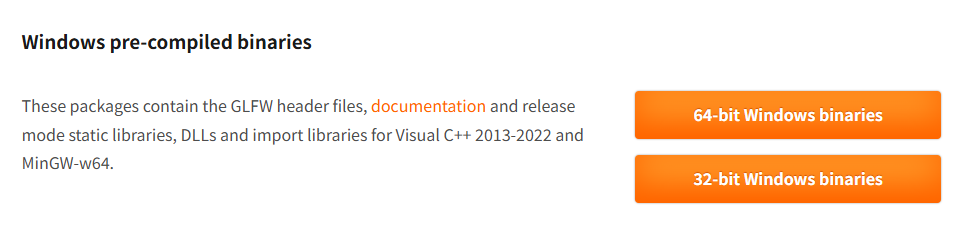
We will run the project on 64-bit Windows, so download the 64-bit Windows binaries.
Create a New Project
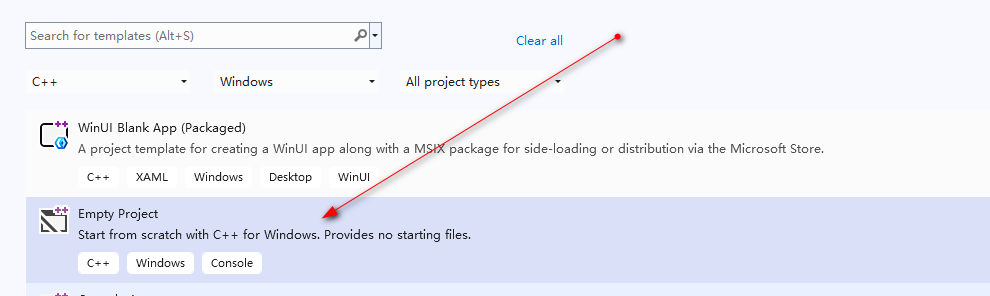
Launch VS2022 and create an Empty C++ Project
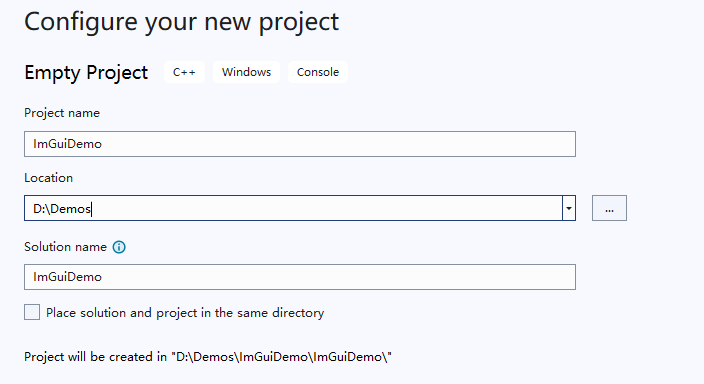
Name your project, e.g. ImGuiDemo
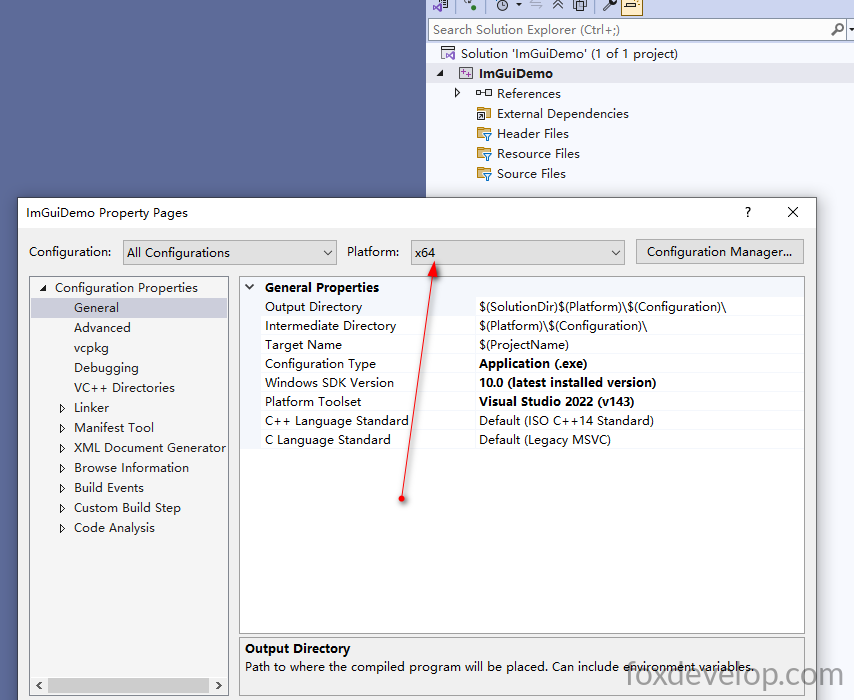
Right-click your project → Properties → Set configuration to Release x64
Import Dependency Files
Extract the two downloaded archives, rename the folders to imgui and glfw, then copy them to your project root directory.
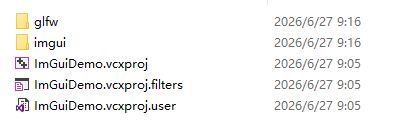
Make sure there are no extra nested subfolders inside these two directories; source files should sit directly within them.
├─ imgui/
│  ├─ backends/
│  ├─ imgui.h, imgui.cpp ...
├─ glfw/
│  ├─ include/GLFW/
│  ├─ lib-vc2022/Code language: PHP (php)
Your folder structure should look like this example.
Project Configuration Additions
Additional Include Directories
Right-click your project and open Properties
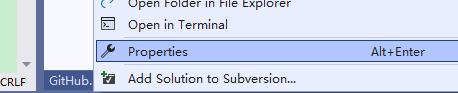
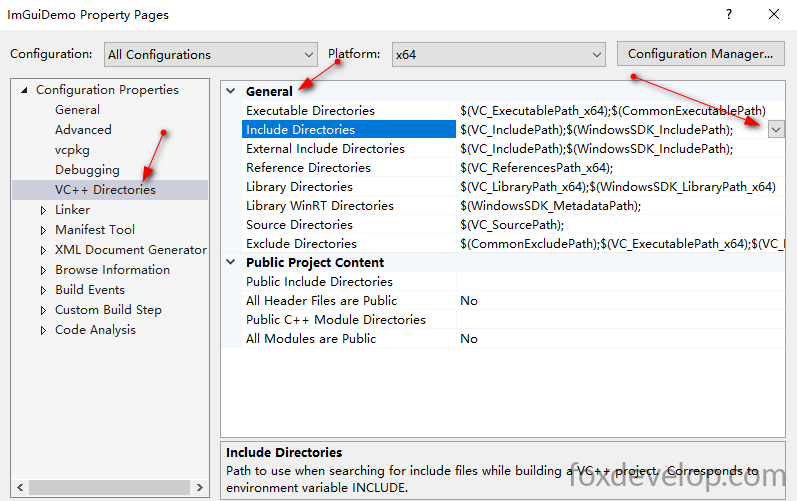
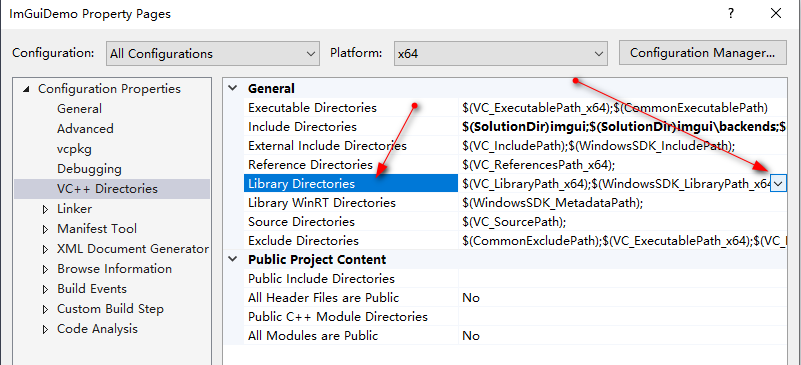
Select VC++ Directories from the left sidebar as shown above
Navigate to the General section
Locate Include Directories and click the Edit button
Add the three paths below:
$(SolutionDir)imgui
$(SolutionDir)imgui\backends
$(SolutionDir)glfw\includeCode language: JavaScript (javascript)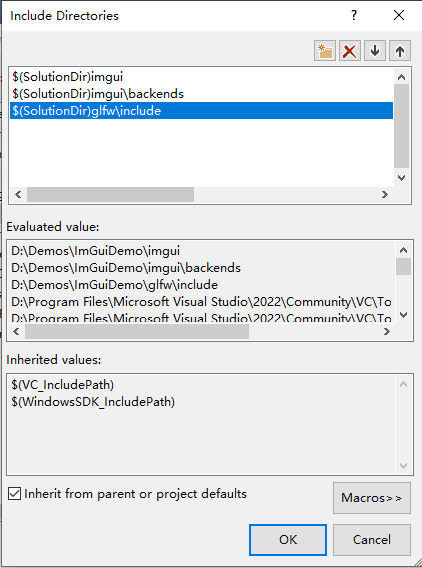
Library Directories
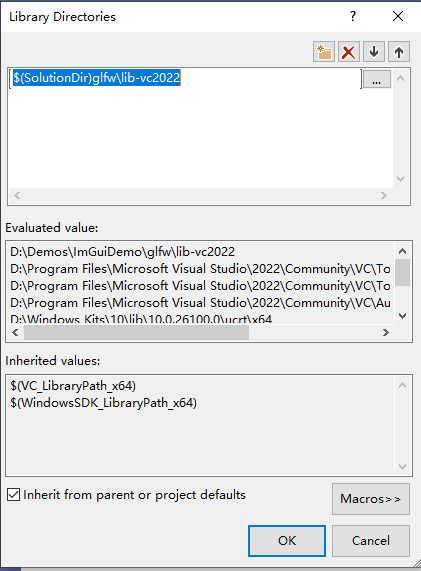
Stay on this configuration page, find Library Directories, and paste the path to your GLFW lib folder
Add this entry: $(SolutionDir)glfw\lib-vc2022
Linker Library Dependencies
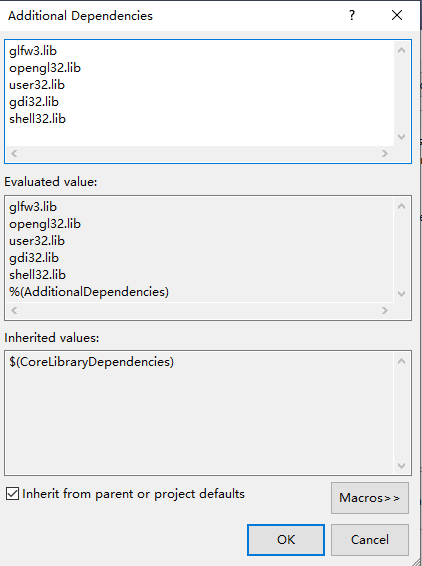
Linker → Input → Additional Dependencies
glfw3.lib
opengl32.lib
user32.lib
gdi32.lib
shell32.libCode language: CSS (css)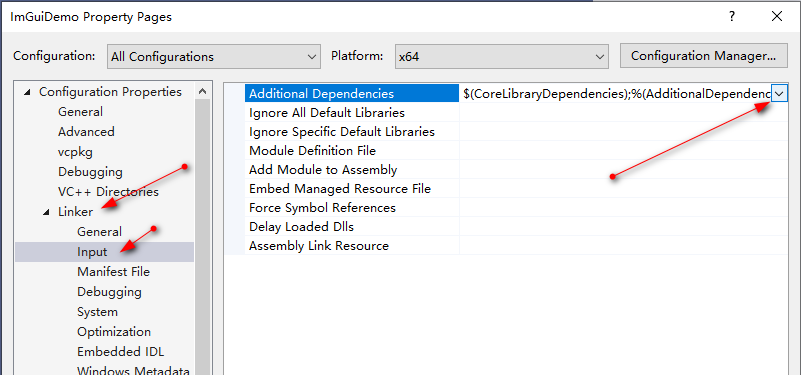
Add Source Files to Project
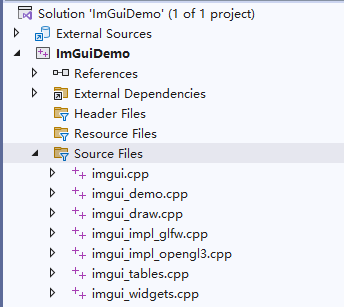
Right-click Source Files → Add → Existing Item, then select these files:
imgui/imgui.cpp
imgui/imgui_draw.cpp
imgui/imgui_widgets.cpp
imgui/imgui_tables.cpp
imgui/imgui_demo.cpp
imgui/backends/imgui_impl_glfw.cpp
imgui/backends/imgui_impl_opengl3.cpp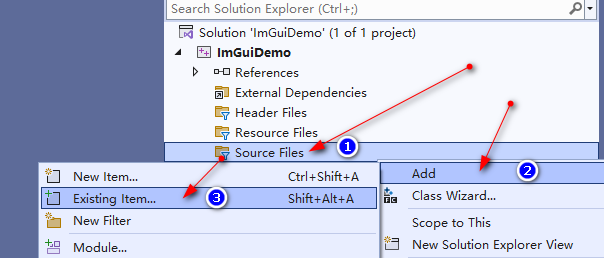
Create Project Entry Point
Create a new file named main.cpp
#include <GLFW/glfw3.h>
#include "imgui.h"
#include "backends/imgui_impl_glfw.h"
#include "backends/imgui_impl_opengl3.h"
#include <cstdio>

int main()
{
    // Initialize GLFW
    if (!glfwInit())
    {
        printf("GLFW initialization failed\n");
        return -1;
    }

    // OpenGL 3.3
    const char* glsl_version = "#version 330";
    glfwWindowHint(GLFW_CONTEXT_VERSION_MAJOR, 3);
    glfwWindowHint(GLFW_CONTEXT_VERSION_MINOR, 3);
    glfwWindowHint(GLFW_OPENGL_PROFILE, GLFW_OPENGL_CORE_PROFILE);

    // Create window
    GLFWwindow* window = glfwCreateWindow(1000, 600, "ImGui Minimal Demo (VS2022)", nullptr, nullptr);
    if (!window)
    {
        glfwTerminate();
        return -1;
    }
    glfwMakeContextCurrent(window);
    glfwSwapInterval(1); // VSync enable

    // Initialize ImGui
    IMGUI_CHECKVERSION();
    ImGui::CreateContext();
    ImGuiIO& io = ImGui::GetIO();
    ImGui::StyleColorsDark();

    // Bind GLFW + OpenGL3 backend
    ImGui_ImplGlfw_InitForOpenGL(window, true);
    ImGui_ImplOpenGL3_Init(glsl_version);

    // UI state variables
    float slider_value = 0.5f;
    int click_count = 0;
    bool show_full_demo = false;

    // Main render loop
    while (!glfwWindowShouldClose(window))
    {
        glfwPollEvents();

        // Start new ImGui frame
        ImGui_ImplOpenGL3_NewFrame();
        ImGui_ImplGlfw_NewFrame();
        ImGui::NewFrame();

        // Draw custom UI panel
        ImGui::Begin("Control Panel");
        ImGui::Text("Hello ImGui + VS2022");
        ImGui::SliderFloat("Slider Value", &slider_value, 0.f, 1.f);

        if (ImGui::Button("Click to Count"))
            click_count++;
        ImGui::SameLine();
        ImGui::Text("Click Count: %d", click_count);

        ImGui::Checkbox("Show Full ImGui Demo Window", &show_full_demo);
        ImGui::End();

        if (show_full_demo)
            ImGui::ShowDemoWindow(&show_full_demo);

        // Render ImGui draw data
        ImGui::Render();
        int width, height;
        glfwGetFramebufferSize(window, &width, &height);
        glViewport(0, 0, width, height);
        glClearColor(0.12f, 0.12f, 0.12f, 1.f);
        glClear(GL_COLOR_BUFFER_BIT);
        ImGui_ImplOpenGL3_RenderDrawData(ImGui::GetDrawData());

        glfwSwapBuffers(window);
    }

    // Cleanup resources
    ImGui_ImplOpenGL3_Shutdown();
    ImGui_ImplGlfw_Shutdown();
    ImGui::DestroyContext();
    glfwDestroyWindow(window);
    glfwTerminate();
    return 0;
}Code language: C++ (cpp)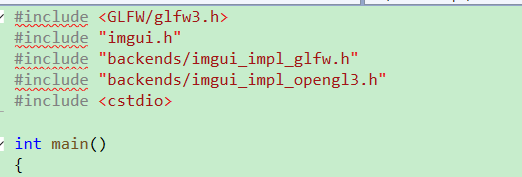
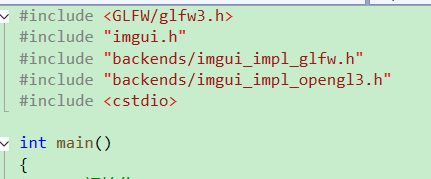
If red syntax error underlines appear like in the screenshot above, this means your additional include directories were misconfigured.
Our imgui and glfw folders are located at D:\Demos\ImGuiDemo\ImGuiDemo (an extra ImGuiDemo subfolder layer exists here), which was not accounted for in the initial path setup. This extra nesting depends on how you created your VS project – check your own folder structure for an extra intermediate directory.
Update your include directory paths as follows:
$(SolutionDir)ImGuiDemo\imgui
$(SolutionDir)ImGuiDemo\imgui\backends
$(SolutionDir)ImGuiDemo\glfw\includeCode language: JavaScript (javascript)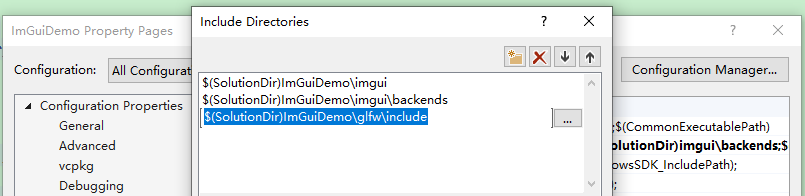
After saving the updated configuration, the red error squiggles will disappear.
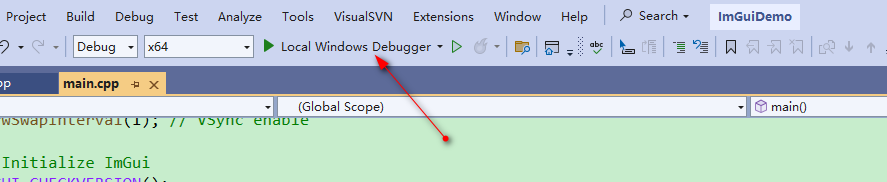
Click the Run button at the top toolbar to launch the project.
If you hit the error: cannot open file ‘glfw3.lib’
The root cause matches the earlier issue: incorrect folder path configuration. Modify the library directory entry above to include the ImGuiDemo\ subfolder prefix.
Update the library directory setting to this value:
$(SolutionDir)ImGuiDemo\glfw\lib-vc2022Code language: JavaScript (javascript)Run the project again.
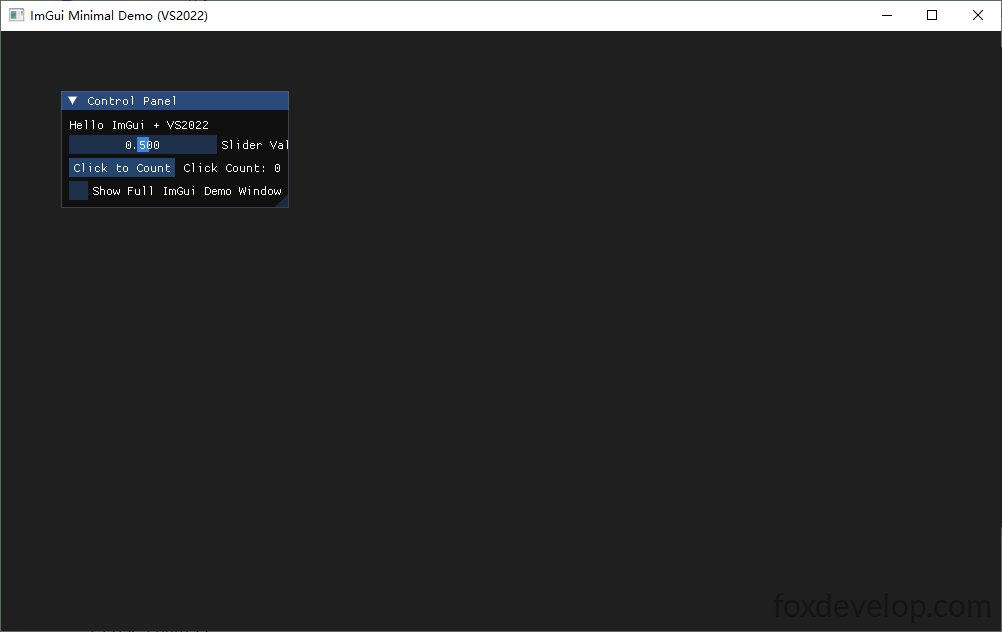
All done! This covers our complete first ImGui demo workflow, from dependency downloads to successful execution. Feel free to follow along and test it yourself. We will continue exploring ImGui features in future guides.