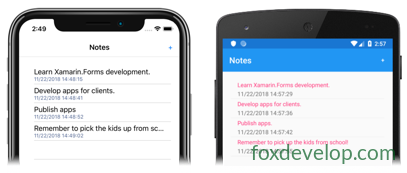
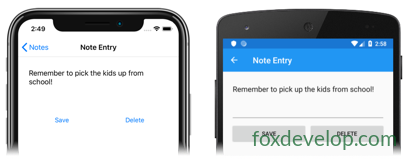
文档来源:https://docs.microsoft.com/zh-cn/xamarin/get-started/quickstarts/multi-page?pivots=windows 核心目标:把单便签单页App升级成多页面、多便签管理App 原理:之前只有1个页面,只能保存1条便签;现在拆分多个页面,使用文件存储多条便签。
整体结构
Models/Note.cs:模型类,描述一条便签的数据结构(文件名、文本、创建时间)NotesPage.xaml:首页(便签列表页),展示全部便签列表,支持新建便签NoteEntryPage.xaml:编辑页,新增/修改/删除单条便签App.xaml.cs:程序入口,配置存储路径 + 设置根导航页面- 删除旧的
MainPage.xaml(不再使用)
操作步骤
1. 添加模型文件夹与 Note 模型类
- 右键
Notes项目 → 添加 → 新文件夹,命名:Models - 右键 Models 文件夹 → 添加 → 新建项,新建类
Note.cs
using System;
namespace Notes.Models
{
    public class Note
    {
        public string Filename { get; set; }
        public string Text { get; set; }
        public DateTime Date { get; set; }
    }
}
Code language: JavaScript (javascript)
Note类:代表一条便签,保存文件名、便签文本、创建时间。
2. 添加【便签编辑页】NoteEntryPage
右键项目 → 添加 → 新建项 → Xamarin.Forms → 内容页,命名 NoteEntryPage
NoteEntryPage.xaml(界面)
<?xml version="1.0" encoding="UTF-8"?>
<ContentPage xmlns="[http://xamarin.com/schemas/2014/forms](http://xamarin.com/schemas/2014/forms)"
             xmlns:x="[http://schemas.microsoft.com/winfx/2009/xaml](http://schemas.microsoft.com/winfx/2009/xaml)"
             x:Class="Notes.NoteEntryPage"
             Title="Note Entry">
    <StackLayout Margin="20">
        <Editor Placeholder="Enter your note"
                Text="{Binding Text}"
                HeightRequest="100" />
        <Grid>
            <Grid.ColumnDefinitions>
                <ColumnDefinition Width="*" />
                <ColumnDefinition Width="*" />
            </Grid.ColumnDefinitions>
            <Button Text="Save"
                    Clicked="OnSaveButtonClicked" />
            <Button Grid.Column="1"
                    Text="Delete"
                    Clicked="OnDeleteButtonClicked"/>
        </Grid>
    </StackLayout>
</ContentPage>
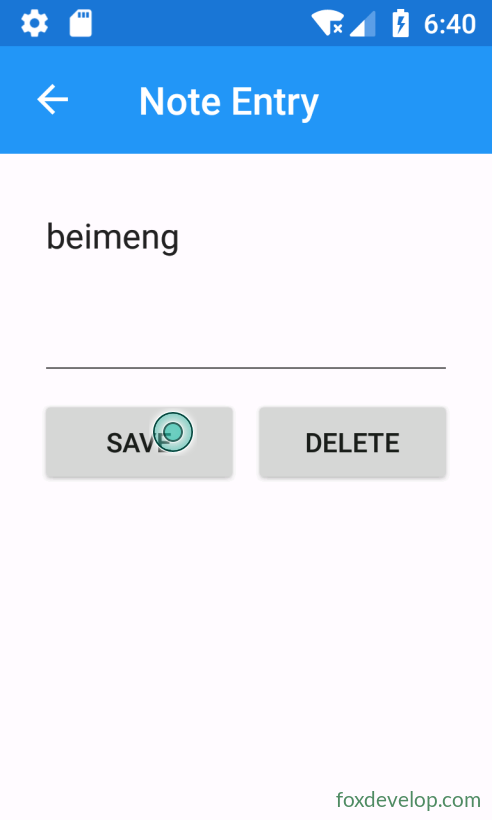
Code language: HTML, XML (xml)Editor:多行文本输入框,通过数据绑定关联Note模型的Text属性- Grid:两栏布局,水平摆放 Save 和 Delete 按钮
- StackLayout:垂直排列输入框与按钮
NoteEntryPage.xaml.cs(后台逻辑)
using System;
using System.IO;
using Xamarin.Forms;
using Notes.Models;

namespace Notes
{
    public partial class NoteEntryPage : ContentPage
    {
        public NoteEntryPage()
        {
            InitializeComponent();
        }

        async void OnSaveButtonClicked(object sender, EventArgs e)
        {
            var note = (Note)BindingContext;

            if (string.IsNullOrWhiteSpace(note.Filename))
            {
                // 新建便签:随机文件名
                var filename = Path.Combine(App.FolderPath, $"{Path.GetRandomFileName()}.notes.txt");
                File.WriteAllText(filename, note.Text);
            }
            else
            {
                // 更新已有便签
                File.WriteAllText(note.Filename, note.Text);
            }
            // 返回上一页
            await Navigation.PopAsync();
        }

        async void OnDeleteButtonClicked(object sender, EventArgs e)
        {
            var note = (Note)BindingContext;
            if (File.Exists(note.Filename))
            {
                File.Delete(note.Filename);
            }
            await Navigation.PopAsync();
        }
    }
}
Code language: PHP (php)
BindingContext:页面绑定的数据对象(Note实例)
- 保存:无文件名 → 创建新文件;有文件名 → 覆盖原有文件
- 删除:判断文件存在则删除,然后返回列表页
Navigation.PopAsync():导航返回上一页
3. 添加【便签列表页】NotesPage
右键项目 → 添加 → 新建项 → Xamarin.Forms → 内容页,命名 NotesPage
NotesPage.xaml(列表界面)
<?xml version="1.0" encoding="UTF-8"?>
<ContentPage xmlns="[http://xamarin.com/schemas/2014/forms](http://xamarin.com/schemas/2014/forms)"
             xmlns:x="[http://schemas.microsoft.com/winfx/2009/xaml](http://schemas.microsoft.com/winfx/2009/xaml)"
             x:Class="Notes.NotesPage"
             Title="Notes">
    <ContentPage.ToolbarItems>
        <ToolbarItem Text="+"
                     Clicked="OnNoteAddedClicked" />
    </ContentPage.ToolbarItems>
    <ListView x:Name="listView"
              Margin="20"
              ItemSelected="OnListViewItemSelected">
        <ListView.ItemTemplate>
            <DataTemplate>
                <TextCell Text="{Binding Text}"
                          Detail="{Binding Date}" />
            </DataTemplate>
        </ListView.ItemTemplate>
    </ListView>
</ContentPage>
Code language: HTML, XML (xml)
ToolbarItem Text="+":页面顶部工具栏加号按钮,新建便签ListView:列表控件,展示所有便签;TextCell显示便签文本+创建时间- ItemSelected:选中列表项,打开编辑页面修改该便签
NotesPage.xaml.cs(列表后台代码)
using System;
using System.Collections.Generic;
using System.IO;
using System.Linq;
using Xamarin.Forms;
using Notes.Models;

namespace Notes
{
    public partial class NotesPage : ContentPage
    {
        public NotesPage()
        {
            InitializeComponent();
        }

        // 页面每次显示时触发:读取本地文件,加载所有便签
        protected override void OnAppearing()
        {
            base.OnAppearing();
            var notes = new List<Note>();
            // 读取应用目录下所有 *.notes.txt 文件
            var files = Directory.EnumerateFiles(App.FolderPath, "*.notes.txt");
            foreach (var filename in files)
            {
                notes.Add(new Note
                {
                    Filename = filename,
                    Text = File.ReadAllText(filename),
                    Date = File.GetCreationTime(filename)
                });
            }
            // 按创建时间排序,绑定到ListView
            listView.ItemsSource = notes
                .OrderBy(d => d.Date)
                .ToList();
        }

        // 加号按钮:新建便签,打开编辑页
        async void OnNoteAddedClicked(object sender, EventArgs e)
        {
            await Navigation.PushAsync(new NoteEntryPage
            {
                BindingContext = new Note()
            });
        }

        // 选中列表项:打开编辑页修改现有便签
        async void OnListViewItemSelected(object sender, SelectedItemChangedEventArgs e)
        {
            if (e.SelectedItem != null)
            {
                await Navigation.PushAsync(new NoteEntryPage
                {
                    BindingContext = e.SelectedItem as Note
                });
            }
        }
    }
}
Code language: PHP (php)
OnAppearing():页面每次出现都会执行,刷新便签列表(新增/删除后自动刷新)Navigation.PushAsync():跳转到新页面(入栈)
4. 修改 App.xaml.cs(程序入口)
using System;
using System.IO;
using Xamarin.Forms;

namespace Notes
{
    public partial class App : Application
    {
        public static string FolderPath { get; private set; }

        public App()
        {
            InitializeComponent();
            // 获取应用本地数据存储目录
            FolderPath = Path.Combine(Environment.GetFolderPath(Environment.SpecialFolder.LocalApplicationData));
            // 设置根页面为导航页面,首页是NotesPage便签列表
            MainPage = new NavigationPage(new NotesPage());
            //MainPage = new MainPage(); //旧代码注释掉
        }
    }
}
Code language: PHP (php)
NavigationPage:导航容器,提供页面跳转(Push/Pop)功能,多页面App必须用它FolderPath:静态属性,保存便签文件存放路径
5. 删除旧页面
右键项目里的 MainPage.xaml → 删除,确认从硬盘删除。
现在程序启动直接进入 NotesPage(便签列表页)
运行流程
- 程序启动 → App构造函数 → 打开 NotesPage(列表页)
- NotesPage.OnAppearing() 读取本地所有
.notes.txt文件,加载到ListView - 点顶部
+:新建Note对象,跳转到 NoteEntryPage 编辑 - 在NoteEntry输入内容 → Save:保存为本地txt文件,返回列表页,列表自动刷新
- 点击列表里某条便签:把选中Note传给NoteEntryPage,修改/删除
- Delete:删除对应txt文件,返回列表页

Previous: 单页 Xamarin.Forms 应用程序
Next: 将数据存储在本地 SQLite.NET 数据库中