Understanding the Activity Lifecycle Is Crucial — It Helps You Write Smooth-Running Apps
And it allows you to manage app resources more efficiently.
Delivering a better user experience.
Android activities can be stacked on top of each other.
Each time you launch a new activity, it covers the previous one.
Then, pressing the back key destroys the current activity, and the previous one reappears.
In reality, Android uses something called a Task to manage them.
A task is essentially a collection of activities stored in a stack.
This stack is known as the Back Stack.
A stack is a last-in, first-out (LIFO) data structure.
By default, whenever you start a new activity, it gets pushed onto the stack and placed at the top.
When you press the back key or call finish(), the activity at the top of the stack is destroyed. The activity that was pushed earlier then moves back to the top. The system always displays the activity sitting at the top of the stack to the user.
Activity States
Throughout its lifecycle, an activity can be in one of up to four possible states.
1. Running State
When an activity is at the top of the stack, the system is reluctant to reclaim it because doing so would degrade the user experience.
2. Paused State
The activity is not at the top of the stack but is still partially visible — for example, when the current activity triggers a dialog-style activity that only occupies part of the screen, similar to a modal window. The system also avoids reclaiming these because removing them abruptly would feel jarring to the user.
3. Stopped State
An activity enters the stopped state when it is no longer at the top of the stack and is completely invisible. The system still preserves its state and member variables, but this is not guaranteed — if the system needs memory elsewhere, it may reclaim stopped activities.
4. Destroyed State
Once an activity is removed from the back stack, it enters the destroyed state. The system is most likely to reclaim these activities to free up memory.
Activity Lifetime and the Seven Callback Methods
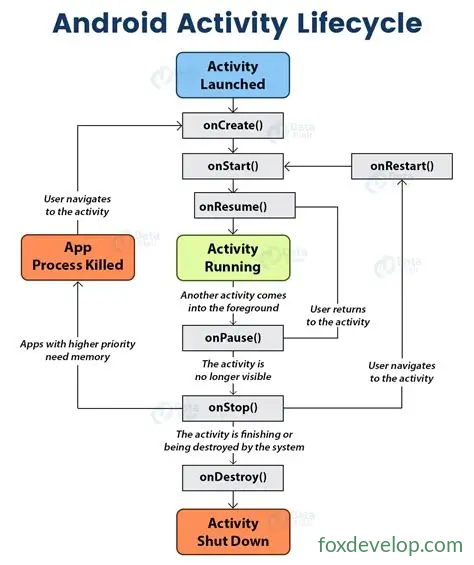
The Activity class defines seven callback methods that cover every stage of the activity lifecycle.
In short, these seven callback functions fire at specific points in the lifecycle, and their code gets executed then.
For instance, onCreate is triggered when the activity is first created.
Let’s go through each of the seven methods.
onCreate:
Called when the activity is first created. You typically handle initialization here — loading layouts, binding button events, and so on.
onStart:
Triggered when the activity transitions from invisible to visible.
onResume:
Called when the activity is ready to interact with the user. At this point, the activity sits at the top of the back stack and is in the running state — it’s fully visible to the user.
onPause:
Invoked when the system is about to launch or resume another activity. You should use this method to release CPU-intensive resources and save critical data, but keep it fast — otherwise it will delay the new activity moving to the foreground. (The current activity is about to be hidden as we transition to the next one, but the transition hasn’t completed yet.)
onStop:
Called when the activity becomes completely invisible. The key difference from onPause is that if the new activity launched is a dialog-style activity, onPause will fire but onStop will not. (The activity is hidden and the new activity appears.)
onDestroy:
Called right before the activity is destroyed. After this, the activity enters the destroyed state.
onRestart:
Called just before an activity in the stopped state transitions back to the running state — in other words, when the activity is being restarted.
Three Types of Lifetimes
Excluding onRestart, the remaining six methods form three pairs. This lets us divide an activity’s lifetime into three categories.
1. Full Lifetime
Everything that happens between onCreate and onDestroy makes up the full lifetime.
2. Visible Lifetime
The period from onStart to onStop is the visible lifetime. During this time, the activity remains visible to the user. These two methods let you manage resources wisely — for example, load resources in onStart and release them in onStop, so that stopped activities don’t hog system resources.
3. Foreground Lifetime
The span from onResume to onPause is the foreground lifetime. The activity is running and can receive user input. This is the state users interact with most of the time.
Open main activity → enter normal activity → return to main activity → return to home screen
05-12 15:32:43.899 4316-4316/com.foxdevelop.www.lifedemo E/Main Activity Log: onCreate:
05-12 15:32:43.926 4316-4316/com.foxdevelop.www.lifedemo E/Main Activity Log: onStart:
05-12 15:32:43.930 4316-4316/com.foxdevelop.www.lifedemo E/Main Activity Log: onResume:
05-12 15:33:00.973 4316-4316/com.foxdevelop.www.lifedemo E/Main Activity Log: onPause:
05-12 15:33:01.078 4316-4316/com.foxdevelop.www.lifedemo E/Normal Activity Log: onCreate:
05-12 15:33:01.079 4316-4316/com.foxdevelop.www.lifedemo E/Normal Activity Log: onStart:
05-12 15:33:01.081 4316-4316/com.foxdevelop.www.lifedemo E/Normal Activity Log: onResume:
05-12 15:33:02.969 4316-4316/com.foxdevelop.www.lifedemo E/Main Activity Log: onStop:
05-12 15:34:01.747 4316-4316/com.foxdevelop.www.lifedemo E/Normal Activity Log: onPause:
05-12 15:34:01.779 4316-4316/com.foxdevelop.www.lifedemo E/Main Activity Log: onRestart:
05-12 15:34:01.779 4316-4316/com.foxdevelop.www.lifedemo E/Main Activity Log: onStart:
05-12 15:34:01.780 4316-4316/com.foxdevelop.www.lifedemo E/Main Activity Log: onResume:
05-12 15:34:02.749 4316-4316/com.foxdevelop.www.lifedemo E/Normal Activity Log: onStop:
05-12 15:34:02.750 4316-4316/com.foxdevelop.www.lifedemo E/Normal Activity Log: onDestroy:
05-12 15:35:26.827 4316-4316/com.foxdevelop.www.lifedemo E/Main Activity Log: onPause:
05-12 15:35:28.534 4316-4316/com.foxdevelop.www.lifedemo E/Main Activity Log: onStop:
05-12 15:34:01.779 4316-4316/com.foxdevelop.www.lifedemo E/Main Activity Log: onDestroy:
Hands-On Practice
Let’s create a new project to experience the lifecycle firsthand
We’ll name the activity LifeDemo.
Add an EmptyActivity as the main activity.
Then add two more activities: NormalActivity and DialogActivity.
After that, modify their layouts.
<?xml version="1.0" encoding="utf-8"?>
<LinearLayout xmlns:android="http://schemas.android.com/apk/res/android"
    android:orientation="vertical" android:layout_width="match_parent"
    android:layout_height="match_parent">

    <TextView
        android:layout_width="wrap_content"
        android:layout_height="wrap_content"
        android:text="Normal Activity" />

</LinearLayout>Code language: HTML, XML (xml)
<?xml version="1.0" encoding="utf-8"?>
<LinearLayout xmlns:android="http://schemas.android.com/apk/res/android"
android:orientation="vertical" android:layout_width="match_parent"
android:layout_height="match_parent">
<TextView
android:layout_width="wrap_content"
android:layout_height="wrap_content"
android:text="Dialog Activity" />
</LinearLayout>Code language: HTML, XML (xml)Their layouts are essentially identical except for the text content.
We also need to turn DialogActivity into a dialog-style activity.
Modify AndroidManifest.xml:
<activity android:name=".NormalActivity" />
<activity android:name=".DialogActivity" android:theme="@style/Base.Theme.AppCompat.Dialog"/>
</application>Code language: HTML, XML (xml)
This sets DialogActivity to use a dialog theme.
Main Activity Layout
<?xml version="1.0" encoding="utf-8"?>
<LinearLayout xmlns:android="http://schemas.android.com/apk/res/android"
    android:orientation="vertical" android:layout_width="match_parent"
    android:layout_height="match_parent">

    <Button
        android:id="@+id/button"
        android:layout_width="match_parent"
        android:layout_height="wrap_content"
        android:text="Open Normal Activity" />
    <Button
        android:id="@+id/buttondialog"
        android:layout_width="match_parent"
        android:layout_height="wrap_content"
        android:text="Open Dialog Activity" />
</LinearLayout>Code language: HTML, XML (xml)
Add Click Events to the Two Buttons in the Main Activity
package com.foxdevelop.www.lifedemo;

import android.content.Intent;
import android.support.v7.app.AppCompatActivity;
import android.os.Bundle;
import android.util.Log;
import android.view.View;
import android.widget.Button;

public class MainActivity extends AppCompatActivity {
    private static final String TAG = "MainActivity";
    @Override
    protected void onCreate(Bundle savedInstanceState) {
        super.onCreate(savedInstanceState);
        setContentView(R.layout.activity_main);

        Button b = (Button)findViewById(R.id.button);
        b.setOnClickListener(
                new View.OnClickListener(){
                    @Override
                    public void onClick(View view){
                        Intent it = new Intent(MainActivity.this,NormalActivity.class);
                        startActivity(it);
                    }
                }
        );
        Button b2 = (Button)findViewById(R.id.buttondialog);
        b2.setOnClickListener(
                new View.OnClickListener(){
                    @Override
                    public void onClick(View view){
                        Intent it = new Intent(MainActivity.this,DialogActivity.class);
                        startActivity(it);
                    }
                }
        );
    }

    @Override
    protected void onStart() {
        super.onStart();
        Log.e(TAG, "onStart: ");
    }

    @Override
    protected void onResume() {
        super.onResume();
        Log.e(TAG, "onResume: ");
    }

    @Override
    protected void onPause() {
        super.onPause();
        Log.e(TAG, "onPause: ");
    }

    @Override
    protected void onStop() {
        super.onStop();
        Log.e(TAG, "onStop: ");
    }

    @Override
    protected void onDestroy() {
        super.onDestroy();
        Log.e(TAG, "onDestroy: ");
    }

    @Override
    protected void onRestart() {
        super.onRestart();
        Log.e(TAG, "onRestart: ");
    }
}Code language: JavaScript (javascript)
1. Run the App
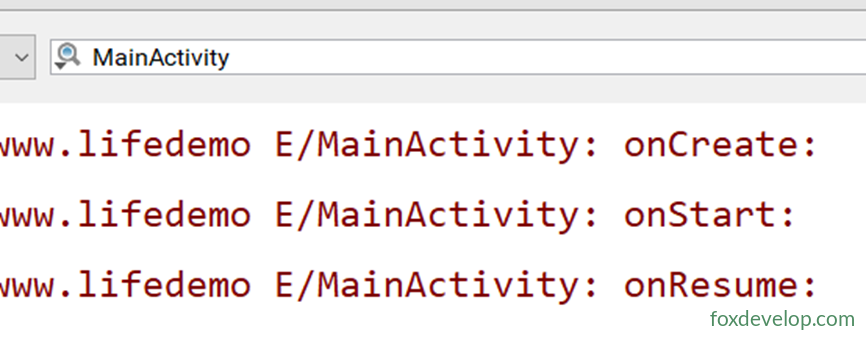
When the main activity is created, onCreate, onStart, and onResume execute in order.
Tap the “Open Normal Activity” button, and onPause and onStop are triggered.
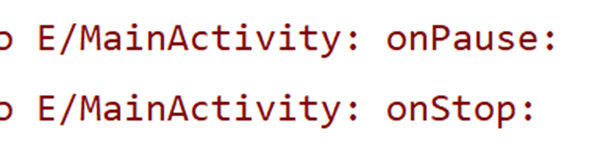
Because NormalActivity completely covers MainActivity, both methods are called.
Press the Back key to return.
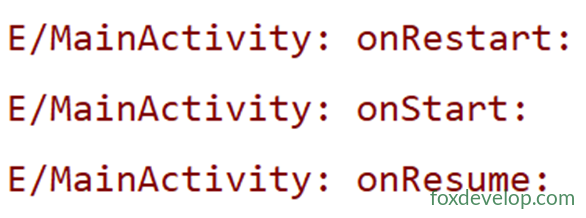
Since MainActivity was in the stopped state, onRestart fires, followed by onStart and onResume.
Notice that onCreate is NOT called because the activity wasn’t recreated. At this point, NormalActivity should have triggered its own onDestroy.
Now tap the “Open Dialog Activity” button.
This time, only onPause is triggered.
You’ll notice onStop does not fire.
That’s because DialogActivity doesn’t fully obscure MainActivity.
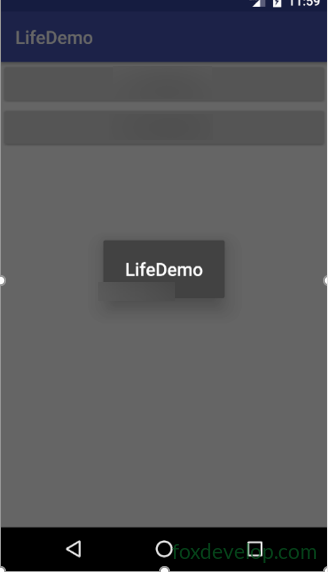
Similarly, pressing Back now only executes onResume — since it never stopped, onStart isn’t called.

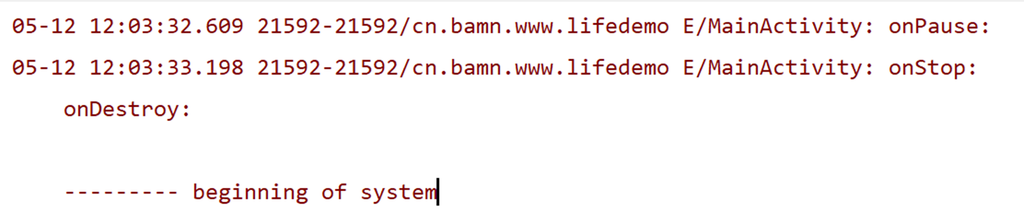
As you can see, onPause, onStop, and onDestroy are triggered here.
Caused by: java.lang.IllegalStateException: You need to use a Theme.AppCompat theme (or descendant) with this activity.Code language: CSS (css)Main activity created → dialog activity opened → returned to main activity → returned to home screen
05-13 02:10:51.635 4206-4206/com.foxdevelop.www.lifedemo E/Main Activity: onCreate: // New activity created
05-13 02:10:51.673 4206-4206/com.foxdevelop.www.lifedemo E/Main Activity: onStart: // From invisible to visible
05-13 02:10:51.701 4206-4206/com.foxdevelop.www.lifedemo E/Main Activity: onResume: // Activity is now visible
05-13 02:12:01.993 4206-4206/com.foxdevelop.www.lifedemo E/Main Activity: onPause: // Navigating away from current activity
05-13 02:12:02.115 4206-4206/com.foxdevelop.www.lifedemo E/Dialog Activity: onCreate:
05-13 02:12:02.116 4206-4206/com.foxdevelop.www.lifedemo E/Dialog Activity: onStart:
05-13 02:12:02.143 4206-4206/com.foxdevelop.www.lifedemo E/Dialog Activity: onResume:
05-13 02:14:26.078 4206-4206/com.foxdevelop.www.lifedemo E/Dialog Activity: onPause: // Back key pressed, returning to main activity
05-13 02:14:26.367 4206-4206/com.foxdevelop.www.lifedemo E/Main Activity: onResume: // Main activity appears directly since it wasn't stopped
05-13 02:14:26.803 4206-4206/com.foxdevelop.www.lifedemo E/Dialog Activity: onStop: // Dialog activity becomes invisible
05-13 02:14:26.803 4206-4206/com.foxdevelop.www.lifedemo E/Dialog Activity: onDestroy: // Back or finish() means it gets destroyed
05-13 02:16:23.959 4206-4206/com.foxdevelop.www.lifedemo E/Main Activity: onPause:
05-13 02:16:25.606 4206-4206/com.foxdevelop.www.lifedemo E/Main Activity: onStop:
05-13 02:16:25.609 4206-4206/com.foxdevelop.www.lifedemo E/Main Activity: onDestroy: // Before any destruction, pause and stop always happenCode language: JavaScript (javascript)
The Activity Lifecycle