Using Log in Android
1. Android Log Utility Class: Log
Android SDK provides a dedicated logging utility class android.util.Log, which offers 5 levels of logging methods, arranged from lowest to highest priority:
| Method | Level | Description |
|---|---|---|
Log.v() | Verbose | Lowest level, used for the most trivial log messages |
Log.d() | Debug | Debug information, most commonly used during development |
Log.i() | Info | General informational messages |
Log.w() | Warn | Warning messages, indicating potential risks |
Log.e() | Error | Error messages, such as exceptions caught in catch blocks |
2. Basic Usage
Add logging in the onCreate() method of MainActivity:
@Override
protected void onCreate(Bundle savedInstanceState) {
    super.onCreate(savedInstanceState);
    setContentView(R.layout.activity_main);

    // Output Info level log
    Log.i("foxdevelop", "xxxxxx");
}Code language: JavaScript (javascript)
Method Parameter Description:
| Parameter | Description |
|---|---|
| First parameter (tag) | Log tag, usually a short string identifying the source for easy filtering |
| Second parameter (msg) | Log content, i.e., the message you want to output |
After running the project, open the Logcat window to view the output logs.

3. Logcat Window Tips
| Feature | Operation |
|---|---|
| View logs | After running the app, the Logcat panel at the bottom displays automatically |
| Keyword search | Enter a keyword (e.g., foxdevelop) in the Logcat search box to filter |
| Filter by level | Click the dropdown menu to select Show only selected application / No Filters / Edit Filter Configuration |
| Filter by tag | Enter tag:foxdevelop in the search box |
4. Why System.out.println() Is Not Recommended
| Comparison | System.out.println | Log |
|---|---|---|
| Controllability | Uncontrollable | Can be controlled via levels and filters |
| Timestamp | No timestamp | Each log includes a precise timestamp |
| Filtering | Cannot filter by tag | Supports multi-dimensional filtering by tag, level, process, etc. |
| Log levels | No level distinction | 5 levels for easy troubleshooting |
| Production environment | Cannot be disabled | Can be configured to disable or output only specific levels |
// Not recommended
System.out.println("xxxxxxx");

// Recommended
Log.i(TAG, "Foxdevelop");Code language: JavaScript (javascript)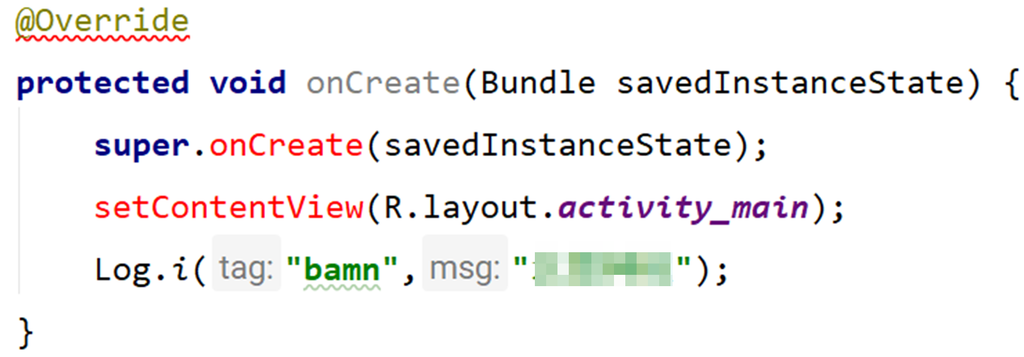
5. Android Studio Log Shortcuts
AS provides powerful Live Template shortcuts. Type and press Tab to auto-complete:
| Shortcut (type and press Tab) | Generated Code | Description |
|---|---|---|
logd | Log.d(TAG, "onCreate: "); | Generate Debug log |
logi | Log.i(TAG, "onCreate: "); | Generate Info log |
logw | Log.w(TAG, "onCreate: "); | Generate Warn log |
loge | Log.e(TAG, "onCreate: "); | Generate Error log |
logv | Log.v(TAG, "onCreate: "); | Generate Verbose log |
logt | private static final String TAG = "ClassName"; | Use in class body to auto-generate current class name as TAG |
6. Complete Example
public class MainActivity extends AppCompatActivity {

    // Use logt + Tab in class body to auto-generate
    private static final String TAG = "MainActivity";

    @Override
    protected void onCreate(Bundle savedInstanceState) {
        super.onCreate(savedInstanceState);
        setContentView(R.layout.activity_main);

        // Output log using TAG constant
        Log.i(TAG, "foxdevelop");
        Log.e(TAG, "An exception occurred here");

        // Not recommended
        System.out.println("xxxxxxx");
    }
}Code language: PHP (php)
Logcat output after running:
I/MainActivity: foxdevelop
E/MainActivity: An exception occurred hereCode language: HTTP (http)
Logging functionality
Previous: build.gradle
Next: Activity