Navigating Between Activities Using Intents
Jumping from the Main Activity to Another Activity
Use an explicit Intent.
We add an empty activity and name it AddCourseActivity, making sure to check “Generate Layout File”.
However, do not check the Launcher Activity option.
Intent
An Intent is a crucial way for components to interact in an Android app.
It can specify the action the current component wants to perform and also pass data between components.
Intents are divided into: Explicit Intents and Implicit Intents
It has multiple constructors.
On a button in the main activity, I instantiate an Intent to jump from the main activity to the second activity.
// First, initialize an Intent specifying where to go
Intent it = new Intent(FirstActivity.this, AddCourseActivity.class);
startActivity(it);Code language: JavaScript (javascript)
Using Implicit Intents
Compared to explicit Intents, implicit Intents don’t need to specify which activity to launch. Instead, they specify a set of more abstract actions and categories.
Then the system analyzes this Intent and helps find a valid activity to launch.
We modify AndroidManifest.xml.
Add action and category to the second activity.
For action, we indicate that this activity can respond to this specific action.
<activity android:name=".AddCourseActivity">
    <intent-filter>
        <action android:name="com.foxdevelop.www.activitydemo.ACTION_START" />
        <category android:name="android.intent.category.DEFAULT" />
    </intent-filter>
</activity>Code language: HTML, XML (xml)
Only when the Intent matches the activity’s action and category can the activity respond to the Intent.
// Initialize an Intent to match the corresponding action in AndroidManifest.xml
Intent it = new Intent("com.foxdevelop.www.activitydemo.ACTION_START");
startActivity(it);Code language: JavaScript (javascript)
Why Don’t We Need to Match the Category?
Because this activity uses android.intent.category.DEFAULT.
This is the default category.
When we call startActivity, the DEFAULT category is automatically passed in.
Each Intent can specify only one action but can have multiple categories.
Since it’s currently DEFAULT, we don’t need to add it manually.
If we need to add other categories:
// Initialize an Intent to match the action below and add categories
Intent it = new Intent("com.foxdevelop.www.activitydemo.ACTION_START");
it.addCategory("com.foxdevelop.www.activitydemo.MY_CATEGORY");
it.addCategory("com.foxdevelop.www.activitydemo.MY_CATEGORY1111111");
startActivity(it);Code language: JavaScript (javascript)
Clicking the “Add Course” menu caused the app to crash.
The reason is that we added a category to the intent, but the second activity doesn’t declare this category.
So we need to add this category.
<activity android:name=".AddCourseActivity">
    <intent-filter>
        <action android:name="com.foxdevelop.www.activitydemo.ACTION_START" />
        <category android:name="android.intent.category.DEFAULT" />
        <category android:name="com.foxdevelop.www.activitydemo.MY_CATEGORY" />
    </intent-filter>
</activity>Code language: HTML, XML (xml)
Note:
If an intent has multiple categories, it doesn’t mean matching just one is enough; all categories must be matched.
<activity android:name=".AddCourseActivity">
    <intent-filter>
        <action android:name="com.foxdevelop.www.activitydemo.ACTION_START" />
        <category android:name="android.intent.category.DEFAULT" />
        <category android:name="com.foxdevelop.www.activitydemo.MY_CATEGORY" />
    </intent-filter>
</activity>Code language: HTML, XML (xml)
case R.id.add:
// Initialize an Intent to match the action below and add categories
Intent it = new Intent("com.foxdevelop.www.activitydemo.ACTION_START");
it.addCategory("com.foxdevelop.www.activitydemo.MY_CATEGORY2222222");
//it.addCategory("android.intent.category.DEFAULT");
startActivity(it);
break;Code language: JavaScript (javascript)Opening a Web Page with an Implicit Intent
Implicit Intents can do much more than this.
They can not only launch activities within the same app but also activities from other apps.
This makes it possible to share functionality across multiple applications.
For example, in WeChat chat, when a friend sends you an address, you can open it with QQ Browser.
Let’s give it a try:
Intent it = new Intent(Intent.ACTION_VIEW); // Built-in system action
it.setData(Uri.parse("http://www.foxdevelop.com")); // Open a URL
startActivity(it);Code language: JavaScript (javascript)
The “http://” part cannot be omitted, otherwise it will throw an error.
E/AndroidRuntime: FATAL EXCEPTION: main
                  Process: com.foxdevelop.www.activitydemo, PID: 8917
                  android.content.ActivityNotFoundException: No Activity found to handle Intent { act=android.intent.action.VIEW dat=www.foxdevelop.com }
                      at android.app.Instrumentation.checkStartActivityResult(Instrumentation.java:1809)
                      at android.app.Instrumentation.execStartActivity(Instrumentation.java:1523)
                      at android.app.Activity.startActivityForResult(Activity.java:4224)
                      at android.support.v4.app.BaseFragmentActivityApi16.startActivityForResult(BaseFragmentActivityApi16.java:54)
                      at android.support.v4.app.FragmentActivity.startActivityForResult(FragmentActivity.java:68)Code language: PHP (php)
Making Phone Calls with Implicit Intents
You can use the tel protocol to make phone calls.
Last lesson we used the http protocol to open a domain.
For example, let’s try dialing 10010.
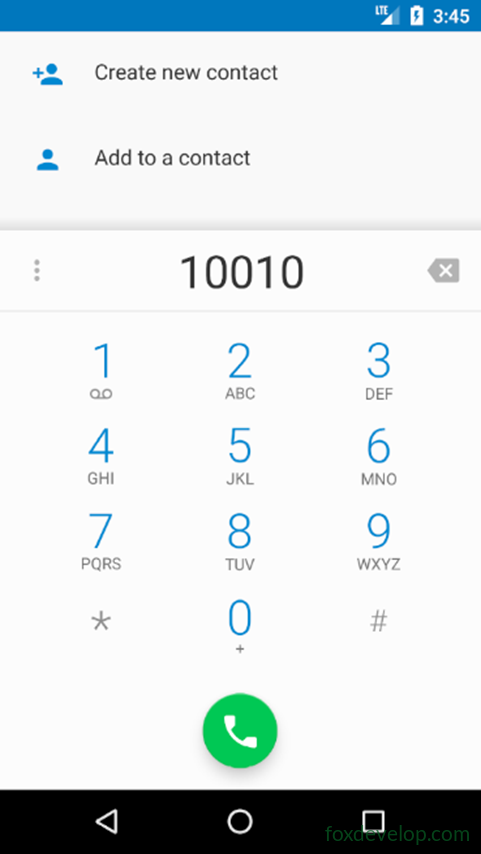
Intent it = new Intent(Intent.ACTION_DIAL); // Built-in system action
it.setData(Uri.parse("tel:10010")); // Dial this number; requires user confirmation
startActivity(it);Code language: JavaScript (javascript)
Passing Data Between Activities
Intents Can Pass Data
intent (noun): purpose, intention; meaning.
Use its putExtra method to pass data.
Then in the second activity, call getStringExtra to retrieve the passed data.
In the second activity, call getIntent to get the Intent.
Of course, if you pass an integer, use getIntExtra to get it.
First, in the first activity:
Intent it = new Intent(FirstActivity.this, AddCourseActivity.class);
it.putExtra("site", "www.foxdevelop.com");
it.putExtra("name", "FoxDevelop");
startActivity(it);Code language: JavaScript (javascript)
Then in the second activity, get the Intent object and retrieve its values.
Inside the second activity’s onCreate method:
protected void onCreate(Bundle savedInstanceState) {
    super.onCreate(savedInstanceState);
    setContentView(R.layout.activity_add_course_acticity);
    Intent it = getIntent();
    String site = it.getStringExtra("site");
    String name = it.getStringExtra("name");
    int version = it.getIntExtra("version", 1);
    Log.e(TAG, site);
}Code language: JavaScript (javascript)
Returning Data to the Previous Activity
When We Exit the Current Activity
Activities have a startActivityForResult method that can return a result to the previous activity before being destroyed.
This method takes two parameters: the first is the Intent, and the second is the request code, used later to determine the data source in the callback.
Before the activity is destroyed, use the setResult method to return a result to the previous activity. Usually use RESULT_OK or RESULT_CANCELED. The second parameter is the Intent carrying the data.
You can use putExtra to set values on the Intent.
Since we used startActivityForResult in the previous activity to launch the second activity, when the second activity is destroyed, it triggers the first activity’s onActivityResult method. Here, we can get the Intent and the result code.
If the user doesn’t click a button to go back but uses the back key instead, we need to override the second activity’s onBackPressed method.
1. Launching the Intent in the First Activity
Intent it = new Intent(FirstActivity.this, AddCourseActivity.class);
it.putExtra("site", "www.foxdevelop.com");
it.putExtra("name", "FoxDevelop");
it.putExtra("version", 1);
startActivityForResult(it, 1);Code language: JavaScript (javascript)
2. Override in the First Activity
public class FirstActivity extends AppCompatActivity {
    private static final String TAG = "FirstActivity";
    // Override the first activity's method; when the second activity exits, this code runs
    @Override
    protected void onActivityResult(int requestCode, int resultCode, Intent data) {
        if (resultCode == RESULT_OK) {
            String h = data.getStringExtra("hot");
            Log.d(TAG, h);
        }
        super.onActivityResult(requestCode, resultCode, data);
    }Code language: JavaScript (javascript)
3. In the Second Activity
@Override
protected void onCreate(Bundle savedInstanceState) {
    super.onCreate(savedInstanceState);
    setContentView(R.layout.activity_add_course_acticity);

    // Get data from the previous activity
    Intent it = getIntent();
    String site = it.getStringExtra("site");
    String name = it.getStringExtra("name");
    int version = it.getIntExtra("version", 1);
    Log.e(TAG, site);

    // Add a back event to the button, set Intent values inside the event, set the result code, and finish
    Button b = findViewById(R.id.button);
    b.setOnClickListener(new View.OnClickListener() {
        @Override
        public void onClick(View view) {
            Intent it = getIntent();
            it.putExtra("hot", "Hot Courses");
            setResult(RESULT_OK, it);
            finish();
        }
    });
}Code language: JavaScript (javascript)
When we return to the main activity, the event is triggered and the log is output.
05-12 06:17:46.741 12960-12960/com.foxdevelop.www.activitydemo D/FirstActivity: Hot CoursesIf You Want the Back Key to Also Return Data
You need to override onBackPressed.
We override this in the second activity:
// This method is triggered when we press the back key
@Override
public void onBackPressed() {
    Intent it = getIntent();
    it.putExtra("hot", "Latest Courses");
    setResult(RESULT_OK, it);
    finish();
}Code language: JavaScript (javascript)
05-12 06:23:08.654 13209-13209/com.foxdevelop.www.activitydemo D/FirstActivity: Hot Courses
05-12 06:23:16.405 13209-13209/com.foxdevelop.www.activitydemo D/FirstActivity: Latest Courses
05-12 06:23:35.612 13209-13209/com.foxdevelop.www.activitydemo D/FirstActivity: Latest Courses