Timer 定时器控件
Timer 是一个定时器控件,可以设置时间间隔,每到设定的时间点就执行一次指定的代码。
基本使用
以实时显示时间为例:
- 拖拽
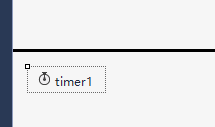
Timer到窗体(出现在设计器底部) - 设置
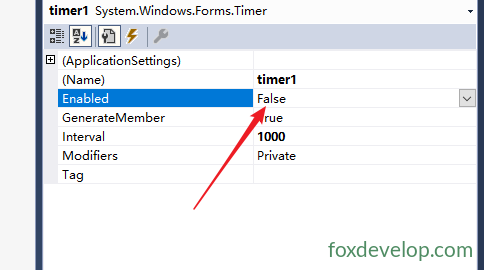
Interval属性为1000(单位毫秒,1000ms = 1秒) - 将
Enabled设为true(启动定时器) - 双击 Timer 生成
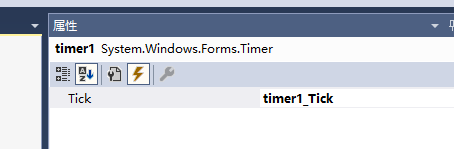
Tick事件 - 拖一个
Label到窗体用于显示时间
private void timer1_Tick(object sender, EventArgs e)
{
    this.label1.Text = DateTime.Now.ToString("yyyy-MM-dd HH:mm:ss");
}Code language: JavaScript (javascript)
运行后 Label 会每秒刷新一次当前时间。
常用属性
| 属性 | 说明 |
|---|---|
Interval | 时间间隔,单位毫秒(默认 100) |
Enabled | 是否启用定时器(true 开始计时,false 停止) |
AutoReset | 是否重复触发(WinForm Timer 始终为 true,每次间隔后自动重新计时) |
this.timer1.Interval = 500;      // 每500毫秒触发一次
this.timer1.Enabled = true;       // 启动
this.timer1.Start();              // 等同于 Enabled = true
this.timer1.Stop();               // 等同于 Enabled = falseCode language: JavaScript (javascript)
常用事件
| 事件 | 说明 |
|---|---|
Tick | 每次时间间隔到达时触发 |
后台代码中创建 Timer
Timer timer = new Timer();
timer.Interval = 1000;
timer.Tick += (s, ev) =>
{
    this.label1.Text = DateTime.Now.ToString("HH:mm:ss");
};
timer.Start();Code language: JavaScript (javascript)
Tick 事件中的其他操作
除了刷新时间,Tick 事件中还可以执行各种定时任务:
// 定时检查状态
private void timer1_Tick(object sender, EventArgs e)
{
    // 1. 定时刷新数据
    RefreshData();

    // 2. 定时保存
    AutoSave();

    // 3. 定时移动控件
    this.button1.Left += 5;
    if (this.button1.Left > this.Width)
    {
        this.button1.Left = 0;
    }

    // 4. 定时检测条件并弹窗
    if (conditionMet)
    {
        timer1.Stop();
        MessageBox.Show("条件满足!");
    }
}Code language: JavaScript (javascript)
注意事项
- WinForm Timer 运行在 UI 线程,Tick 事件中可以直接操作控件,但不要执行耗时操作,否则界面会卡顿
- 如果需要执行耗时任务,应使用多线程(如
Task、BackgroundWorker、System.Timers.Timer) Interval不是绝对精确的,精度大约 ±15ms(取决于系统时钟分辨率)- 如果 Tick 事件处理时间超过
Interval,下一次 Tick 会排队等待,不会并行执行
三种 Timer 对比
| 类型 | 命名空间 | 线程 | 适用场景 |
|---|---|---|---|
System.Windows.Forms.Timer | WinForm | UI 线程 | 界面刷新、简单定时 |
System.Timers.Timer | 服务/组件 | 线程池 | 后台定时任务 |
System.Threading.Timer | 线程 | 线程池 | 底层定时控制 |

Previous: TableLayoutPanel 表格布局控件
Next: 下一篇文章