List View Control – Basic Usage
This is a very commonly used control.
Our screen real estate is limited, but with this control we can display more data on the screen.
By swiping up and down with your finger, you can bring data that was outside the screen into view.
Basic Usage
Create a new TestListView project.
Add the following code to the layout to include a ListView.
<LinearLayout
    xmlns:android="http://schemas.android.com/apk/res/android"
    android:layout_width="match_parent"
    android:layout_height="match_parent">
    <ListView
        android:id="@+id/listview1"
        android:layout_width="match_parent"
        android:layout_height="match_parent" />
</LinearLayout>Code language: HTML, XML (xml)
Initialize the Data Source
public class MainActivity extends AppCompatActivity {
    private  String[] courses = {"Java Basics", "Android Basics", "C# Basics", "C Programming", "ASP.NET MVC"};

    @Override
    protected void onCreate(Bundle savedInstanceState) {
        super.onCreate(savedInstanceState);
        setContentView(R.layout.activity_main);

        ArrayAdapter<String> adapter = new ArrayAdapter<String>(MainActivity.this, android.R.layout.simple_list_item_1, courses);

        ListView listView = (ListView) findViewById(R.id.listview1);
        listView.setAdapter(adapter);
    }
}Code language: JavaScript (javascript)
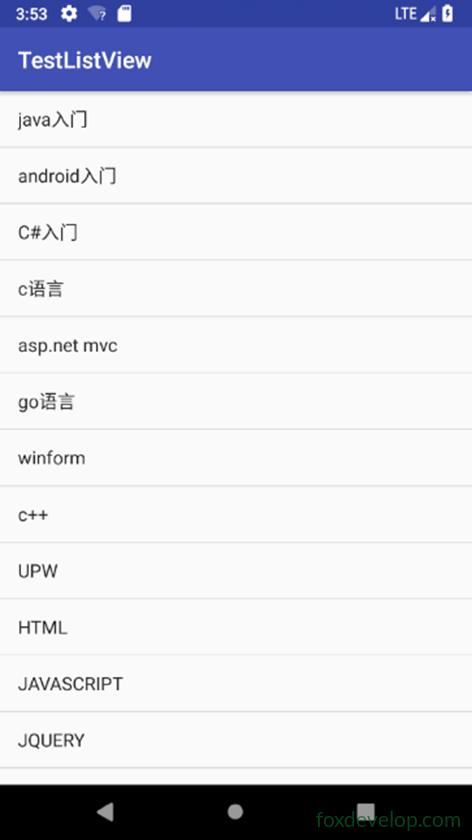
This data can be downloaded from the web (e.g., via a Web API), read from a database, or even defined as a string array directly in code.
Data cannot be passed directly to a ListView; an adapter is needed as an intermediary.
Android provides many adapters. Here we use ArrayAdapter.
We use android.R.layout.simple_list_item_1 as the child layout for the ListView.
This is a built-in Android layout file that contains only a TextView to display a line of text.
List View Control – Customizing the Interface
Simply displaying text is a bit too plain
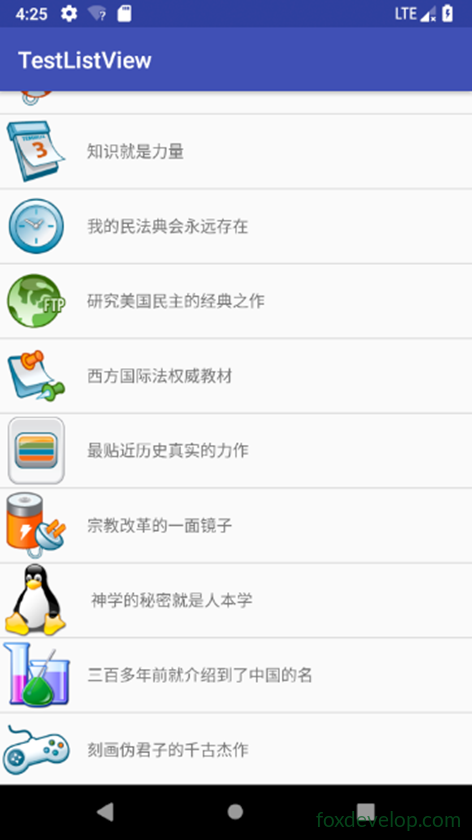
We can display richer content in each list item.
Add a Book Entity Class
package com.foxdevelop.www.testlistview;

public class Book {
    private String name;
    private int imageId;

    public  Book (String name, int imageId) {
        this.name = name;
        this.imageId = imageId;
    }

    public String getName() {
        return name;
    }

    public int getImageId() {
        return imageId;
    }
}Code language: PHP (php)
Add a Layout File for Book Items
<?xml version="1.0" encoding="utf-8"?>
<LinearLayout xmlns:android="http://schemas.android.com/apk/res/android"
    android:orientation="vertical" android:layout_width="match_parent"
    android:layout_height="match_parent">
    <ImageView
        android:id="@+id/imageid"
        android:layout_width="wrap_content"
        android:layout_height="wrap_content" />

    <TextView
        android:id="@+id/name"
        android:layout_width="wrap_content"
        android:layout_height="wrap_content"
        android:layout_gravity="center_vertical"
        android:layout_marginLeft="12dp"
        />
</LinearLayout>Code language: HTML, XML (xml)
Custom Adapter
package com.foxdevelop.www.testlistview;

import android.content.Context;
import android.support.annotation.NonNull;
import android.support.annotation.Nullable;
import android.view.LayoutInflater;
import android.view.View;
import android.view.ViewGroup;
import android.widget.ArrayAdapter;
import android.widget.ImageView;
import android.widget.TextView;

import java.util.List;

public class BookAdapter extends ArrayAdapter<Book> {
    private  int resource;

    public BookAdapter(@NonNull Context context, int resource, @NonNull List<Book> objects) {
        super(context, resource, objects);
        this.resource = resource;
    }

    @NonNull
    @Override
    public View getView(int position, @Nullable View convertView, @NonNull ViewGroup parent) {
        Book book =  getItem(position);
        View view = LayoutInflater.from(getContext()).inflate(resource, parent, false);

        ImageView imageView = (ImageView) view.findViewById(R.id.imageid);
        imageView.setImageResource(book.getImageId());

        TextView name = (TextView) view.findViewById(R.id.name);
        name.setText(book.getName());

        return view;
    }
}Code language: JavaScript (javascript)
Initialize the Data Source in onCreate of the Activity
package com.foxdevelop.www.testlistview;

import android.support.v7.app.AppCompatActivity;
import android.os.Bundle;
import android.widget.ArrayAdapter;
import android.widget.ListView;

import java.util.ArrayList;
import java.util.List;

public class MainActivity extends AppCompatActivity {
    private List<Book> courses = new ArrayList<Book>();

    @Override
    protected void onCreate(Bundle savedInstanceState) {
        super.onCreate(savedInstanceState);
        setContentView(R.layout.activity_main);
        LoadBooks();
        BookAdapter adapter = new BookAdapter(MainActivity.this, R.layout.booklistview, courses);

        ListView listView = (ListView) findViewById(R.id.listview1);
        listView.setAdapter(adapter);
    }

    private  void LoadBooks() {
        courses.add(new Book("First in Human Intellectual History", R.drawable.access));
        courses.add(new Book("Politics of the Exploitative Class", R.drawable.book));
        courses.add(new Book("Precious Literature of Ancient Indian Law", R.drawable.bookmarks));
        courses.add(new Book("Authorized Roman Private Law Textbook", R.drawable.center));
        courses.add(new Book("Knowledge is Power", R.drawable.date));
        courses.add(new Book("My Civil Code Will Last Forever", R.drawable.clock));
        courses.add(new Book("Classic Work on American Democracy", R.drawable.ftp));
        courses.add(new Book("Authoritative Western International Law Textbook", R.drawable.notes));
        courses.add(new Book("Masterpiece Closest to Historical Truth", R.drawable.set));
        courses.add(new Book("Mirror of the Religious Reformation", R.drawable.energy));
        courses.add(new Book("The Secret of Theology is Anthropology", R.drawable.tux));
        courses.add(new Book("Famous Work Introduced to China Over 300 Years Ago", R.drawable.science));
        courses.add(new Book("Timeless Masterpiece Depicting Hypocrites", R.drawable.joystick));
        courses.add(new Book("A Prestigious University Without Walls", R.drawable.center));
        courses.add(new Book("First Utopian Plan in Human Intellectual History", R.drawable.access));
    }
}Code language: JavaScript (javascript)
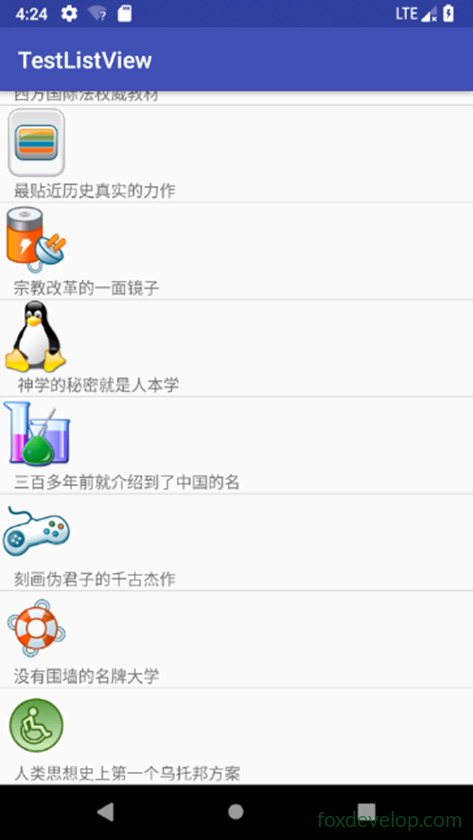
By setting
android:orientation=”horizontal”
you can arrange items horizontally.
Optimizing ListView Performance
Currently, every time the activity opens, it reloads the data source, which affects performance. By caching the View, we can improve speed.
By checking convertView, we avoid recreating the view every time.
public View getView(int position, @Nullable View convertView, @NonNull ViewGroup parent) {
    Book book =  getItem(position);
    View view;
    if (convertView == null) {
        view = LayoutInflater.from(getContext()).inflate(resource, parent, false);
    } else {
        view = convertView;
    }

    ImageView imageView = (ImageView) view.findViewById(R.id.imageid);
    imageView.setImageResource(book.getImageId());

    TextView name = (TextView) view.findViewById(R.id.name);
    name.setText(book.getName());

    return view;
}Code language: PHP (php)
Cache the Controls
Define a class to hold the ImageView and TextView.
class ViewData {
    ImageView imageUI;
    TextView textViewUI;
}Code language: JavaScript (javascript)
package com.foxdevelop.www.testlistview;
import android.content.Context;
import android.support.annotation.NonNull;
import android.support.annotation.Nullable;
import android.view.LayoutInflater;
import android.view.View;
import android.view.ViewGroup;
import android.widget.ArrayAdapter;
import android.widget.ImageView;
import android.widget.TextView;
import java.util.List;
public class BookAdapter extends ArrayAdapter<Book> {
private int resource;
public BookAdapter(@NonNull Context context, int resource, @NonNull List<Book> objects) {
super(context, resource, objects);
this.resource = resource;
}
@NonNull
@Override
public View getView(int position, @Nullable View convertView, @NonNull ViewGroup parent) {
Book book = getItem(position);
View view;
ViewUI viewUI;
if (convertView == null) {
view = LayoutInflater.from(getContext()).inflate(resource, parent, false);
ImageView imageView = (ImageView) view.findViewById(R.id.imageid);
TextView textView = (TextView) view.findViewById(R.id.name);
viewUI = new ViewUI();
viewUI.imageUI = imageView;
viewUI.textViewUI = textView;
view.setTag(viewUI);
} else {
view = convertView;
viewUI = (ViewUI) view.getTag();
}
viewUI.imageUI.setImageResource(book.getImageId());
viewUI.textViewUI.setText(book.getName());
return view;
}
class ViewUI {
ImageView imageUI;
TextView textViewUI;
}
}Code language: JavaScript (javascript)ListView Click Events
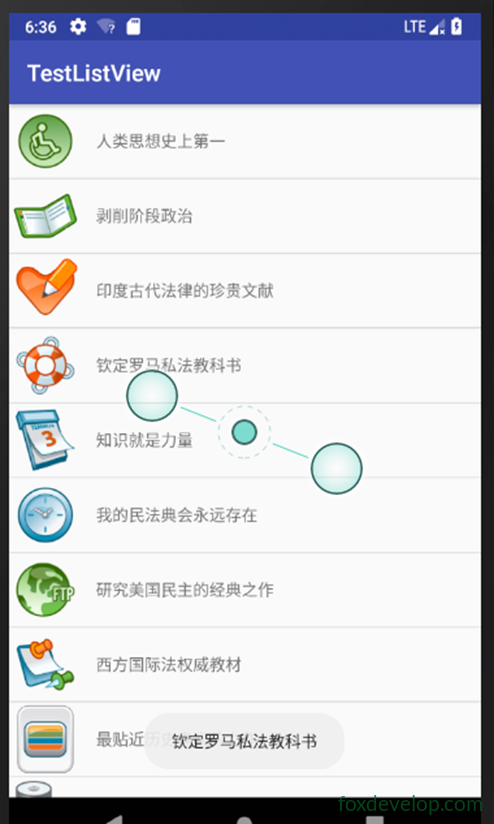
Add click events to list items.
For example, we can display the book title when an item is clicked.
In the onCreate method of the main activity:
@Override
protected void onCreate(Bundle savedInstanceState) {
    super.onCreate(savedInstanceState);
    setContentView(R.layout.activity_main);
    LoadBooks();
    BookAdapter adapter = new BookAdapter(MainActivity.this, R.layout.booklistview, courses);

    final ListView listView = (ListView) findViewById(R.id.listview1);
    listView.setAdapter(adapter);

    // Click event
    listView.setOnItemClickListener(new AdapterView.OnItemClickListener() {
        @Override
        public void onItemClick(AdapterView<?> adapterView, View view, int i, long l) {
            Book b = courses.get(i);
            Toast.makeText(MainActivity.this, b.getName(), Toast.LENGTH_LONG).show();
        }
    });
}Code language: PHP (php)
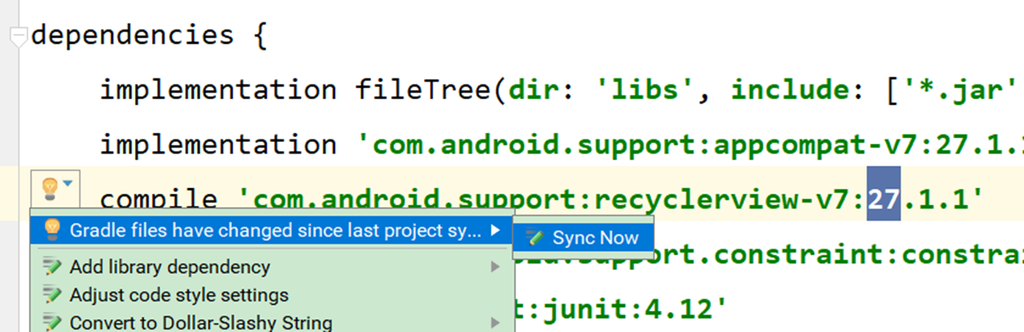
Adding Dependencies in build.gradle
Configuration ‘compile’ is obsolete and has been replaced with ‘implementation’ and ‘api’.
It will be removed at the end of 2018. For more information see: http://d.android.com/r/tools/update-dependency-configurations.html
We need to add support for the
android.support.v7.widget.RecyclerView
dependency library.
<?xml version="1.0" encoding="utf-8"?>
<LinearLayout
    xmlns:android="http://schemas.android.com/apk/res/android"
    android:layout_width="match_parent"
    android:layout_height="match_parent">
   <android.support.v7.widget.RecyclerView
       android:id="@+id/testrecy"
       android:layout_width="match_parent"
       android:layout_height="match_parent">
   </android.support.v7.widget.RecyclerView>
</LinearLayout>Code language: HTML, XML (xml)
Using the Scrollable Control RecyclerView – Part 1
ListView is powerful and still widely used today.
However, its performance is somewhat lacking and its extensibility is limited.
It only supports vertical scrolling; horizontal scrolling is not possible.
RecyclerView is an enhanced version of ListView.
It can achieve the same effects as ListView while optimizing its shortcomings.
Officially, RecyclerView is recommended.
Basic Usage
First, add the following to your gradle file:
compile ‘com.android.support:recyclerview-v7:27.1.1’
In the previous section, we added a RecyclerView.
<android.support.v7.widget.RecyclerView
    android:id="@+id/testrecy"
    android:layout_width="match_parent"
    android:layout_height="match_parent"/>Code language: HTML, XML (xml)
We’ll continue using the book example.