In our last lesson, we finished setting up the Dart environment and installed the Dart SDK. Today, we’ll walk through creating your first Dart project.
Create a New Dart Project
- Open Command Prompt (CMD), create a dedicated folder for your Dart projects and navigate into it. You can store all Dart projects under a single directory, for example: C:\dartdemo
mkdir dartdemo
cd dartdemo- Run the project creation command below to generate a console-based project named firstdart. Feel free to replace “firstdart” with any project name you prefer.
dart create firstdart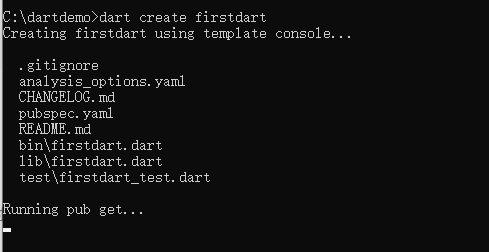
What This Command Does
dart create firstdart generates a command-line project called firstdart. It automatically builds the full standard file and folder structure, then runs pub get to fetch all required dependencies.
Here’s the complete file structure you’ll get after creation:
Key Auto-Generated Files
.gitignore: Git ignore rules fileanalysis_options.yaml: Static code analysis and linting rulespubspec.yaml: Core Dart project config file storing project metadata and dependency listsbin/firstdart.dart: Main program entry pointlib/firstdart.dart: Library file holding core business logictest/firstdart_test.dart: Unit test file template
Run Your First Dart Program
- Move into your newly created project subfolder
cd firstdart - Execute the run command
dart run- You will see this successful output in your terminal
C:\dartdemo\firstdart>dart run
Building package executable...
Built firstdart:firstdart.
Hello world: 42!

C:\dartdemo\firstdart>Code language: CSS (css)
If dependency fetching fails due to network issues, you can configure a domestic mirror source
Open CMD and set the environment variable temporarily using this command:
set PUB_HOSTED_URL=https://mirrors.tuna.tsinghua.edu.cn/dart-pubCode language: JavaScript (javascript)
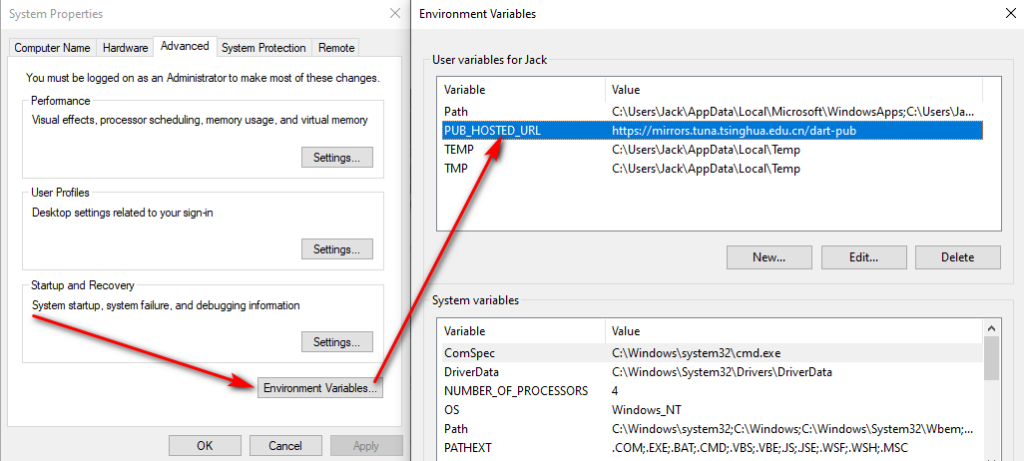
This command simply defines an environment variable for your current terminal session. You may also configure environment variables through the Windows system settings panel.
set PUB_HOSTED_URL=xxx creates a temporary session-only variable. It only lives in memory for the active CMD window and does not write values to the Windows Registry. You won’t see this entry listed in the system Environment Variables GUI, and the variable disappears entirely once you close the CMD window.
To make the mirror setting persist across all terminal windows permanently, replace the set command with setx:
C:\dartdemo\firstdart>setx PUB_HOSTED_URL "https://mirrors.tuna.tsinghua.edu.cn/dart-pub"

SUCCESS: Specified value was saved.

C:\dartdemo\firstdart>Code language: JavaScript (javascript)
After running setx, you can verify the variable exists inside Windows system environment variable settings.
Edit Code and Re-Run the Program
1. File Structure Overview
The bin/ directory stores executable entry scripts; bin/firstdart.dart acts as the launch file for the whole application.
Every Dart application begins execution from the main() function.

2. Modify the Source Code
import 'package:firstdart/firstdart.dart' as firstdart;

void main(List<String> arguments) {
  print('Hello world: ${firstdart.calculate()}!');
}
Code language: Dart (dart)
Revised version (remove the import statement and update the print text):
void main(List<String> arguments) {
  print('Hello, Dart!');
}

Code language: Dart (dart)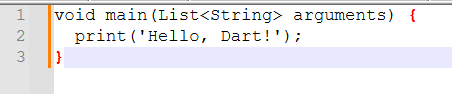
3. Re-run to Confirm Changes
Save your edits, then run dart run again. You will see updated output like this:
C:\dartdemo\firstdart>dart run
Building package executable...
Built firstdart:firstdart.
Hello, Dart!Code language: CSS (css)
This new output confirms your code edits took effect successfully.
Core Key Takeaways
dart create [project-name]: Quickly generates a standardized, complete Dart project template;dart run: Compiles your Dart source code and launches the application;- The
bin/folder holds your program entry file, and themain()function serves as the execution starting point for all Dart programs; pubspec.yamlis the central configuration file for every Dart project, managing dependencies and project metadata.