Install PHP
First grab PHP from its official download page: https://windows.php.net/download/
Pick PHP 8.2 (recommended) and download the ZIP package.
You can jump straight to this download link: PHP: Downloads
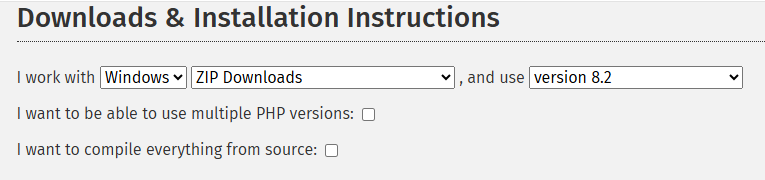
Scroll down and click the zip download option.
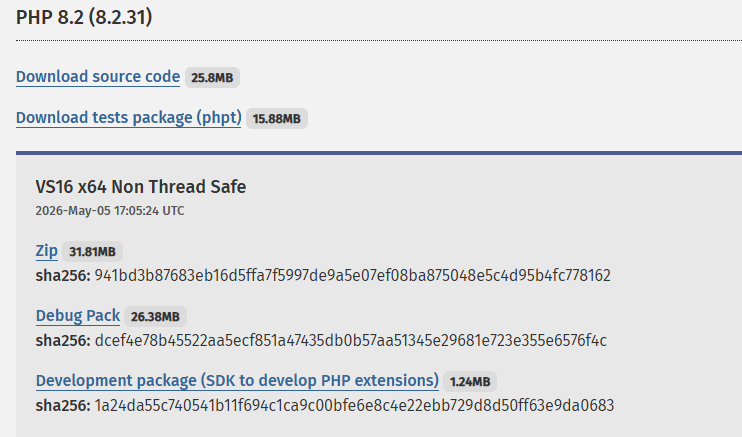
Why skip PHP 8.5? As of 2026, newer PHP versions might have compatibility issues with Laravel. For learning purposes, PHP 8.2 paired with Laravel 12 works best; this combo is stable, has fewer bugs and lots of online guides. By the time you go through this course, PHP 8.5 might already be mature, so adjust based on your actual situation.
Once downloaded, extract php-8.2.31-nts-Win32-vs16-x64.zip and begin setup.
Unzip php-8.2.31-nts-Win32-vs16-x64.zip into a short file path with no Chinese characters or spaces, for example: D:\php8.2
Open the extracted folder; you’ll see two configuration files for development and production environments separately.
Locate these two files:
php.ini-development(for local development work)php.ini-production(for live servers, leave untouched for now)
Make a backup copy of php.ini-development, then rename one copy to php.ini.
Open php.ini with Notepad and tweak a few settings.
- Find ;extension_dir = “ext” and remove the leading semicolon;
- Uncomment all required extensions for Laravel by deleting each preceding semicolon:
extension=curl
extension=fileinfo
extension=mbstring
extension=openssl
extension=pdo_mysql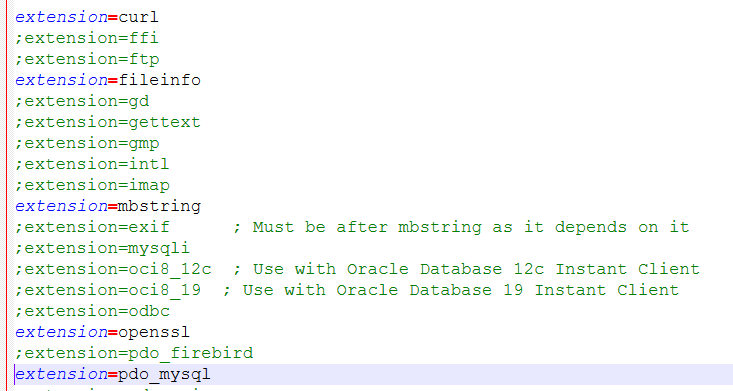
Save your updated php.ini file.
A critical step: add the D:\php8.2 directory into your system environment variables.
Search for environment variables from the Start Menu and edit the Path entry.
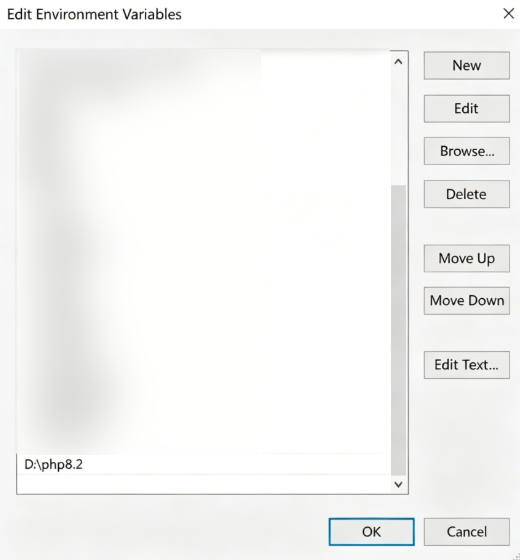
Now verify your PHP install. Open a regular CMD window.
Run this command: php -v
php -vIf your PHP version details show up on screen, your installation succeeded.

That output confirms PHP is properly installed on your PC.