Widget Usage – TextView
Used to display a segment of text on the screen.
<TextView
    android:id="@+id/text_view"
    android:layout_width="wrap_content"
    android:layout_height="wrap_content"
    android:text="Third Activity" />Code language: HTML, XML (xml)
android:id Unique identifier for the current widget
android:layout_width Width
android:layout_height Height
All Android widgets have these two attributes, with three possible values: match_parent、fill_parent、wrap_content
android:text Text content
One value means the dimension is determined by its parent container
Another means the dimension adapts to its inner content
You can also set fixed sizes directly. However, this will cause compatibility issues across different screen sizes.
android:gravity=”center”
Text alignment options: top bottom left right center
android:textSize=”24sp”
Font size
android:textColor=”#00ff00″
Android uses sp as the unit for font size.
<?xml version="1.0" encoding="utf-8"?>
<LinearLayout xmlns:android="http://schemas.android.com/apk/res/android"
    android:orientation="vertical" android:layout_width="match_parent"
    android:layout_height="match_parent">
    <TextView
        android:id="@+id/textview"
        android:layout_width="match_parent"
        android:layout_height="wrap_content"
        android:text="This is just display text"
        android:gravity="center_vertical"
        android:textSize="28sp"
        android:textColor="#57d038"
        />
</LinearLayout>Code language: HTML, XML (xml)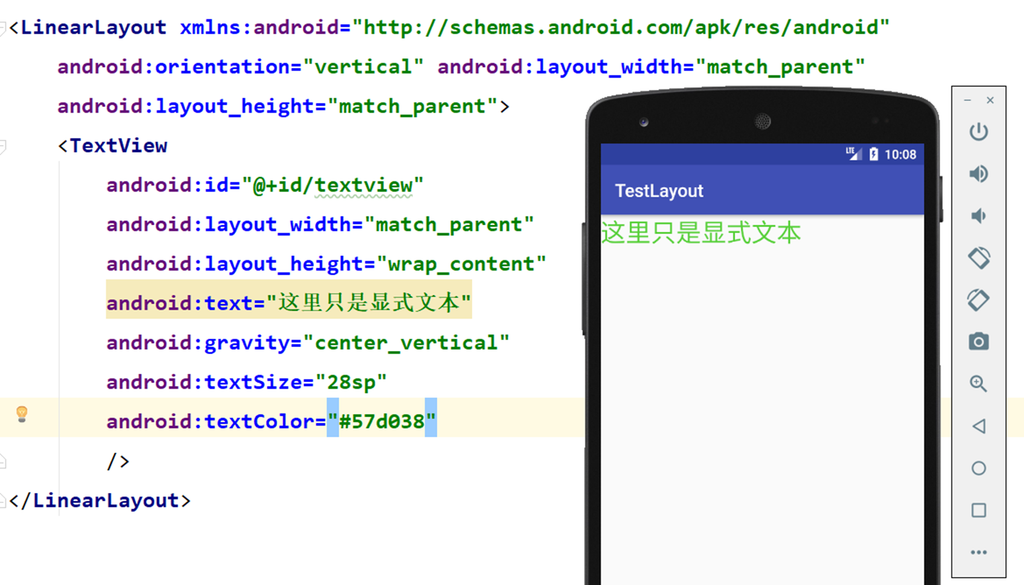
Widget Usage – Button
A widget for user interaction.
<Button
    android:id="@+id/button"
    android:layout_width="match_parent"
    android:layout_height="wrap_content"
    android:text="Exit App" />Code language: HTML, XML (xml)
Disable automatic uppercase for English letters
android:textAllCaps = “false”
Add Click Listener
public class MainActivity extends AppCompatActivity {
    @Override
    protected void onCreate(Bundle savedInstanceState) {
        super.onCreate(savedInstanceState);
        setContentView(R.layout.textview_layout);
        Button bt = (Button) findViewById(R.id.button);
        bt.setOnClickListener(new View.OnClickListener(){
            @Override
            public void onClick(View v){
                //
            }
        });
    }
}Code language: JavaScript (javascript)
Implement listener via interface
public class MainActivity extends AppCompatActivity implements View.OnClickListener{
    @Override
    protected void onCreate(Bundle savedInstanceState) {
        super.onCreate(savedInstanceState);
        setContentView(R.layout.textview_layout);
        Button bt = (Button)findViewById(R.id.button);
        bt.setOnClickListener(this);// Register listener in current context
    }
    @Override
    public void onClick(View view) {
        switch (view.getId()) {
            case R.id.button:
                //Handle button click event
                Toast.makeText(MainActivity.this,"foxdevelop.com",Toast.LENGTH_LONG).show();
                break;
        }
    }
}Code language: PHP (php)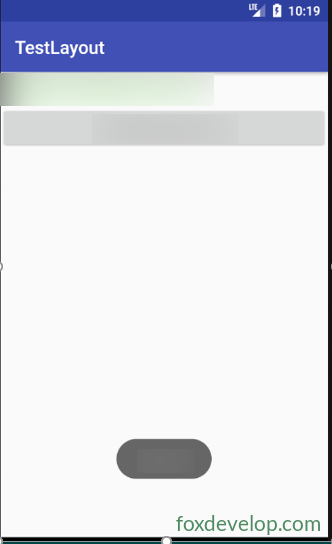
Widget Usage – EditText
EditText lets users input and edit text, whose content can be processed in code.
Widely used
Used in WeChat, SMS, QQ chat and many other scenarios.
<EditText
    android:id="@+id/edit_text"
    android:layout_width="match_parent"
    android:layout_height="wrap_content" />Code language: HTML, XML (xml)
Hint text for input box

Add attribute
android:hint=”Enter your name”
When input text is too long
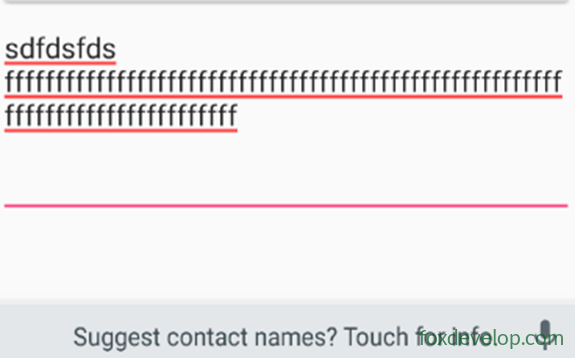
We can set
Max lines
android:maxLines=”2″
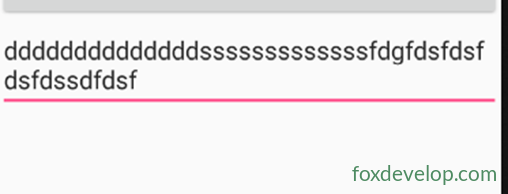
<EditText
    android:id="@+id/edit_text"
    android:layout_width="match_parent"
    android:layout_height="wrap_content"
    android:hint="Enter your name"
    android:maxLines="2"
    />Code language: HTML, XML (xml)
Try this: Tap button to show input box content
//Get text from edittext
EditText et = (EditText)findViewById(R.id.edit_text);
String input = et.getText().toString();
Toast.makeText(NormalActivity.this,input,Toast.LENGTH_LONG).show();Code language: JavaScript (javascript)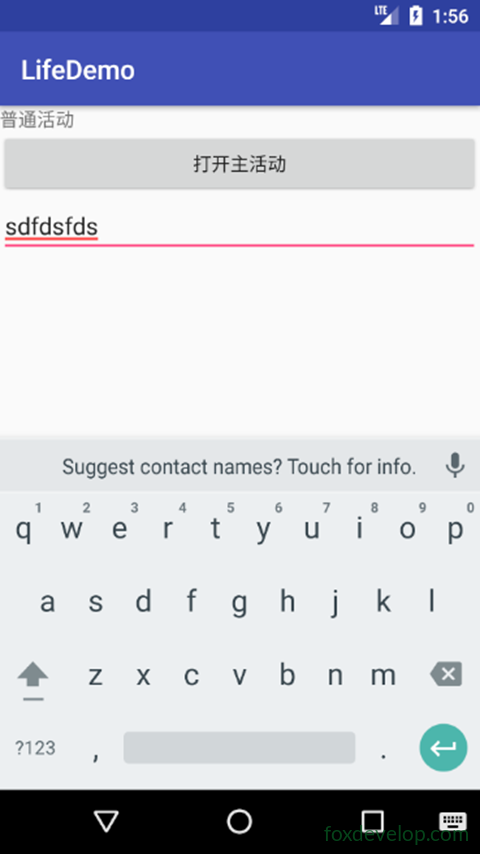
Widget Usage – ImageView
Widget used to display images on screen.
Prepare image assets first
Images are normally placed in drawable folders
Create drawable-xhdpi under res and add img1.png img2.png
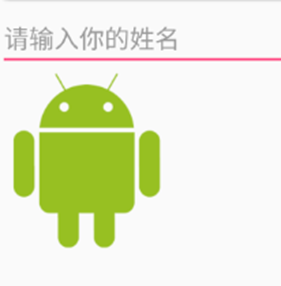
Add ImageView and set source image
<ImageView
    android:id="@+id/imageview1"
    android:layout_width="wrap_content"
    android:layout_height="wrap_content"
    android:src="@drawable/img1"
    />Code language: HTML, XML (xml)
Tap button to switch image
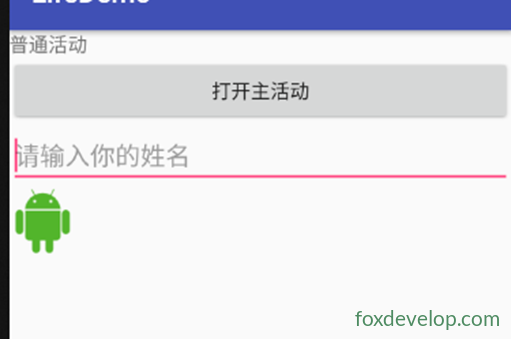
//Change image on button click
ImageView iv = (ImageView) findViewById(R.id.imageview1);
iv.setImageResource(R.drawable.img2);Code language: JavaScript (javascript)
Widget Usage – ProgressBar
Displays progress bar on screen
Shows that app is loading data
Very simple to use
<ProgressBar
    android:id="@+id/progress_bar"
    android:layout_width="match_parent"
    android:layout_height="wrap_content" />Code language: HTML, XML (xml)
All widgets support this attribute
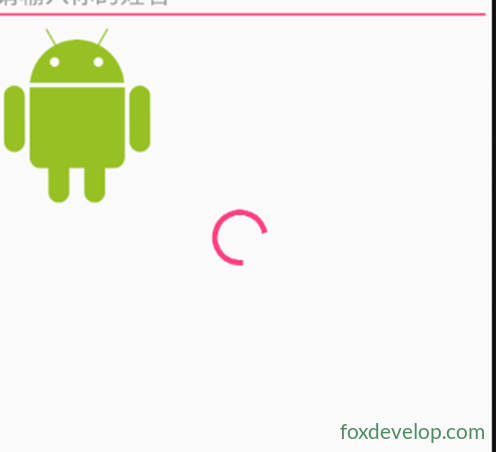
visibility attribute with three values:
visible Visible, default value
invisible Not visible, still occupies original space (transparent)
gone Not visible and takes zero screen space
Use setVisibility to modify
View.VISIBLE
View.INVISIBLE
View.GONE
Tap button to toggle show/hide progress bar
//Toggle show/hide progress bar on click
ProgressBar pb = (ProgressBar) findViewById(R.id.progress_bar);
if (pb.getVisibility()==View.GONE){
    pb.setVisibility(View.VISIBLE);
}
else {
    pb.setVisibility(View.GONE);
}Code language: JavaScript (javascript)
Customize progress bar style
style=”?android:attr/progressBarStyleHorizontal”
android:max=”100″ Set maximum value for progress
Update progress dynamically
//Dynamically update progress value
ProgressBar pb = (ProgressBar) findViewById(R.id.progress_bar);
pb.setProgress(pb.getProgress()+10);Code language: JavaScript (javascript)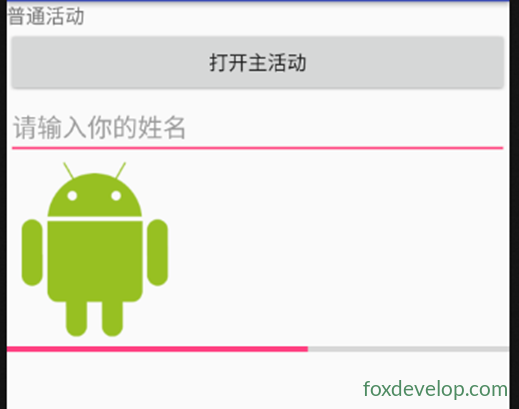
Widget Usage – AlertDialog
AlertDialog pops up a dialog above current screen.
This dialog overlays all other UI elements.
Normally used for important alerts or warnings.
For example, warn users before deleting important data by accident.
Triggered by button click
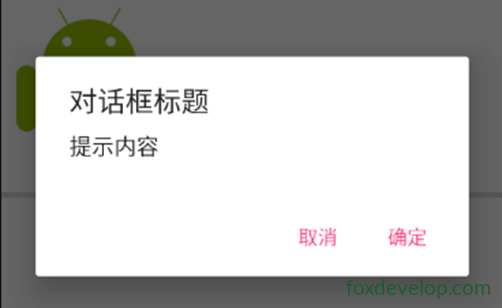
No layout xml needed for this widget.

It can be fully created in Java code directly
//Create dialog
AlertDialog.Builder ad = new AlertDialog.Builder(NormalActivity.this);
ad.setTitle("Dialog Title");
ad.setMessage("Prompt Message");
ad.setCancelable(false);
ad.setPositiveButton("OK", new DialogInterface.OnClickListener() {
    @Override
    public void onClick(DialogInterface dialogInterface, int i) {
        //Logic when user tap OK
        Toast.makeText(NormalActivity.this,"You clicked OK", Toast.LENGTH_LONG).show();
    }
});
ad.setNegativeButton("Cancel", new DialogInterface.OnClickListener() {
    @Override
    public void onClick(DialogInterface dialogInterface, int i) {
        //Logic when user tap Cancel
        Toast.makeText(NormalActivity.this,"You clicked Cancel", Toast.LENGTH_LONG).show();
    }
});
ad.show();Code language: JavaScript (javascript)
Widget Usage – ProgressDialog
ProgressDialog is similar to AlertDialog. It pops up a dialog on screen.
The difference is ProgressDialog contains a progress bar.
Usually used for long-running tasks to tell users to wait.
//Use ProgressDialog
ProgressDialog pd = new ProgressDialog(NormalActivity.this);
pd.setTitle("Title");
pd.setMessage("Content");
pd.setCancelable(true);
pd.show();Code language: JavaScript (javascript)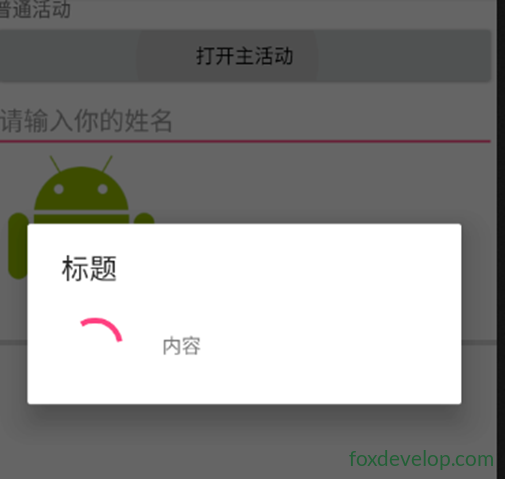
Widgets