In the previous lesson, we finished implementing the left sidebar with a Frame control inside. When the main window launches, this Frame loads a default blank page automatically. However, clicking menu items on the left sidebar does not open other pages yet. In this lesson, we will implement this feature: clicking different menu options on the left sidebar navigates to distinct Pages.
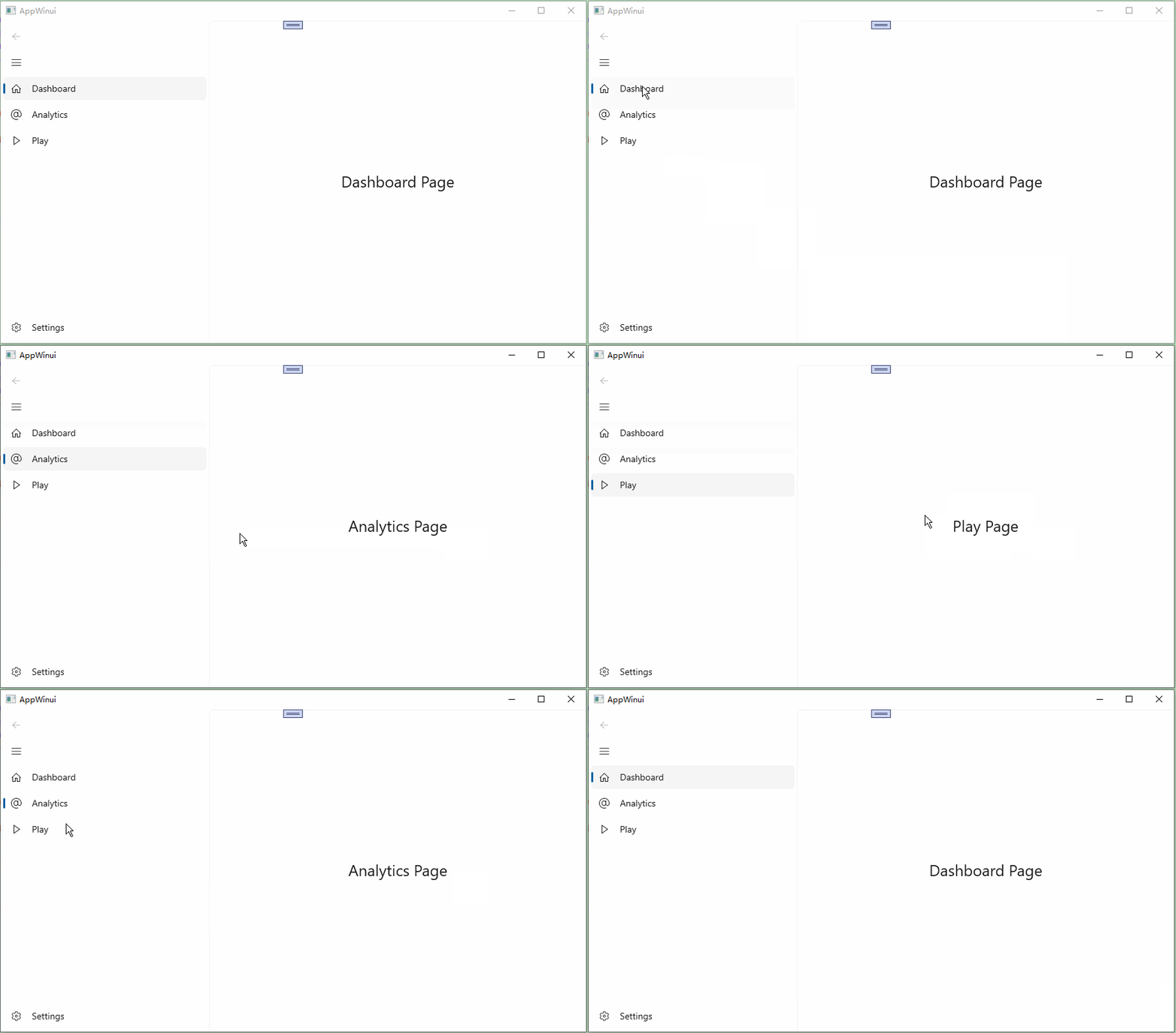
Final Effect Preview
Modify Menu Items on Main Window
Edit MainWindow.xaml
    <NavigationView x:Name="NavView" PaneDisplayMode="Left" SelectionChanged="OnNavViewSelectionChanged">

        <NavigationView.MenuItems>
            <NavigationViewItem Content="Dashboard" Tag="DashboardPage" Icon="Home"/>
            <NavigationViewItem Content="Analytics" Tag="AnalyticsPage" Icon="Account"/>
            <NavigationViewItem Content="Play" Tag="PlayPage" Icon="Play"/>
        </NavigationView.MenuItems>

        <Frame x:Name="MainFrame"/>

    </NavigationView>Code language: HTML, XML (xml)
Key Modifications:
- Add a selection change event to NavigationView:
SelectionChanged="OnNavViewSelectionChanged". This event fires whenever users switch between menu items. - Added and updated several menu entries:
<NavigationViewItem Content="Play" Tag="PlayPage" Icon="Play"/>. Note: Content defines the menu display name, the Tag string matches the target page class name, and Icon uses built-in WinUI icon resources.
Create three new blank pages: DashboardPage, AnalyticsPage, PlayPage
Add a TextBlock inside each page’s Grid container with unique descriptive text to visually distinguish each page.
  <Grid>
      <TextBlock Text="Dashboard Page" HorizontalAlignment="Center" VerticalAlignment="Center" FontSize="24"/>
</Grid>Code language: HTML, XML (xml) <Grid>
<TextBlock Text="Analytics Page" HorizontalAlignment="Center" VerticalAlignment="Center" FontSize="24"/>
</Grid>Code language: HTML, XML (xml) <Grid>
<TextBlock Text="Play Page" HorizontalAlignment="Center" VerticalAlignment="Center" FontSize="24"/>
</Grid>Code language: HTML, XML (xml)Implement Page Switch Handler Function
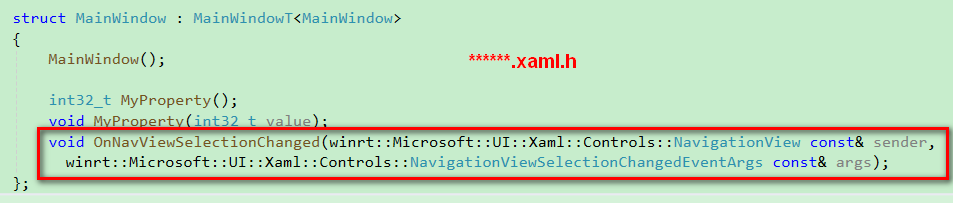
Place your text cursor on the OnNavViewSelectionChanged event handler name in XAML, then press the F12 shortcut. Visual Studio will auto-generate the event function declaration in the .h header file (without implementation body), and create the corresponding implementation stub in the .cpp file automatically (the IDE jumps directly to the cpp file afterward; you do not need to manually edit the header file).
The code below is the complete implementation inside MainWindow.xaml.cpp.
void winrt::AppWinui::implementation::MainWindow::OnNavViewSelectionChanged(winrt::Microsoft::UI::Xaml::Controls::NavigationView const& sender,
winrt::Microsoft::UI::Xaml::Controls::NavigationViewSelectionChangedEventArgs const& args)
{
    // Get the selected menu item
    auto selectedItem = args.SelectedItem().as<NavigationViewItem>();
    if (!selectedItem) return;

    // Extract the Tag string value
    hstring tag = unbox_value<hstring>(selectedItem.Tag());
    winrt::Windows::UI::Xaml::Interop::TypeName targetPage;

    // Match Tag value to corresponding page type
    if (tag == L"DashboardPage")
    {
        targetPage = xaml_typename<AppWinui::DashboardPage>();
    }
    else if (tag == L"AnalyticsPage")
    {
        targetPage = xaml_typename<AppWinui::AnalyticsPage>();
    }
    else if (tag == L"PlayPage")
    {
        targetPage = xaml_typename<AppWinui::PlayPage>();
    }
    else
    {
        return;
    }

    // Navigate the Frame to target page
    MainFrame().Navigate(targetPage);
}Code language: C++ (cpp)
Add required namespaces and header includes at the top of the cpp file
using namespace Microsoft::UI::Xaml;

#include "BlankPage.xaml.h"
#include "DashboardPage.xaml.h"
#include "AnalyticsPage.xaml.h"
#include "PlayPage.xaml.h"
#include <winrt/Windows.UI.Xaml.Interop.h>
using namespace winrt::Microsoft::UI::Xaml::Controls;Code language: C++ (cpp)
Key breakdown of the event handler logic
auto selectedItem = args.SelectedItem().as<NavigationViewItem>(); — Retrieves the menu item the user just clicked
hstring tag = unbox_value<hstring>(selectedItem.Tag()); — Reads the Tag property value we defined earlier in XAML, which stores the target page name.
winrt::Windows::UI::Xaml::Interop::TypeName targetPage; — Declares a type storage variable to hold the page type reference, used as the parameter for the later MainFrame().Navigate(targetPage); navigation call.
    if (tag == L"DashboardPage")
    {
        targetPage = xaml_typename<AppWinui::DashboardPage>();
    }Code language: C++ (cpp)
We assign different page type references to targetPage based on matching Tag strings.
MainFrame().Navigate(targetPage); — Executes the page navigation in the Frame control.
Full Complete Source Code
#include "pch.h"
#include "MainWindow.xaml.h"
#if __has_include("MainWindow.g.cpp")
#include "MainWindow.g.cpp"
#endif

using namespace winrt;
using namespace Microsoft::UI::Xaml;

#include "BlankPage.xaml.h"
#include "DashboardPage.xaml.h"
#include "AnalyticsPage.xaml.h"
#include "PlayPage.xaml.h"
#include <winrt/Windows.UI.Xaml.Interop.h>
using namespace winrt::Microsoft::UI::Xaml::Controls;


// To learn more about WinUI, the WinUI project structure,
// and more about our project templates, see: http://aka.ms/winui-project-info.

namespace winrt::AppWinui::implementation
{

    MainWindow::MainWindow()
    {
        InitializeComponent();

        MainFrame().Navigate(xaml_typename<AppWinui::BlankPage>());
    }

    int32_t MainWindow::MyProperty()
    {
        throw hresult_not_implemented();
    }

    void MainWindow::MyProperty(int32_t /* value */)
    {
        throw hresult_not_implemented();
    }
}

void winrt::AppWinui::implementation::MainWindow::OnNavViewSelectionChanged(winrt::Microsoft::UI::Xaml::Controls::NavigationView const& sender,
 winrt::Microsoft::UI::Xaml::Controls::NavigationViewSelectionChangedEventArgs const& args)
{
    // Get the selected menu item
    auto selectedItem = args.SelectedItem().as<NavigationViewItem>();
    if (!selectedItem) return;

    // Extract the Tag string value
    hstring tag = unbox_value<hstring>(selectedItem.Tag());
    winrt::Windows::UI::Xaml::Interop::TypeName targetPage;

    // Match Tag value to corresponding page type
    if (tag == L"DashboardPage")
    {
        targetPage = xaml_typename<AppWinui::DashboardPage>();
    }
    else if (tag == L"AnalyticsPage")
    {
        targetPage = xaml_typename<AppWinui::AnalyticsPage>();
    }
    else if (tag == L"PlayPage")
    {
        targetPage = xaml_typename<AppWinui::PlayPage>();
    }
    else
    {
        return;
    }

    // Navigate the Frame to target page
    MainFrame().Navigate(targetPage);
}
Code language: C++ (cpp)
Full Source Code Download Link
Click items on the left navigation bar to load different pages