In this lesson, we will start learning controls for WinUI 3 C++. WinUI C++ comes with an extensive library of built-in controls, and we will begin with fundamental text input and display controls.
The following are all text-related core controls:
TextBlock: Static text display, supports rich text content and inline style formatting
RichTextBlock: Read-only rich text viewer, supports paragraphs, italic, bold, embedded images
TextBox: Single-line plain text input box
RichEditBox: Multi-line rich text editor (custom font, color, paragraph formatting)
PasswordBox: Password input field that masks typed characters
AutoSuggestBox: Input box with auto-complete dropdown suggestions
NumberBox: Numeric-only input, configurable minimum/maximum values and decimal support
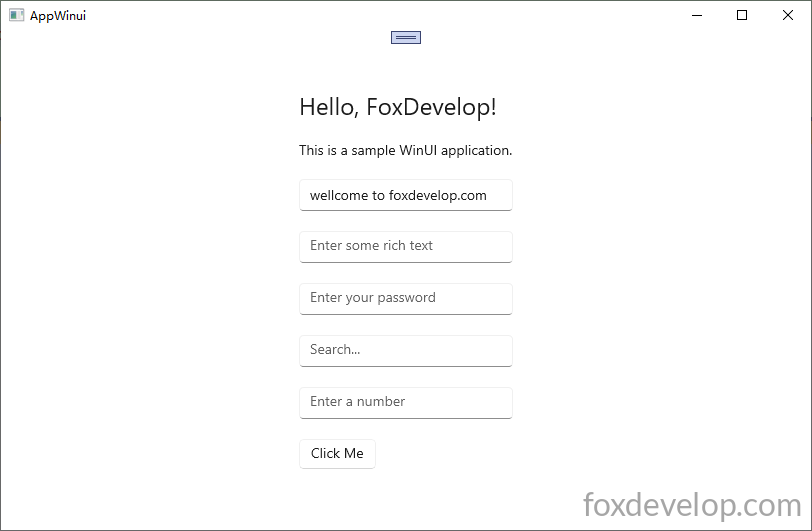
    <StackPanel Orientation="Vertical" HorizontalAlignment="Center" VerticalAlignment="Center" Padding="30">

        <TextBlock Text="Hello, FoxDevelop!" FontSize="24" Margin="0,0,0,20"/>

        <RichTextBlock>
            <Paragraph>
                <Run Text="This is a sample WinUI application."/>
            </Paragraph>
        </RichTextBlock>

        <TextBox x:Name="myTextBox" PlaceholderText="Enter your name" Text="" Margin="0,20,0,0"/>

        <RichEditBox PlaceholderText="Enter some rich text" Margin="0,20,0,0"/>

        <PasswordBox PlaceholderText="Enter your password" Margin="0,20,0,0"/>

        <AutoSuggestBox PlaceholderText="Search..." Margin="0,20,0,0"/>

        <NumberBox PlaceholderText="Enter a number" Margin="0,20,0,0"  Maximum="100" Minimum="0"/>

        <Button Content="Click Me" Margin="0,20,0,0" Click="Button_Click"/>
    </StackPanel>Code language: HTML, XML (xml)
Press the F12 key to auto-generate the button click event handler
#include "pch.h"
#include "MainWindow.xaml.h"
#if __has_include("MainWindow.g.cpp")
#include "MainWindow.g.cpp"
#endif


#include <winrt/Microsoft.UI.Xaml.Controls.h>
#include <winrt/Microsoft.UI.Xaml.h>

using namespace winrt;
using namespace Microsoft::UI::Xaml;
using namespace Microsoft::UI::Xaml::Controls;
using namespace Windows::Foundation;

// To learn more about WinUI, the WinUI project structure,
// and more about our project templates, see: http://aka.ms/winui-project-info.

namespace winrt::AppWinui::implementation
{
    int32_t MainWindow::MyProperty()
    {
        throw hresult_not_implemented();
    }

    void MainWindow::MyProperty(int32_t /* value */)
    {
        throw hresult_not_implemented();
    }

}

void winrt::AppWinui::implementation::MainWindow::Button_Click(winrt::Windows::Foundation::IInspectable const& sender, winrt::Microsoft::UI::Xaml::RoutedEventArgs const& e)
{
    myTextBox().Text(L"welcome to foxdevelop.com");//set TextBox text value
    hstring inputText = myTextBox().Text(); //read TextBox text value
    OutputDebugStringW(inputText.c_str());
}
Code language: C++ (cpp)
You can use myTextBox().Text to set or retrieve the text value. If you pass a wide string parameter such as L"welcome to foxdevelop.com", it will set the text content. If you call the method with no arguments like hstring inputText = myTextBox().Text();, it will return the current text as a read value.
Explanation: After calling myTextBox().Text(L"welcome to foxdevelop.com"); to assign preset text, any custom text typed by the user in the front-end input box can still be captured in the backend when the button is clicked.
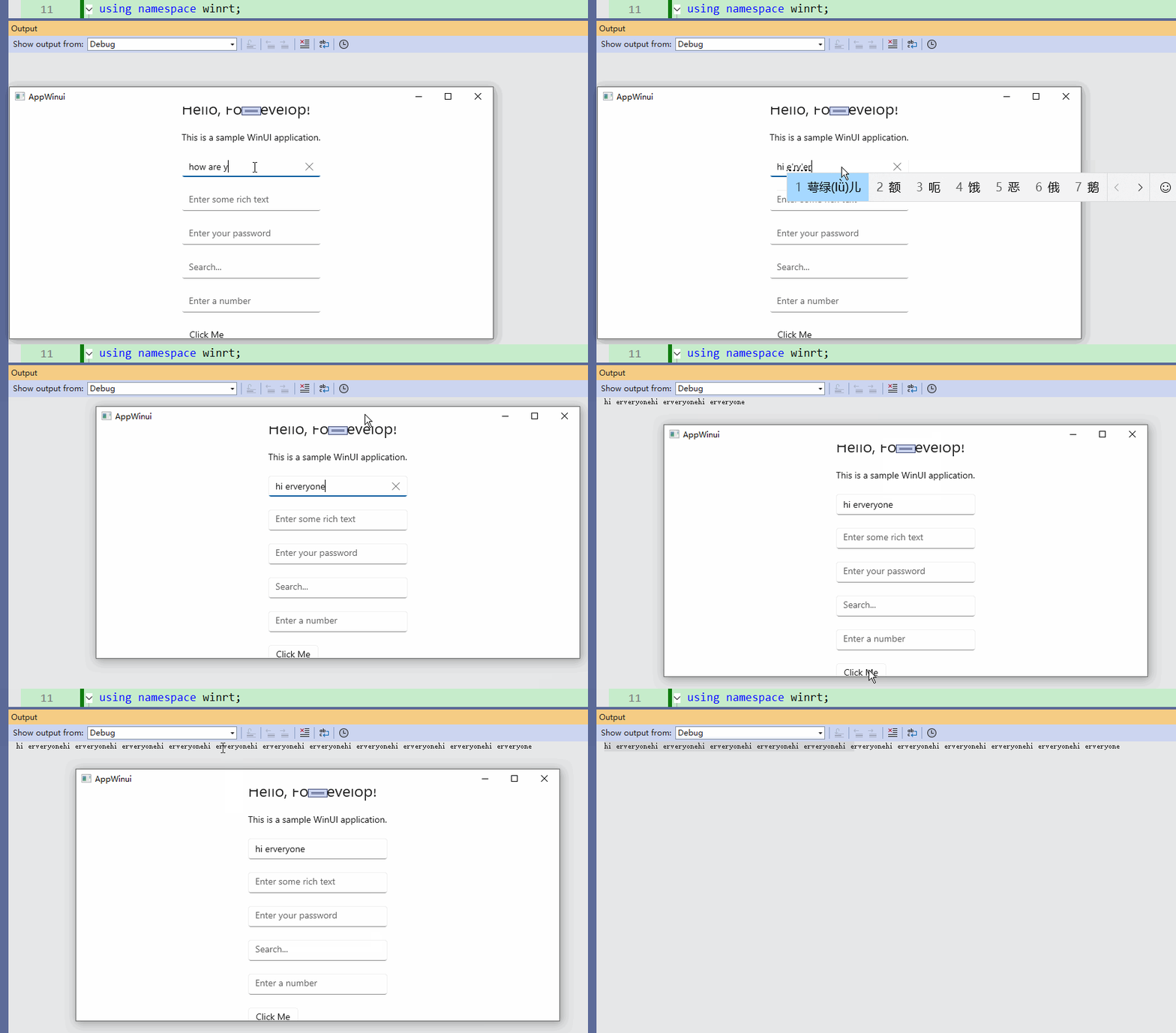
All other text controls support value read/write operations via similar syntax, which we will not cover one by one here.