Introduction to the Lazarus Interface on First Launch
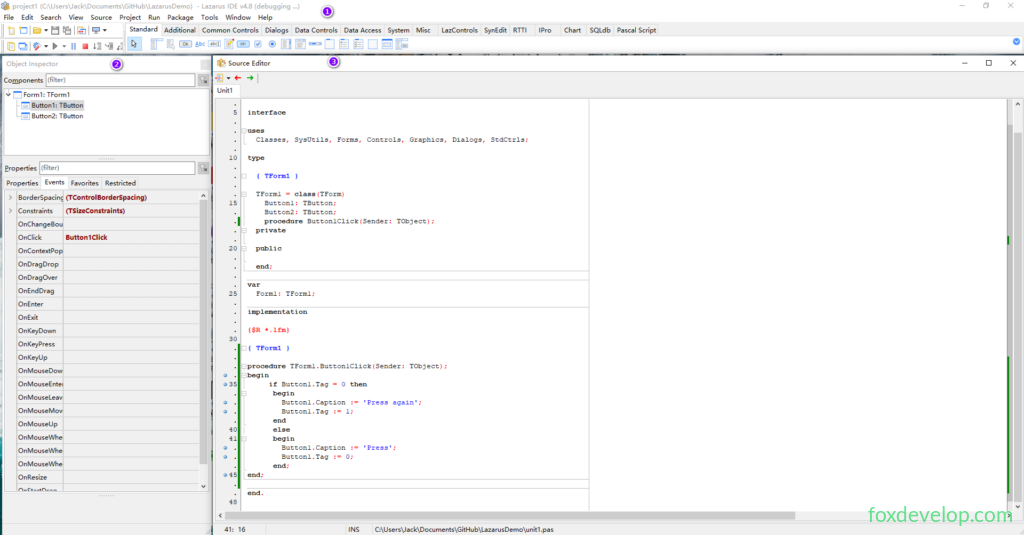
Main Window (Top Global Window), Area 1 in the screenshot above
Different from regular software you may have used, launching Lazarus opens multiple independent floating windows. The long topmost window is the main IDE window, with the title format: project1 - Lazarus IDE vVersionNumber. When opening other projects, the title automatically updates to the current project name. Purpose: Central IDE control window, containing the Main Menu Bar and Component Palette.

- Beneath title bar: Main Menu Bar with standard menus: File, Edit, Search, View

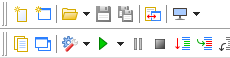
- Left below menu bar: Coolbar Quick Toolbar Icon buttons for fast access to frequently used menu functions;
- Right below menu bar: Component Palette

Built-in Tab Groups
Standard、Additional、Common Controls、Dialogs、Data Controls、Data Access、System、Misc、LazControls、RTTI、SQLdb、Pascal Script、SynEdit、Chart、IPro
Two Core Editor Windows
Two side-by-side windows at the bottom of the IDE:
- Left side: Object Inspector
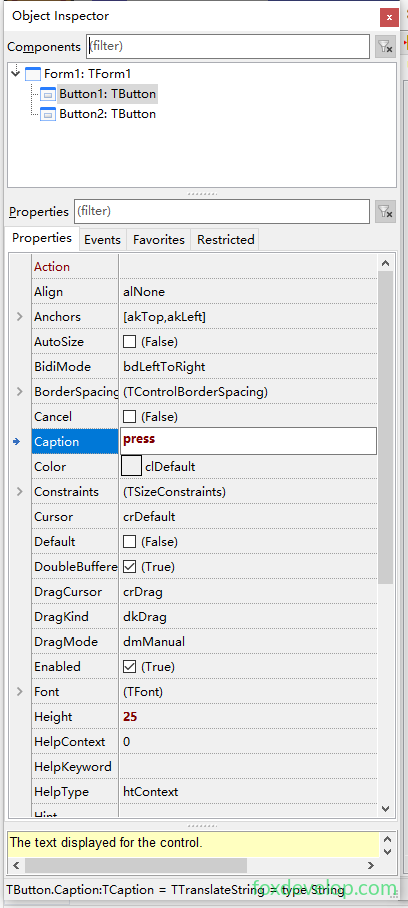
Below are introductions to frequently used properties
| Property Name | Function Description |
|---|---|
| Action | Bind preset actions such as close and exit functions |
| Align | Control alignment relative to parent container: alTop Top, alBottom Bottom, alLeft Left, alRight Right, alClient Fill remaining space, alNone Free positioning |
| Anchor | Lock control margins to four window edges during resizing; e.g. [akBottom,akRight] locks bottom-right corner |
| Caption | Display text for controls (buttons, labels); use meaningful custom text instead of default Button1 |
| Color | Control background color |
| Enabled | Boolean value; False grays out the control and disables clicks |
| Font | Text font, size, color; expand for detailed configuration |
| Hint / ShowHint | Tooltip text on mouse hover; tooltips only appear when ShowHint=True |
| Name | Identifier name for controls in code; follow naming standards (OkBtn, ExitBtn) instead of default Button1 |
| Left / Top | Top-left coordinate of the control |
| Width / Height | Control width and height; Constraints set min/max size limits |
| ReadOnly | Makes input box view-only, disables editing |
| TabOrder / TabStop | Tab navigation sequence; TabStop=False skips control with Tab key |
| Text / Lines | Text for single-line input; Lines for multi-line text (TMemo content, array index starts at 0) |
| Visible | Hides control completely when False |
| WordWrap | Auto line break for multi-line text |
| PopUpMenu | Right-click context menu |
Below are commonly used events
| Event | Trigger Condition |
|---|---|
| OnClick | Left mouse click on control (most used for buttons) |
| OnChange | Control content or state modified (input text edit, dropdown selection switch) |
| OnEntry | Mouse enters control, focus acquired |
| OnExit | Mouse leaves control, focus lost |
| OnKeyDown / OnKeyPress / OnKeyUp | Key pressed, character input, key released |
| OnMouseMove / OnMouseDown / OnMouseUp | Mouse move, mouse button press, mouse button release |
| OnDragDrop | Drag-and-drop release operation |
| OnEditingDone | User finished editing, commonly used for input validation |
| OnResize | Control size changed |
- Right side: Source Editor Code Editor
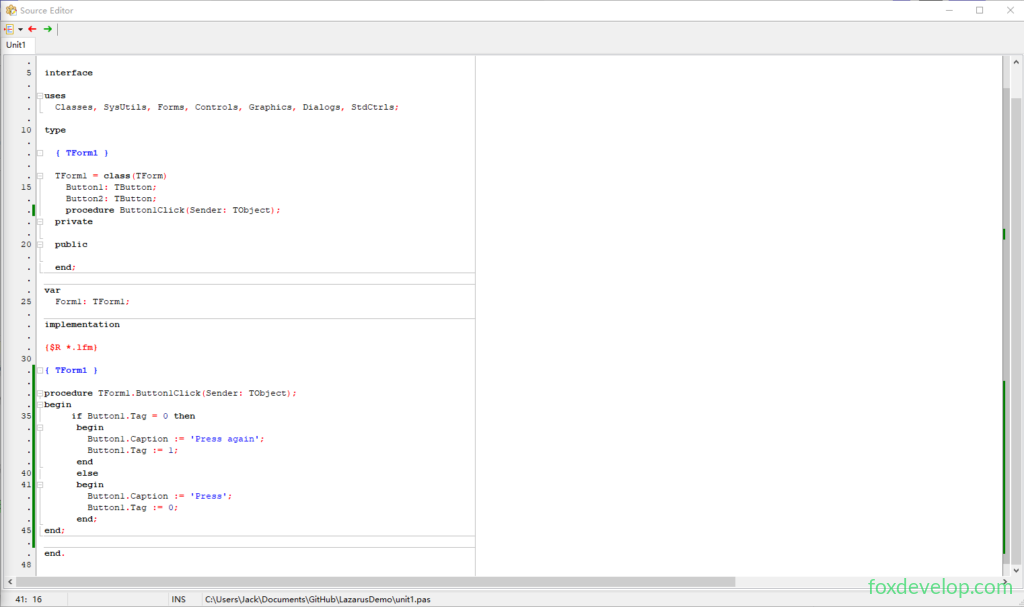
Now we will modify the example from the last lesson to add more property changes on button click
procedure TForm1.Button1Click(Sender: TObject);
begin
  // Switch text state via Tag
  if Button1.Tag = 0 then
  begin
    Button1.Caption := 'Press again';
    Button1.Tag := 1;
    // Modify control size and color through code
    Button1.Height := 50;
    Button1.Color := clYellow;
  end
  else
  begin
    Button1.Caption := 'Press';
    Button1.Tag := 0;
    Button1.Height := 30;
    Button1.Color := clBtnFace;
  end;
end;  Code language: JavaScript (javascript)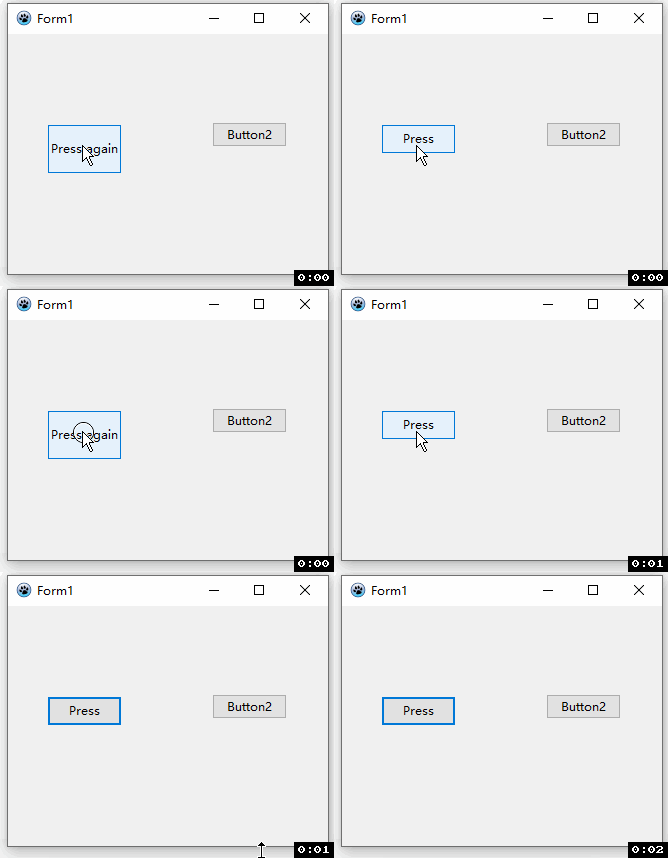
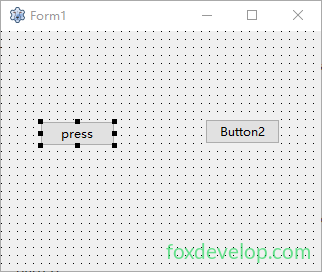
The Form1 Form Designer window overlays the code editor
Tips
- Shortcut
F12: Switch between Form Designer / Source Code view - Form window: Drag controls to draw software graphical interfaces
- Code Editor: Write Pascal business logic code
Other Auxiliary Windows
Message Window (Bottom of screen) Outputs compilation logs, errors and runtime prompts during program build;

Project Inspector Project Manager Displays all files contained in the project, supports adding / deleting units and forms;
Terminal Window (retained when launching Lazarus via terminal): Output full compilation logs.