卡片式布局-AppBarLayout
首先我们来分析一下为什么RecyclerView会把Toolbar给遮挡住吧。 其实并不难理解, 由于RecyclerView和Toolbar都是放置在CoordinatorLayout中的, 而前面已经说过, CoordinatorLayout就是一个加强版的FrameLayout, 那么FrameLayout中的所有控件在不进行明确定位的情况下, 默认都会摆放在布局的左上角, 从而也就产生了遮挡的现象。
既然已经找到了问题的原因, 那么该如何解决呢? 传统情况下, 使用偏移是唯一的解决办法,即让RecyclerView向下偏移一个Toolbar的高度, 从而保证不会遮挡到Toolbar。 不过我们使用的并不是普通的FrameLayout, 而是CoordinatorLayout, 因此自然会有一些更加巧妙的解决办法。
这里我准备使用Design Support库中提供的另外一个工具——AppBarLayout。 AppBarLayout实际上是一个垂直方向的LinearLayout, 它在内部做了很多滚动事件的封装, 并应用了一些MaterialDesign的设计理念。
那么我们怎样使用AppBarLayout才能解决前面的覆盖问题呢? 其实只需要两步就可以了, 第一步将Toolbar嵌套到AppBarLayout中, 第二步给RecyclerView指定一个布局行为。修改activity_main.xml中的代码, 如下所示:
<android.support.v4.widget.DrawerLayout
    xmlns:android="http://schemas.android.com/apk/res/android"
    xmlns:app="http://schemas.android.com/apk/res-auto"
    android:id="@+id/drawer_layout"
    android:layout_width="match_parent"
    android:layout_height="match_parent">
    <android.support.design.widget.CoordinatorLayout
        android:layout_width="match_parent"
        android:layout_height="match_parent">
        <android.support.design.widget.AppBarLayout
            android:layout_width="match_parent"
            android:layout_height="wrap_content">
            <android.support.v7.widget.Toolbar
                android:id="@+id/toolbar"
                android:layout_width="match_parent"
                android:layout_height="?attr/actionBarSize"
                android:background="?attr/colorPrimary"
                android:theme="@style/ThemeOverlay.AppCompat.Dark.ActionBar"
                app:popupTheme="@style/ThemeOverlay.AppCompat.Light" />
        </android.support.design.widget.AppBarLayout>
        <android.support.v7.widget.RecyclerView
            android:id="@+id/recycler_view"
            android:layout_width="match_parent"
            android:layout_height="match_parent"
            app:layout_behavior="@string/appbar_scrolling_view_behavior" />
    </android.support.design.widget.CoordinatorLayout>
</android.support.v4.widget.DrawerLayout>Code language: HTML, XML (xml)
可以看到, 布局文件并没有什么太大的变化。 我们首先定义了一个AppBarLayout, 并将Toolbar放置在了AppBarLayout里面, 然后在RecyclerView中使用app:layout_behavior 属性指定了一个布局行为。 其中appbar_scrolling_view_behavior 这个字符串也是由Design Support库提供的。
那么下面就让我们来进一步优化, 看看AppBarLayout到底能实现什么样的Material Design效果。当AppBarLayout接收到滚动事件的时候, 它内部的子控件其实是可以指定如何去影响这些事件的, 通过app:layout_scrollFlags 属性就能实现。 修改activity_main.xml中的代码, 如下所示:
<android.support.v4.widget.DrawerLayout
    xmlns:android="http://schemas.android.com/apk/res/android"
    xmlns:app="http://schemas.android.com/apk/res-auto"
    android:id="@+id/drawer_layout"
    android:layout_width="match_parent"
    android:layout_height="match_parent">
    <android.support.design.widget.CoordinatorLayout
        android:layout_width="match_parent"
        android:layout_height="match_parent">
        <android.support.design.widget.AppBarLayout
            android:layout_width="match_parent"
            android:layout_height="wrap_content">
            <android.support.v7.widget.Toolbar
                android:id="@+id/toolbar"
                android:layout_width="match_parent"
                android:layout_height="?attr/actionBarSize"
                android:background="?attr/colorPrimary"
                android:theme="@style/ThemeOverlay.AppCompat.Dark.ActionBar"
                app:popupTheme="@style/ThemeOverlay.AppCompat.Light"
                app:layout_scrollFlags="scroll|enterAlways|snap" />
        </android.support.design.widget.AppBarLayout>
        ...
    </android.support.design.widget.CoordinatorLayout>
    ...
</android.support.v4.widget.DrawerLayout>Code language: HTML, XML (xml)
这里在Toolbar中添加了一个app:layout_scrollFlags 属性, 并将这个属性的值指定成了scroll|enterAlways|snap 。 其中:
scroll表示当RecyclerView向上滚动的时候, Toolbar会跟着一起向上滚动并实现隐藏;enterAlways表示当RecyclerView向下滚动的时候, Toolbar会跟着一起向下滚动并重新显示;snap表示当Toolbar还没有完全隐藏或显示的时候, 会根据当前滚动的距离, 自动选择是隐藏还是显示。
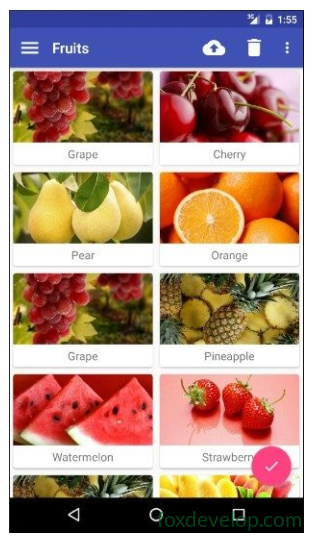
可以看到, 随着我们向上滚动RecyclerView, Toolbar竟然消失了, 而向下滚动RecyclerView,Toolbar又会重新出现。 这其实也是Material Design中的一项重要设计思想, 因为当用户在向上滚动RecyclerView的时候, 其注意力肯定是在RecyclerView的内容上面的, 这个时候如果Toolbar还占据着屏幕空间, 就会在一定程度上影响用户的阅读体验, 而将Toolbar隐藏则可以让阅读体验达到最佳状态。 当用户需要操作Toolbar上的功能时, 只需要轻微向下滚动, Toolbar就会重新出现。 这种设计方式, 既保证了用户的最佳阅读效果, 又不影响任何功能上的操作, MaterialDesign考虑得就是这么细致入微。