The Console Class
Belongs to the System namespace, part of the .NET Base Class Library (BCL)
Handles text read and write operations for console windows, with two core output methods available: Write() / WriteLine()
In Visual Studio, place your cursor over the word Console and hit F12 to inspect the source definition of this class
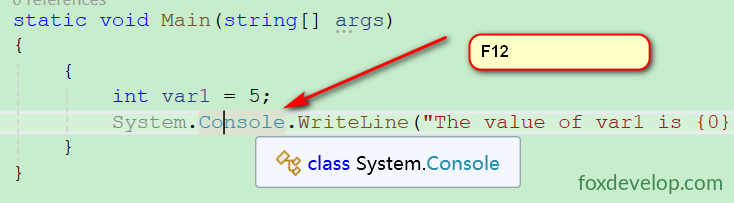
You’ll then be directed to view the metadata of Console. Note this isn’t the actual source code; it’s Visual Studio’s built-in decompiler that displays the class’s methods, type name, parameters and other member info.
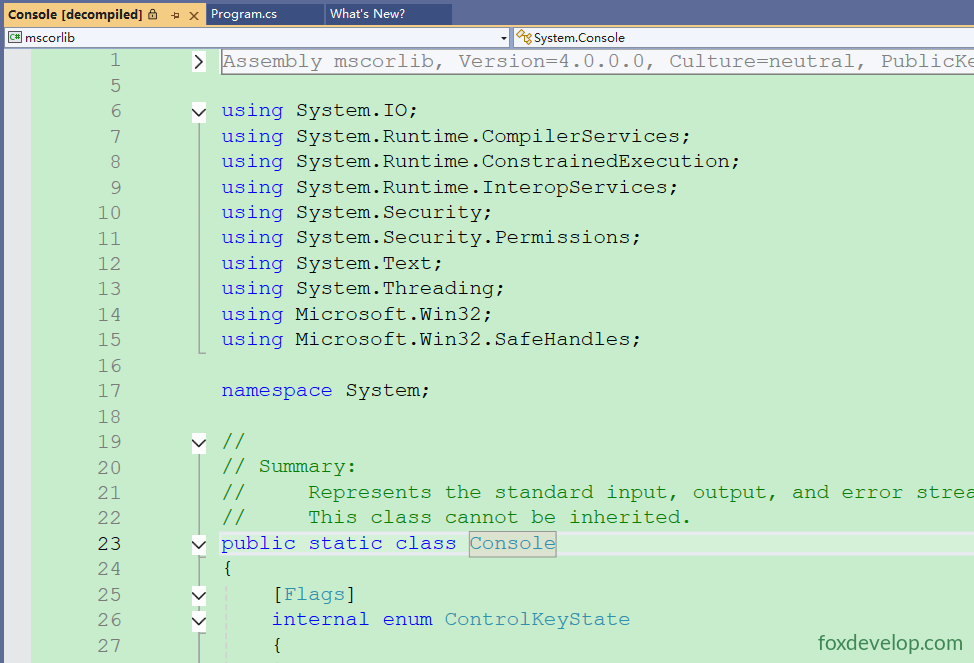
Inside the Console metadata view, you’ll find callable functions including Write() and WriteLine().
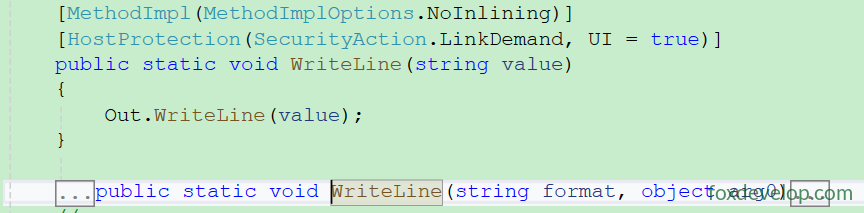
Console.Write()
Does not automatically append line breaks after printing text; consecutive outputs will be concatenated onto a single line
            // Shorthand syntax (using System declared at the top skips the System. prefix)
            Console.Write("Hello everyone.");

            // Fully qualified syntax
            System.Console.Write("This is foxdevelop.");
            System.Console.Write("This is com.");
            System.Console.Write("good luck.");Code language: C# (cs)
Copy the snippet above into your Main method and run the program.
using System;
using System.Collections.Generic;
using System.Linq;
using System.Text;
using System.Threading.Tasks;

namespace HelloDemo
{
    internal class Program
    {
        static void Main(string[] args)
        {
            // Shorthand syntax (using System declared at the top skips the System. prefix)
            Console.Write("Hello everyone.");

            // Fully qualified syntax
            System.Console.Write("This is foxdevelop.");
            System.Console.Write("This is com.");
            System.Console.Write("good luck.");
        }
    }
}Code language: C# (cs)
Program Output
Hello everyone.This is foxdevelop.This is com.good luck.Code language: CSS (css)Text literals must be wrapped in double quotation marks; single quotes cannot be used here.
Console.WriteLine()
Identical functionality to Write, except it automatically adds a newline character after each output, forcing every print statement onto its own separate line.
After every print operation, the cursor carriage returns to the start of the next line, ready for subsequent text output.
            Console.WriteLine("Hello everyone.");

            Console.WriteLine("This is foxdevelop.");
            Console.WriteLine("This is com.");
            Console.WriteLine("good luck.");Code language: C# (cs)
Program Output
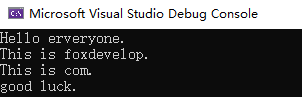
Notice the line breaks this time—the cursor jumps down one row after every printed message.
Format Strings
(Legacy placeholder syntax still widely adopted in older codebases)
- Method signature format:
Console.WriteLine(formatString, replacementValue0, replacementValue1, ...) - The first argument is always the format string, which uses
{numericIndex}as substitution markers - Marker indices start at
0and map sequentially to each supplied replacement value that follows - Multiple replacement parameters are separated by commas
        static void Main(string[] args)
        {
            Console.WriteLine(" {0} + {1} = {2}", 9, 6,9 + 6);
        }Code language: C# (cs)
Program Output
9 + 6 = 15The initial string literal ” {0} + {1} = {2}” contains three placeholder slots marked with sequential numbers. These correspond to the three trailing arguments: 9, 6, and the evaluated sum 15. The runtime swaps each numeric marker with its matching input value before rendering text.
String Interpolation
A handy modern syntax introduced in C# 6.0 that lets you embed variables directly inside placeholder brackets
Prefix a string literal with the $ symbol to enable interpolation. Write variable names directly within curly braces {}; the compiler handles value substitution automatically with no extra input parameters required.
        static void Main(string[] args)
        {
            double pi = 3.14;
            string webSite = "foxdevelop.com";
            Console.WriteLine($"The Pi is {pi} and the website is {webSite}.");
        }Code language: C# (cs)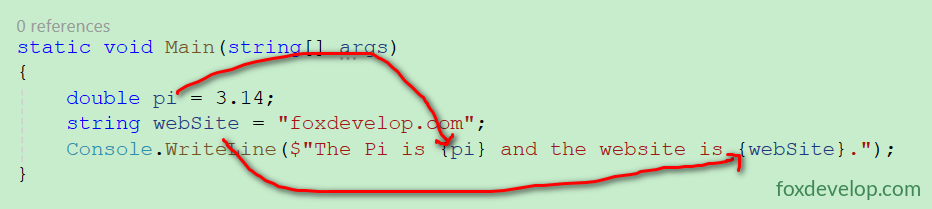
Program Output
The Pi is 3.14 and the website is foxdevelop.com.Code language: CSS (css)Multiple Variables
The sample below demonstrates embedding several variable placeholders inside one single string template
int latitude = 36;
int longitude = 17;
string north = "N", east = "E", south = "S";
Console.WriteLine($"Latitude {latitude}{north}, Longitude {longitude}{east}");
Code language: JavaScript (javascript)
Execution Output
Latitude 36N, Longitude 17E
Key Notes
Complex interpolated expressions make it easy to mix up variable order. You should master both legacy format syntax and modern string interpolation, as countless production projects still rely on the older placeholder pattern.
Console Text Output Operations