Visual Studio is a fully-featured development environment packed with a complete suite of tools for building all sizes of C# projects targeting Windows. You can even create mixed-language solutions that seamlessly integrate code modules written in C++, Visual Basic and F#.
Download and Install Visual Studio
You’ll need Visual Studio 2022 Community Edition to follow this guide; the download link is provided below.
InstallTools/vs_Community2022.exe at main · xzapps/InstallTools
Grab the installer from the link above. Microsoft no longer hosts the 2022 release on their official website, so this GitHub link is the source we’ll use.
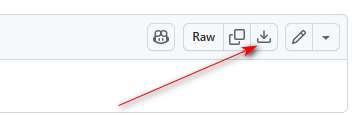
Click the arrow shown in the screenshot to start your download.
For installation guidance, refer to Microsoft’s official documentation here: Install Visual Studio and Choose Your Preferred Features | Microsoft Learn
One critical step requires you to pick the workloads you intend to install.
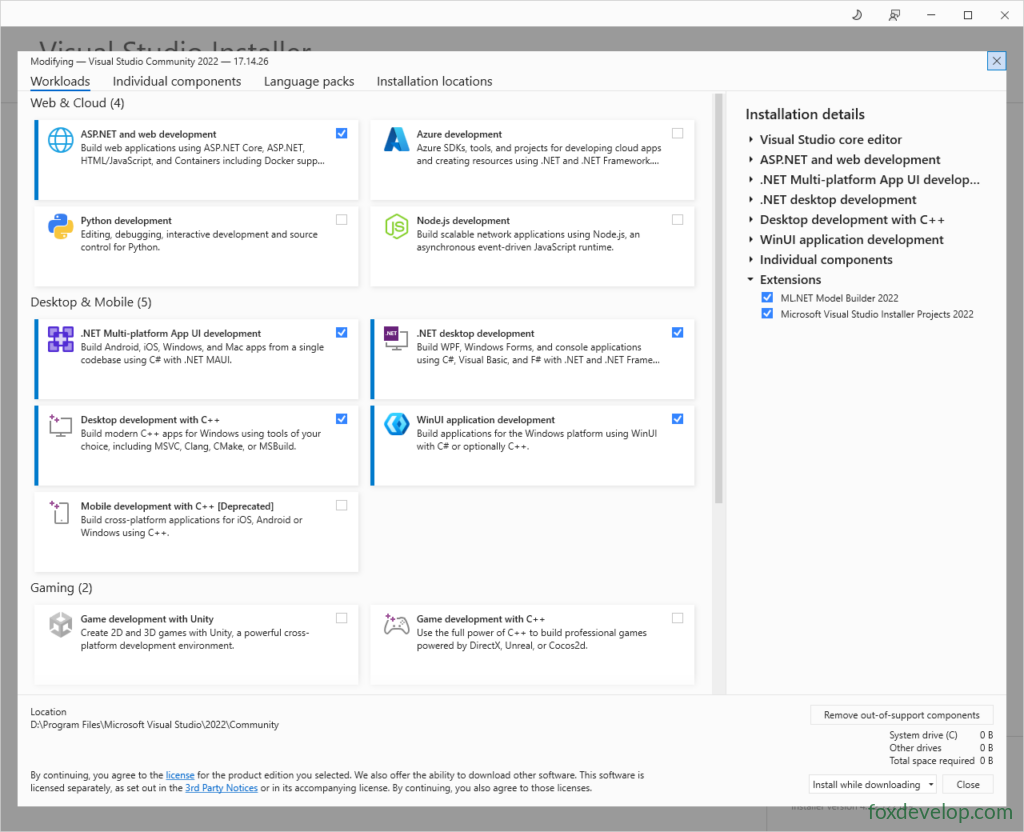
If you’re coding in C# and building web apps, tick ASP.NET and Web Development. You can skip this if web development isn’t needed, though beginners are recommended to include it.
Check Desktop & Mobile workloads as shown above. If you plan to write C++ code, enable the C++ workload. If not, just select the first two options: .NET Multi-platform App UI development and .NET Desktop Development.
Tick all the optional libraries listed on the right side. Also keep in mind Visual Studio takes up a large amount of disk space — potentially dozens of gigabytes — so make sure your PC has enough free storage.
The setup process downloads installation files online before configuring the IDE, so please be patient while it runs.
Create a Console App in Visual Studio 2022
1. Launch Visual Studio 2022
Open the Start Menu on your Windows taskbar, type Visual Studio 2022 and hit Enter. You may also click the VS2022 shortcut icon directly from the Start Menu. Once loaded, the Visual Studio start page will appear.
2. Create a New Project
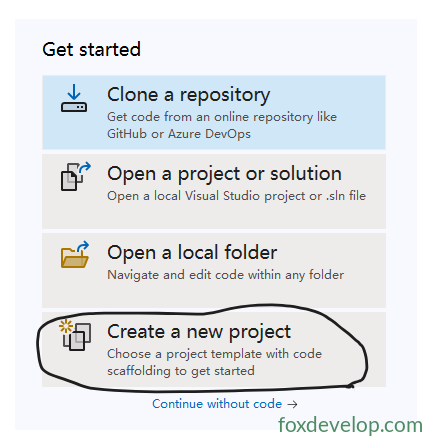
From the Get Started panel on the right, click Create a new project to bring up the template selection window.
In the template popup window, select the C# .NET Console Application template; use the filter bar at the top-right to narrow down results quickly.
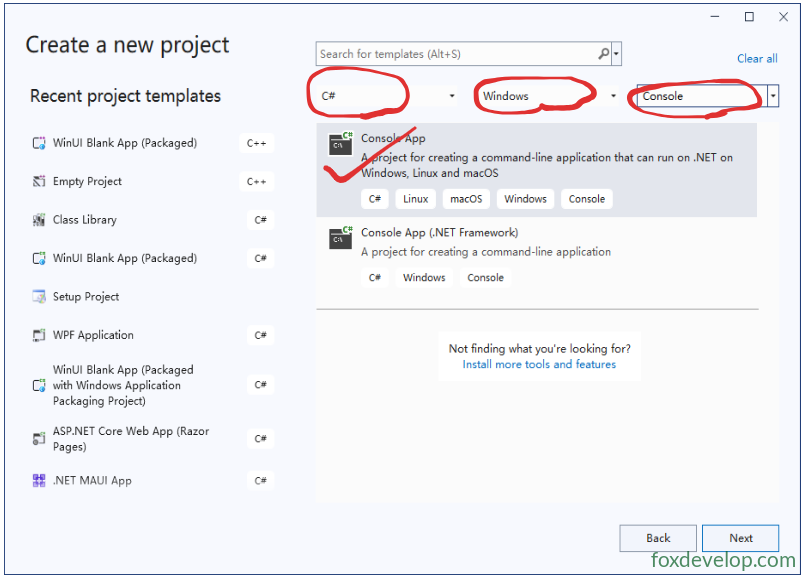
Two console templates are available here: the top one targets modern .NET, while the lower one uses .NET Framework. We will choose the top option.
- .NET Framework template: Windows-only .NET runtime implementation;
- Console Application (no Framework suffix, based on .NET Core/.NET 5+): Cross-platform, works on Windows, Linux and macOS;
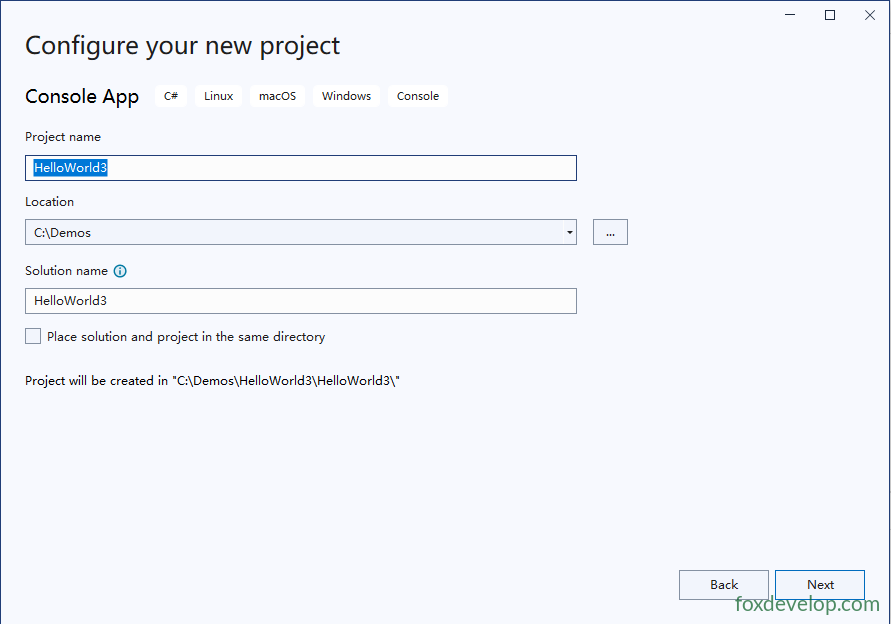
Enter your project name; the solution name will automatically match your project name by default.
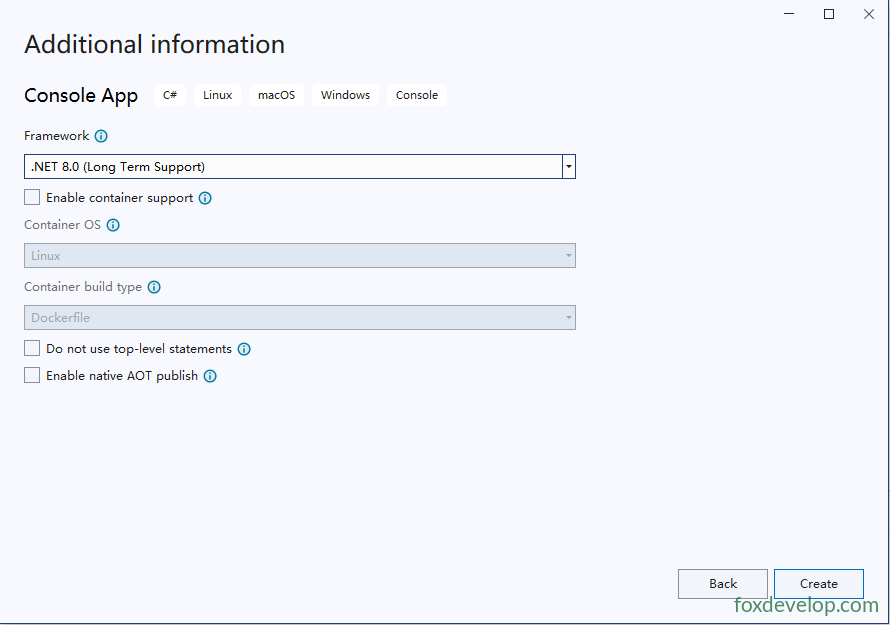
Select .NET 8.0 as your target framework version.
Once the project finishes generating, your folder structure will look like this:
The root directory of our solution:
C:\Demos\HelloWorld3
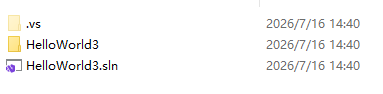
Open the HelloWorld3 subfolder — this folder holds all core project files.
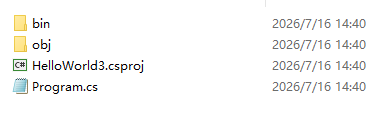
- Solution (.sln): A container file that groups multiple related projects, designed for large multi-project development workflows;
- Project (.csproj): A single build unit; compiles into an executable EXE or library file, storing all source code and configuration settings.
A single solution can contain multiple separate projects, such as console apps, web applications, WPF GUI projects and class libraries.
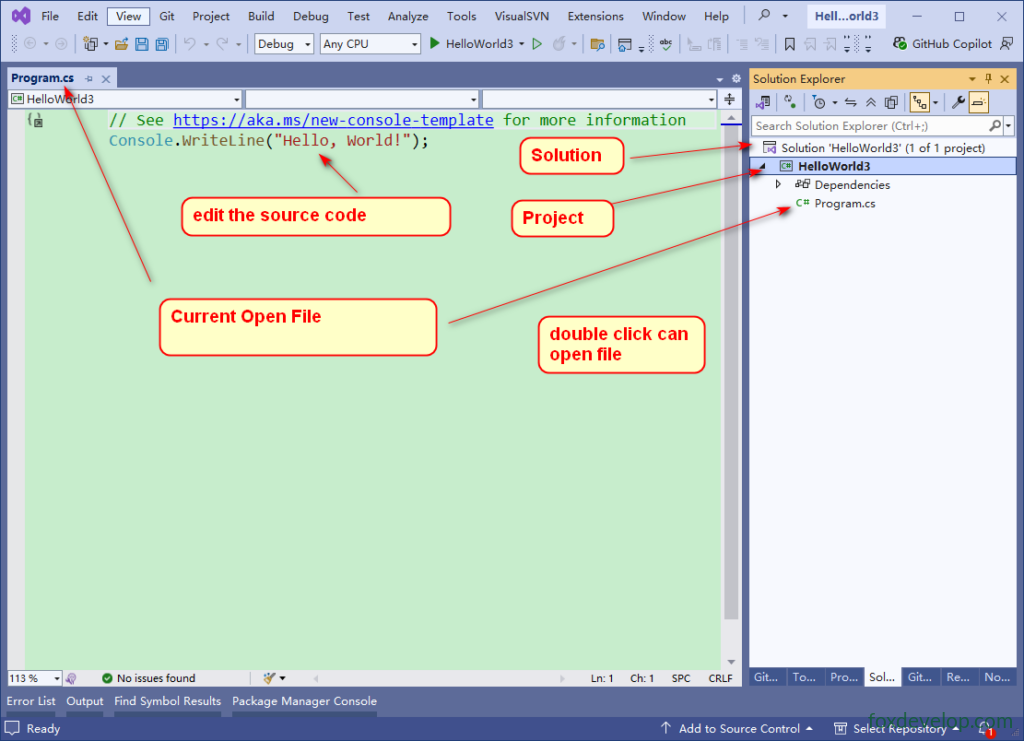
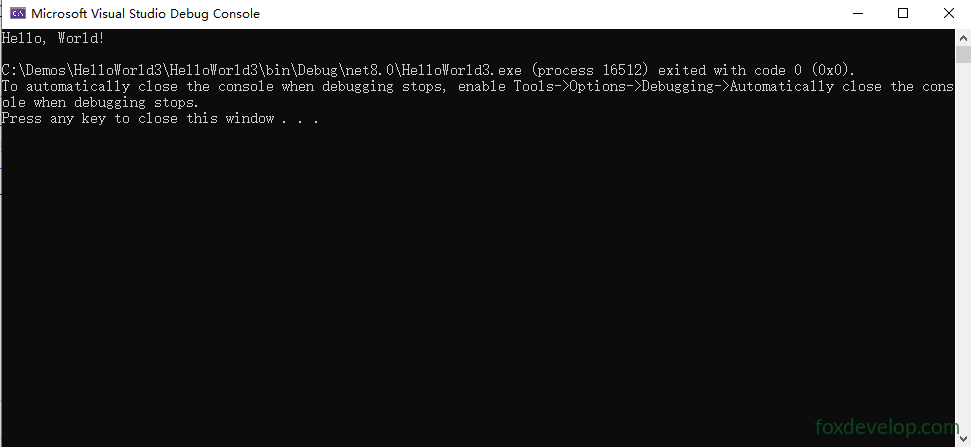
Click the green play button to build and run your project.

A command-line console window will pop up, printing the text “Hello world”.
Overview of the Visual Studio UI Layout
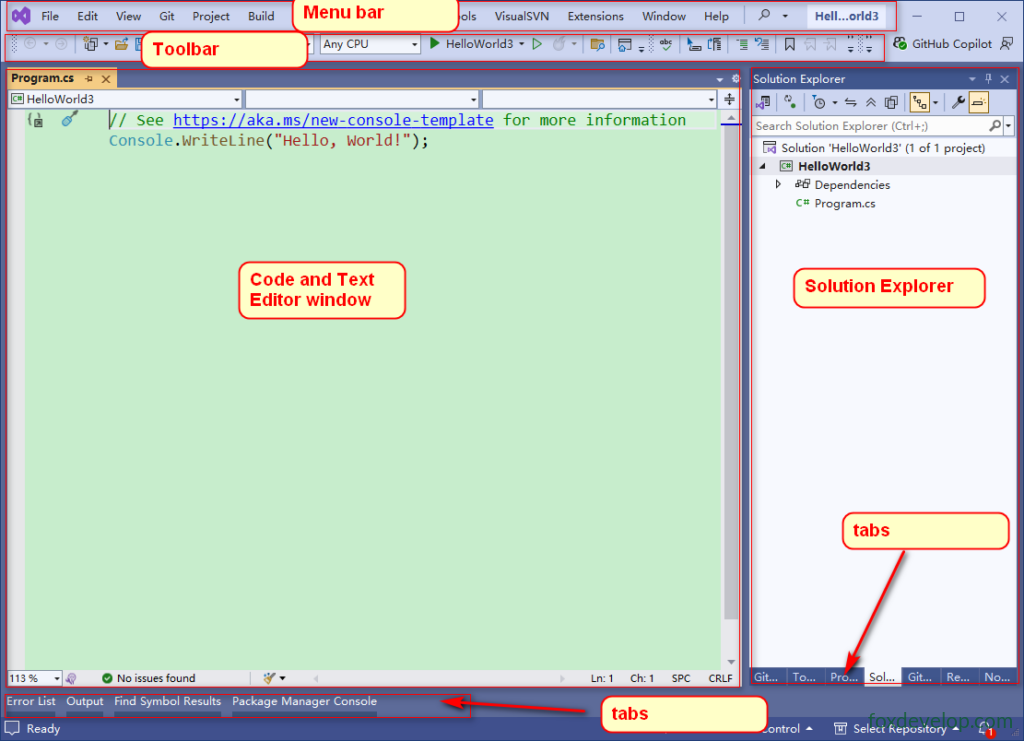
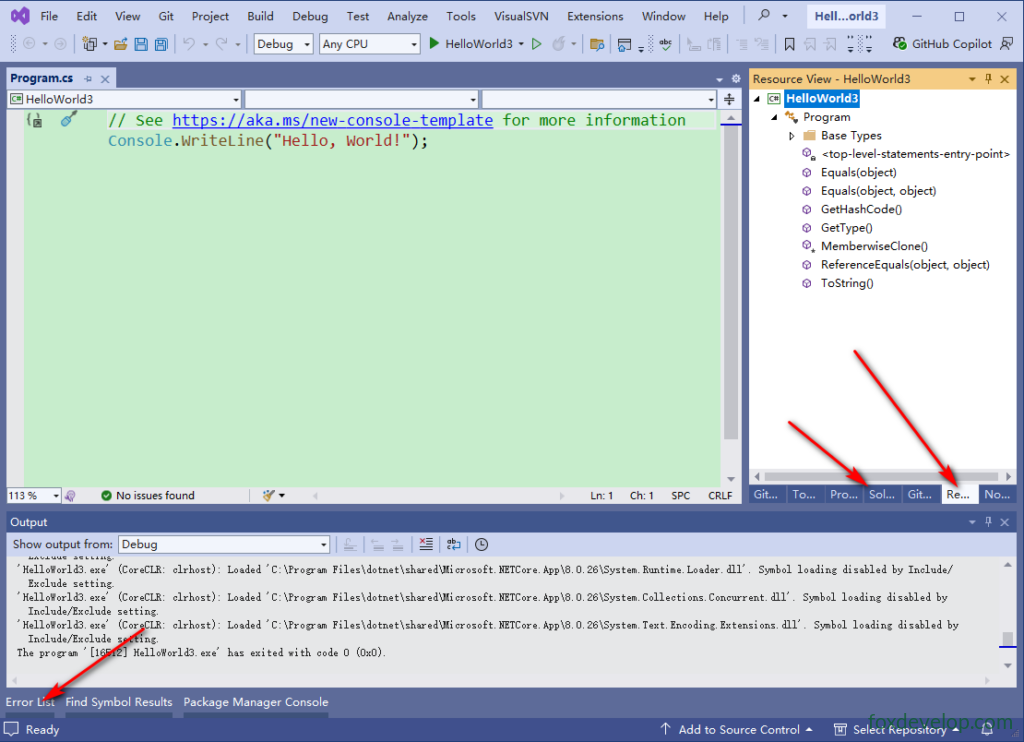
The Solution Explorer panel sits on the right side; you can switch between its different tabs. At the bottom of the window you’ll find auxiliary panes like the Error List and Output window, which you can open and toggle between with a single click.
Creating new projects within Visual Studio 2022