Build and run C# projects with the .NET CLI tool
Navigate back to the C:\csdemo directory, which is the parent folder of the HelloWorld directory we worked on in the last lesson.
Create a new directory by running mkdir HelloWorld2. You can also right-click and create a new folder manually, or
Then switch into this folder via command line with cd HelloWorld2
Run the command below to generate a brand-new console app. console is the built-in template name within the .NET CLI for generating applications:
dotnet new consoleCode language: JavaScript (javascript)C:\csdemo>mkdir HelloWorld
C:\csdemo>cd HelloWorld
C:\csdemo\HelloWorld>cd ..
C:\csdemo>mkdir HelloWorld2
C:\csdemo>cd HelloWorld2
C:\csdemo\HelloWorld2>dotnet new console
The template "Console App" was created successfully.
Processing post-creation actions...
Restoring C:\csdemo\HelloWorld2\HelloWorld2.csproj:
Restore succeeded.Code language: JavaScript (javascript)Note: The .NET CLI ships with a wide range of project templates for building different types of applications, such as ASP.NET web apps, Windows Forms GUI desktop programs and more.
Once the project is generated, open the project folder and you’ll see these files
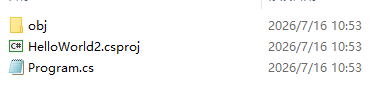
You can also run the dir command in terminal to list all files stored inside the folder
You’ll notice three new files and one folder have been added to the directory
- Project file:
HelloWorld2.csproj - C# source code file:
Program.cs - Folder:
obj(stores compilation configs, cache data and other resources required for .NET compilation and execution)
Open HelloWorld2.csproj with Notepad
<Project Sdk="Microsoft.NET.Sdk">

  <PropertyGroup>
    <OutputType>Exe</OutputType>
    <TargetFramework>net10.0</TargetFramework>
    <ImplicitUsings>enable</ImplicitUsings>
    <Nullable>enable</Nullable>
  </PropertyGroup>

</Project>
Code language: HTML, XML (xml)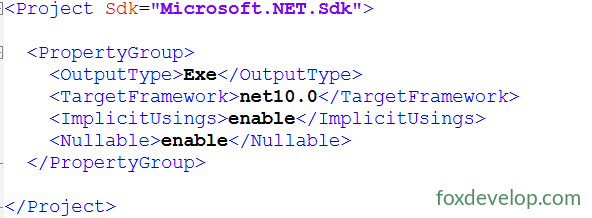
.NET 10 is already installed on my machine, so newly created projects target net10.0 by default
Open Program.cs to view its default boilerplate code
// See https://aka.ms/new-console-template for more information
Console.WriteLine("Hello, World!");Code language: JavaScript (javascript)
Compile and launch the application by executing this command
dotnet run
Upon successful execution, the console outputs this text: Hello World!
Readers with prior programming experience may have a question: I was told the program’s entry point is the Main function — why can’t I see it here?
This is actually a modern .NET feature called top-level statements (no explicit Main required), a syntactic sugar introduced in newer C# versions. For minimal code scenarios, the compiler auto-generates a hidden Main entry point to eliminate repetitive boilerplate code
The full equivalent version of the code above looks like this:
using System;

namespace HelloWorld2
{
    class Program
    {
        static void Main(string[] args)
        {
            Console.WriteLine("Hello World!");
        }
    }
}Code language: JavaScript (javascript)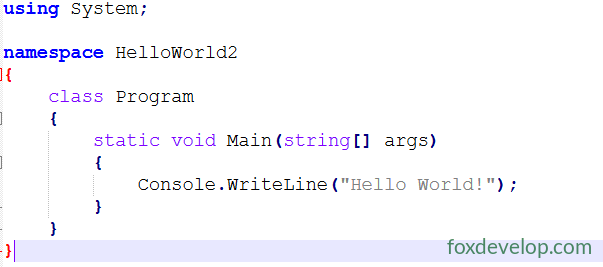
Run the dotnet run command once more

The code will compile and execute without any issues.
<Project Sdk="Microsoft.NET.Sdk">: Declares that the project uses the new-style .NET SDK project format
<OutputType>Exe</OutputType>: Marks the project to compile into an executable binary (mandatory setting for console applications)
<TargetFramework>net10.0</TargetFramework>: Specifies the .NET 10.0 framework version the project targets for runtime
// Import the built-in System namespace, which contains the Console class
using System;

// Define a project-specific namespace HelloWorld2 to isolate classes across separate projects and prevent naming conflicts
namespace HelloWorld2
{
    // Main application class; named Program by default in .NET console templates
    class Program
    {
        /// <summary>
        /// The sole entry point method for all C# programs, executed automatically when the app launches
        /// static: Static method, callable without instantiating the Program class
        /// void: No return value; the program sends no data back to the OS upon termination
        /// string[] args: String array capturing command-line arguments passed when launching the program
        /// </summary>
        static void Main(string[] args)
        {
            // Console.WriteLine(): Method to print text to the command console
            // WriteLine inserts an automatic line break after outputting text
            // "Hello World!" is the literal string printed to the terminal window
            Console.WriteLine("Hello World!");
        }
    }
}Code language: PHP (php)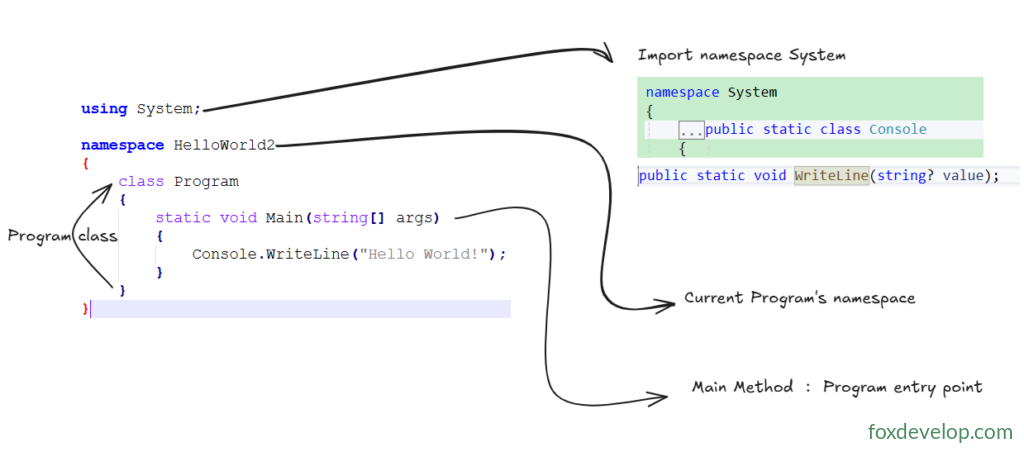
The very first line of code imports the System namespace, allowing you to directly use all classes inside it within Program.cs without prefixing them with System. If you skip this import, you must write the fully qualified class name.
In the call Console.WriteLine above, Console refers to the class name and WriteLine is the method name — refer to the top-right section of the screenshot above for reference.